> ## Documentation Index
> Fetch the complete documentation index at: https://docs.rxresu.me/llms.txt
> Use this file to discover all available pages before exploring further.
# Checking your resume before you apply
> Use Check mode to see how well software reads your resume, fix issues pinned to their lines, match a job posting and review your wording.
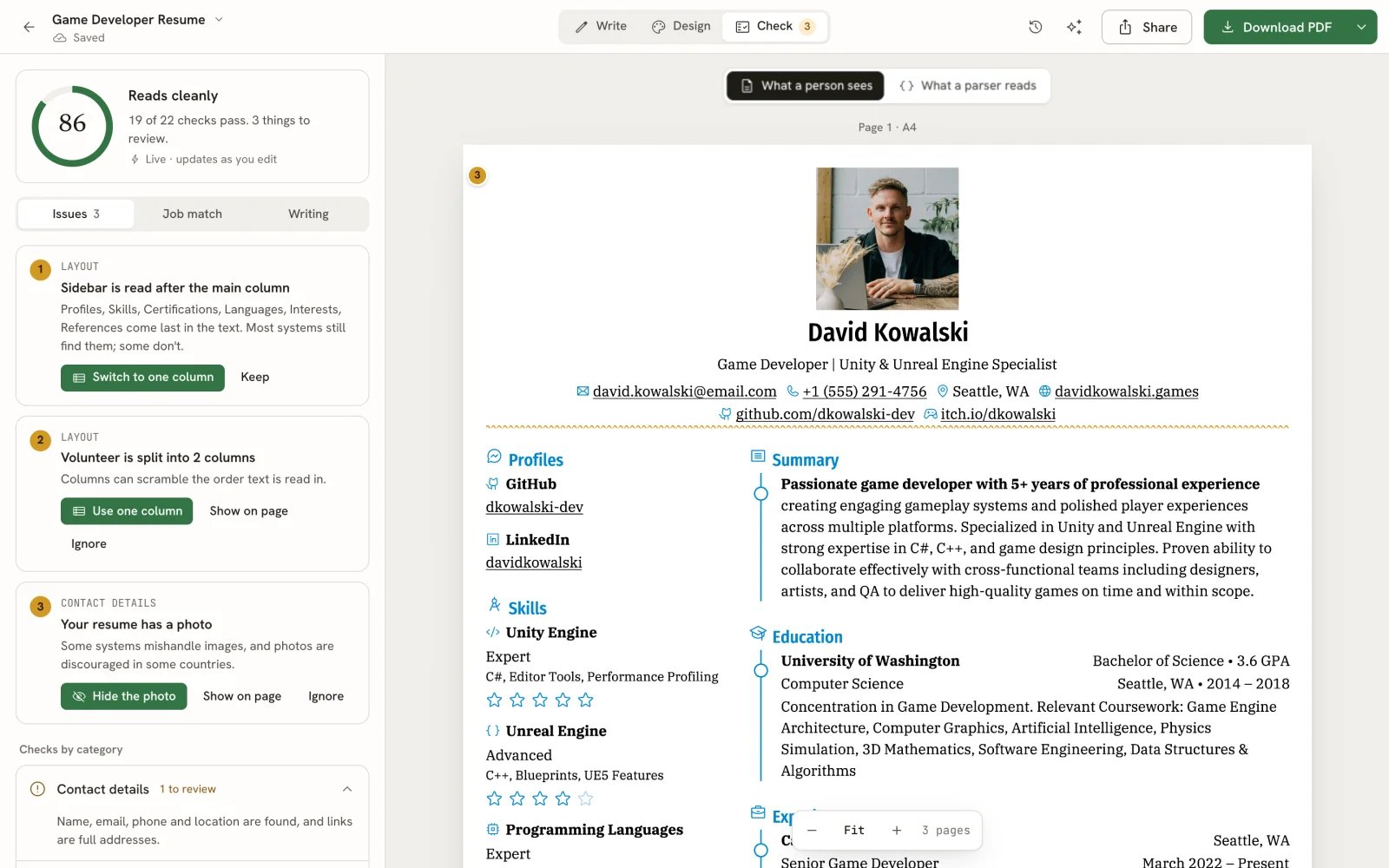
Before you send a resume, open **Check** in the editor. It shows how reliably an applicant tracking system (ATS) can read your resume, pins each problem to the line it's about, and compares your resume with a job posting. Everything except the optional writing review runs in your browser.
 ## Open Check
In the editor bar, select **Check**, or press 3 when you aren't typing in a field. The tab shows how many issues are open, or a check mark when there are none.
Check updates as you edit. Switch to **Write**, change something, and the score and issues follow straight away.
## Read the score
The panel starts with a score from 0 to 100 and a short verdict: **Reads cleanly** (80 and above), **Mostly readable** (50 to 79) or **Hard for software to read** (below 50).
## Open Check
In the editor bar, select **Check**, or press 3 when you aren't typing in a field. The tab shows how many issues are open, or a check mark when there are none.
Check updates as you edit. Switch to **Write**, change something, and the score and issues follow straight away.
## Read the score
The panel starts with a score from 0 to 100 and a short verdict: **Reads cleanly** (80 and above), **Mostly readable** (50 to 79) or **Hard for software to read** (below 50).
 The score is the share of checks your resume passes, for example **19 of 22 checks pass**. There are 22 checks, grouped into five categories:
| Category | What it looks at |
| - | - |
| **Contact details** | Your name, email, phone and location are there, email and links are in a form software recognises, and whether a photo is showing. |
| **Dates** | Every experience and education entry has dates, in a form software reads, that don't run backwards or start in the future. |
| **Layout** | Every section with entries is placed on a page, text reads in order (sidebars, multi-column sections), and body text size, line height and page margins aren't too small. |
| **Section headings** | Headings are ones software looks for, such as Experience, Education and Skills, and some work history shows. |
| **Writing** | Every role describes what you did. |
The heading check only runs when your resume's language is English, so resumes in other languages have 21 checks.
The score measures how reliably software can read your resume. It doesn't predict whether you'll be shortlisted.
Below the issues, **Checks by category** lists each category with how many checks pass, or how many need a look. Select a row to read what it covers.
The score is the share of checks your resume passes, for example **19 of 22 checks pass**. There are 22 checks, grouped into five categories:
| Category | What it looks at |
| - | - |
| **Contact details** | Your name, email, phone and location are there, email and links are in a form software recognises, and whether a photo is showing. |
| **Dates** | Every experience and education entry has dates, in a form software reads, that don't run backwards or start in the future. |
| **Layout** | Every section with entries is placed on a page, text reads in order (sidebars, multi-column sections), and body text size, line height and page margins aren't too small. |
| **Section headings** | Headings are ones software looks for, such as Experience, Education and Skills, and some work history shows. |
| **Writing** | Every role describes what you did. |
The heading check only runs when your resume's language is English, so resumes in other languages have 21 checks.
The score measures how reliably software can read your resume. It doesn't predict whether you'll be shortlisted.
Below the issues, **Checks by category** lists each category with how many checks pass, or how many need a look. Select a row to read what it covers.
 ## Fix issues
The **Issues** tab lists every open issue as a numbered card, most serious first. Each card names its category, says what's wrong in plain words, and offers a fix.
Each issue about a specific part of your resume has a matching numbered pin in the page margin, with a wavy underline under that part. Select a card, or its **Show on page** button, to outline the line on the page and scroll to it. Select a pin on the page to jump to its card.
## Fix issues
The **Issues** tab lists every open issue as a numbered card, most serious first. Each card names its category, says what's wrong in plain words, and offers a fix.
Each issue about a specific part of your resume has a matching numbered pin in the page margin, with a wavy underline under that part. Select a card, or its **Show on page** button, to outline the line on the page and scroll to it. Select a pin on the page to jump to its card.
 Many issues fix in one step. The card's main button says what it does, for example **Hide the photo**, **Use one column**, **Switch to one column** or **Use the standard heading**. A message confirms the change and offers **Undo**.
Other issues need you to write something, such as a missing phone number or a role with no description. Their button, for example **Add a phone number** or **Describe the role**, switches to **Write** and opens the right field.
If an issue doesn't apply to you, select **Ignore**. For a choice that is yours to make, such as a two-column design, the button reads **Keep** instead. Ignored issues no longer count against the score. To bring them back, select **Show them again** under the list.
When every check passes, the tab reads **Nothing to fix.**
On a phone, selecting a pin opens a bar at the top of the page that reads "Issue 1 of 3". Use the arrows to step
through the issues and fix each one from the card at the bottom, without leaving the page.
## See what a parser reads
At the top of the page, switch from **What a person sees** to **What a parser reads**. The page is replaced by the text software pulls out of your resume's PDF, in the order it comes out, with the name, email, phone, location, links, section headings and dates it recognised.
Many issues fix in one step. The card's main button says what it does, for example **Hide the photo**, **Use one column**, **Switch to one column** or **Use the standard heading**. A message confirms the change and offers **Undo**.
Other issues need you to write something, such as a missing phone number or a role with no description. Their button, for example **Add a phone number** or **Describe the role**, switches to **Write** and opens the right field.
If an issue doesn't apply to you, select **Ignore**. For a choice that is yours to make, such as a two-column design, the button reads **Keep** instead. Ignored issues no longer count against the score. To bring them back, select **Show them again** under the list.
When every check passes, the tab reads **Nothing to fix.**
On a phone, selecting a pin opens a bar at the top of the page that reads "Issue 1 of 3". Use the arrows to step
through the issues and fix each one from the card at the bottom, without leaving the page.
## See what a parser reads
At the top of the page, switch from **What a person sees** to **What a parser reads**. The page is replaced by the text software pulls out of your resume's PDF, in the order it comes out, with the name, email, phone, location, links, section headings and dates it recognised.
 Use it to spot content that lands in the wrong place, for example a sidebar read after your experience, or a field picked up from the wrong line. Switch back with **What a person sees**.
## Match your resume to a job
The **Job match** tab picks out the terms a job posting stresses and shows which ones your resume already has. It isn't part of the score.
If the resume is linked to an application that has a saved posting, Job match uses that posting. If the linked application has no posting yet, paste it into the box and select **Save to the application**. Otherwise, choose an application from the list, or paste the posting into the box and select **Match this posting**.
A pasted posting is kept for this visit only. To keep it, select **Save as application…**, enter the **Company** and **Role**, and select **Save and link**. This creates an application and links the resume to it.
The tab shows how many posting terms appear, for example **19 of 25 posting terms appear**. Terms under **Not in your resume · add only if true** are missing. Terms under **Already covered** are there already: select one to highlight where it appears on the page.
Select a missing term to see how often the posting uses it, then choose:
* **Add to Skills** to add it as a keyword on your first visible skill, which the button names (for example **Add to Skills · Unity Engine**). If you have no skills, it creates one.
* **Ask the assistant to work it in** to open the Assistant, which asks you before it adds anything.
* **Not true for me, hide it** to leave it out of the match. Hidden terms are listed under the tab with **Show again**.
Use it to spot content that lands in the wrong place, for example a sidebar read after your experience, or a field picked up from the wrong line. Switch back with **What a person sees**.
## Match your resume to a job
The **Job match** tab picks out the terms a job posting stresses and shows which ones your resume already has. It isn't part of the score.
If the resume is linked to an application that has a saved posting, Job match uses that posting. If the linked application has no posting yet, paste it into the box and select **Save to the application**. Otherwise, choose an application from the list, or paste the posting into the box and select **Match this posting**.
A pasted posting is kept for this visit only. To keep it, select **Save as application…**, enter the **Company** and **Role**, and select **Save and link**. This creates an application and links the resume to it.
The tab shows how many posting terms appear, for example **19 of 25 posting terms appear**. Terms under **Not in your resume · add only if true** are missing. Terms under **Already covered** are there already: select one to highlight where it appears on the page.
Select a missing term to see how often the posting uses it, then choose:
* **Add to Skills** to add it as a keyword on your first visible skill, which the button names (for example **Add to Skills · Unity Engine**). If you have no skills, it creates one.
* **Ask the assistant to work it in** to open the Assistant, which asks you before it adds anything.
* **Not true for me, hide it** to leave it out of the match. Hidden terms are listed under the tab with **Show again**.
 Once a resume is linked, the top of the tab names the application. Select **Change** to link a different application or to unlink it.
 ## Check the exported PDF
The checks above read your resume's content and settings. To test the actual file a recruiter receives, select **Also check the exported PDF** at the bottom of the **Issues** tab. Reactive Resume creates the PDF in your browser and runs the full file check on it, the same one the [ATS checker](/guides/using-the-ats-checker) uses. Nothing is uploaded.
A message tells you whether the PDF reads cleanly or how many more things there are to look at. Anything it finds is pinned to the page with a PDF icon and a dashed outline.
## Check the exported PDF
The checks above read your resume's content and settings. To test the actual file a recruiter receives, select **Also check the exported PDF** at the bottom of the **Issues** tab. Reactive Resume creates the PDF in your browser and runs the full file check on it, the same one the [ATS checker](/guides/using-the-ats-checker) uses. Nothing is uploaded.
A message tells you whether the PDF reads cleanly or how many more things there are to look at. Anything it finds is pinned to the page with a PDF icon and a dashed outline.
 Select **Show** in the message, or any PDF pin, to open the full report. It gives a score out of 100, a score for each category (**Readability**, **Layout**, **Sections**, **Contact details**, **Dates**), and each finding with what to do about it. **Writing** holds tips that don't affect the score.
 The pins show while the **Issues** tab is open, until you change the resume. After an edit, run the check again.
## Get a second opinion on your wording
The checks are mechanical. The **Writing** tab asks an AI model how a reader might react to your summary and bullets, and suggests rewrites. It needs your own AI provider; see [Connecting an AI provider](/guides/using-ai). Without one, the tab offers **Open AI settings**. Issues and Job match work without AI.
The tab says where your resume's text goes, for example "Sends your resume's text only to OpenAI · gpt-5-mini, with your key." To use another of your providers, select **Change** and pick it.
The pins show while the **Issues** tab is open, until you change the resume. After an edit, run the check again.
## Get a second opinion on your wording
The checks are mechanical. The **Writing** tab asks an AI model how a reader might react to your summary and bullets, and suggests rewrites. It needs your own AI provider; see [Connecting an AI provider](/guides/using-ai). Without one, the tab offers **Open AI settings**. Issues and Job match work without AI.
The tab says where your resume's text goes, for example "Sends your resume's text only to OpenAI · gpt-5-mini, with your key." To use another of your providers, select **Change** and pick it.
 Select **Review writing**. The review reads up to 120 bullets and paragraphs.
Rewrites of your own bullets appear as **Proposed edits**, numbered in the page margin. Select **Accept** or **Reject** on each, or **Accept all**. With an edit focused, A accepts it, R rejects it, and ↑ ↓ move between edits.
Advice that isn't a rewrite appears as a note marked **High**, **Medium** or **Low**, with **Show on page**. **What's working** lists your strengths. Select **Run again** for a fresh review.
A model's opinion can be wrong, and the review never changes the score. Accept only the rewrites that are true to your
experience.
## Related guides
Check any resume PDF, from any tool, without signing in.
Copy a resume for an application and adjust it to the posting.
Ask the AI assistant to rework parts of your resume.
Move sections between columns and pages.
This documentation is built and hosted on [Mintlify](https://mintlify.com), a developer documentation platform.
Select **Review writing**. The review reads up to 120 bullets and paragraphs.
Rewrites of your own bullets appear as **Proposed edits**, numbered in the page margin. Select **Accept** or **Reject** on each, or **Accept all**. With an edit focused, A accepts it, R rejects it, and ↑ ↓ move between edits.
Advice that isn't a rewrite appears as a note marked **High**, **Medium** or **Low**, with **Show on page**. **What's working** lists your strengths. Select **Run again** for a fresh review.
A model's opinion can be wrong, and the review never changes the score. Accept only the rewrites that are true to your
experience.
## Related guides
Check any resume PDF, from any tool, without signing in.
Copy a resume for an application and adjust it to the posting.
Ask the AI assistant to rework parts of your resume.
Move sections between columns and pages.
This documentation is built and hosted on [Mintlify](https://mintlify.com), a developer documentation platform.