> ## Documentation Index
> Fetch the complete documentation index at: https://docs.rxresu.me/llms.txt
> Use this file to discover all available pages before exploring further.
# Editing on a phone or tablet
> How the Reactive Resume editor works on phones and tablets: the Write, Page, Design and Check tabs, full-screen entries, the design sheet and the panel drawer.
You can build and edit a resume entirely from a phone or tablet. The editor has the same features as on a computer, arranged to fit a smaller screen. This page explains what changes and where to find things.
## On a phone
On a phone (any screen narrower than 640 pixels), the editor shows one thing at a time: either the page or a panel. Tabs at the bottom switch between them.
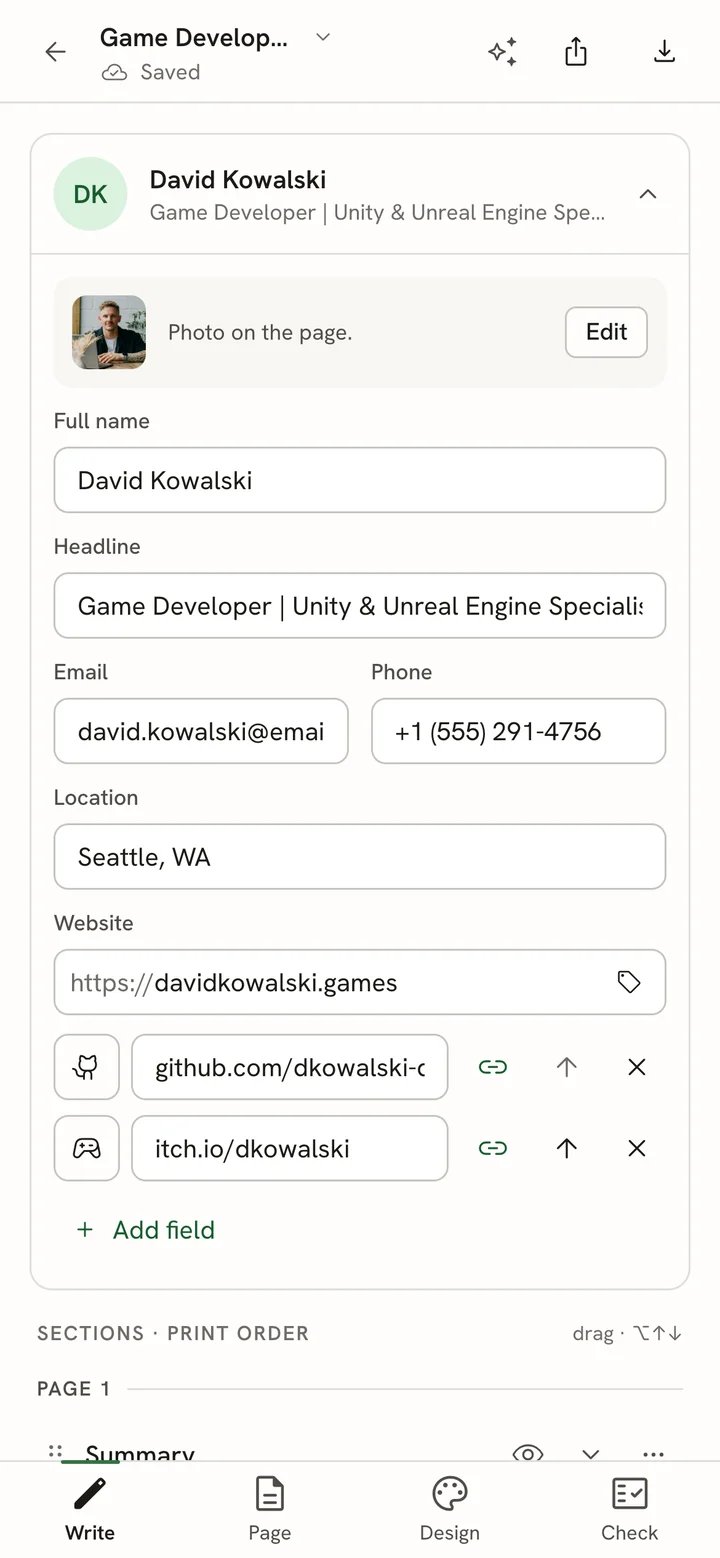 | Tab | What it shows |
| - | - |
| **Write** | Your details, summary, sections and entries. |
| **Page** | The resume as it will print. |
| **Design** | The page, with design settings in a sheet over its lower half. |
| **Check** | Issues found in your resume, job match and writing review. |
### The editor bar on a phone
The bar at the top keeps the back arrow, the document name (which opens the document menu) and the save status. On the right are three icons:
* **Assistant** opens the AI assistant full screen.
* **Share** opens the Share sheet.
* **Download PDF** downloads the PDF straight away. For other formats, open **Share** and use its **Download** tab.
There's no **History** button on a phone. Open **Share** and use the **History** tab instead.
### Edit an entry from the page
Scroll to the part of the resume you want to change.
The block is outlined, and an **Edit entry** button appears. The Editing tag is hidden on phones to keep nearby
headings readable.
The editor switches to **Write** and opens that entry.
| Tab | What it shows |
| - | - |
| **Write** | Your details, summary, sections and entries. |
| **Page** | The resume as it will print. |
| **Design** | The page, with design settings in a sheet over its lower half. |
| **Check** | Issues found in your resume, job match and writing review. |
### The editor bar on a phone
The bar at the top keeps the back arrow, the document name (which opens the document menu) and the save status. On the right are three icons:
* **Assistant** opens the AI assistant full screen.
* **Share** opens the Share sheet.
* **Download PDF** downloads the PDF straight away. For other formats, open **Share** and use its **Download** tab.
There's no **History** button on a phone. Open **Share** and use the **History** tab instead.
### Edit an entry from the page
Scroll to the part of the resume you want to change.
The block is outlined, and an **Edit entry** button appears. The Editing tag is hidden on phones to keep nearby
headings readable.
The editor switches to **Write** and opens that entry.
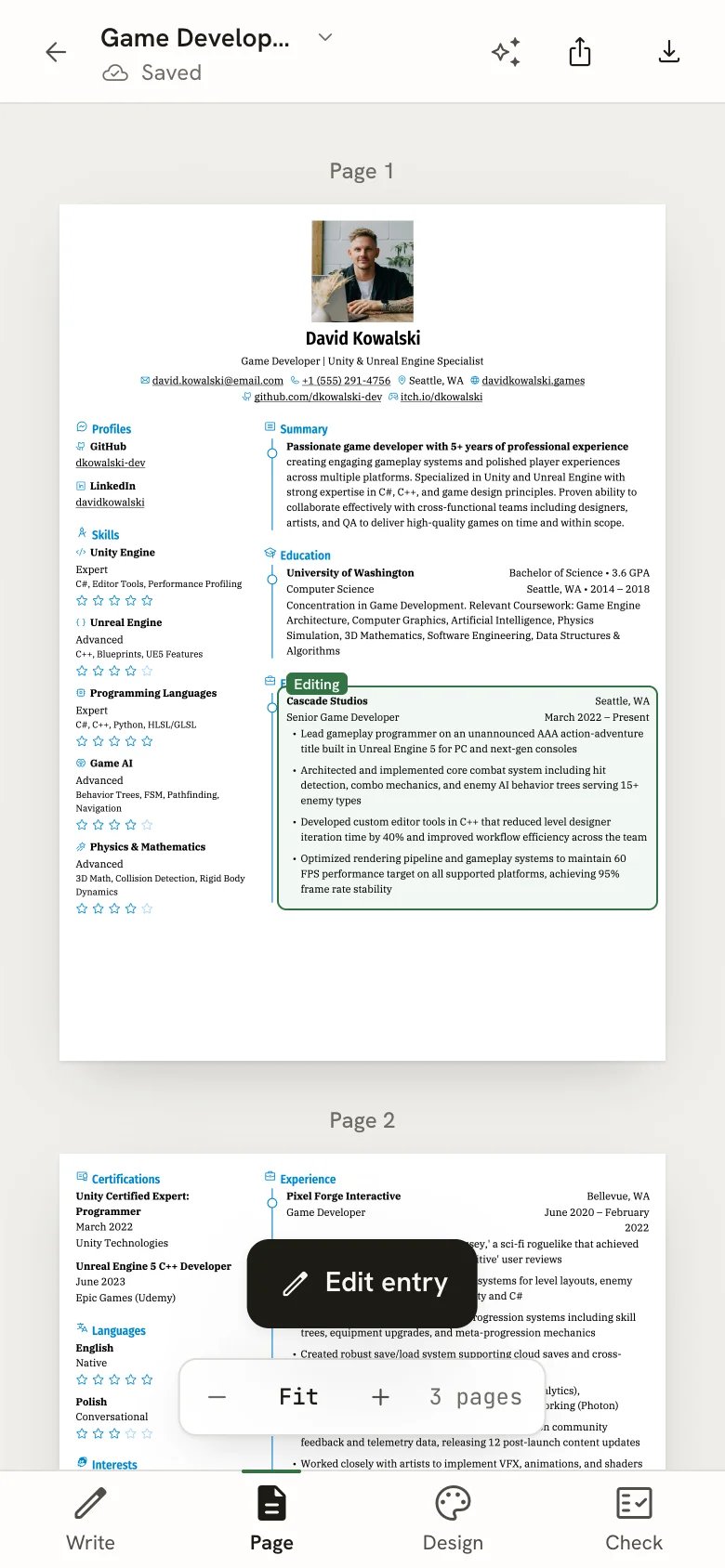 Tap an empty part of the page to dismiss the button. The zoom bar works as it does on a computer, and your zoom level stays the same when you switch tabs.
### Entries open full screen
When you open an entry in **Write**, it slides in and fills the screen, with larger fields that are easier to tap. The top of the screen names the section, for example **Experience**. Tap it to go back to the list. The bin icon (**Delete entry**) deletes the entry, and a message offers **Undo**.
Tap an empty part of the page to dismiss the button. The zoom bar works as it does on a computer, and your zoom level stays the same when you switch tabs.
### Entries open full screen
When you open an entry in **Write**, it slides in and fills the screen, with larger fields that are easier to tap. The top of the screen names the section, for example **Experience**. Tap it to go back to the list. The bin icon (**Delete entry**) deletes the entry, and a message offers **Undo**.
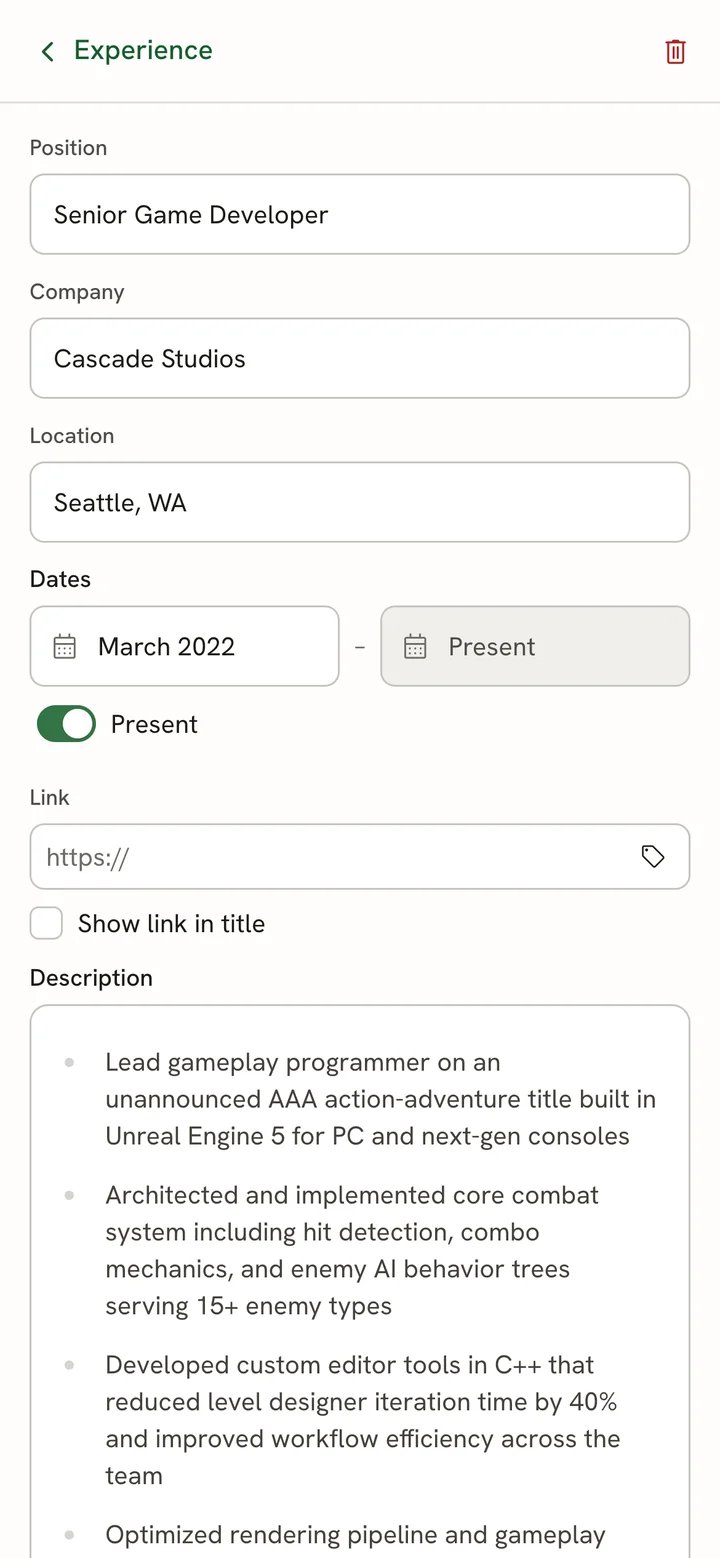 When you type in a description or the summary, the formatting toolbar docks just above the keyboard. See [Formatting text](/guides/formatting-text#on-a-phone).
### Change the design
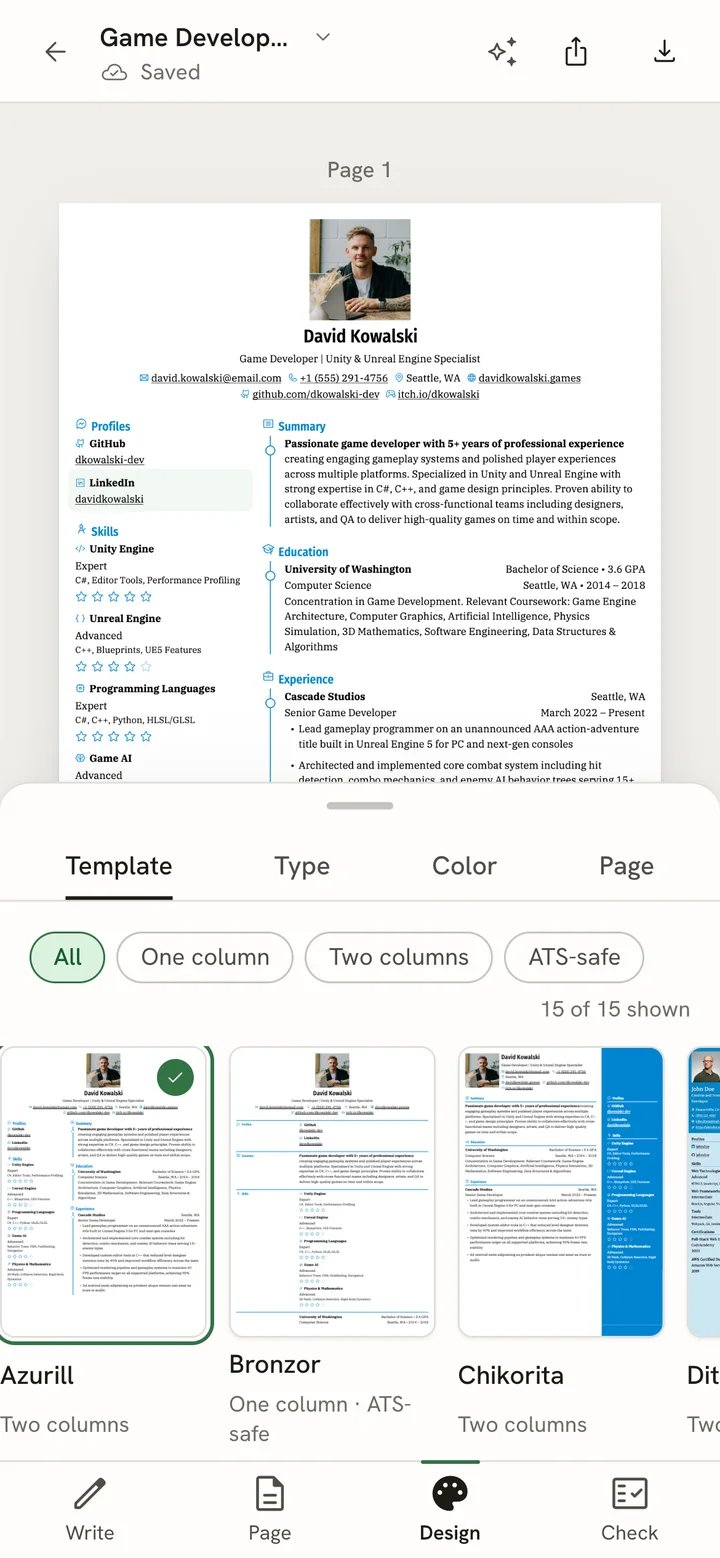
The **Design** tab keeps the page visible in the top half of the screen, so you can see each change as you make it. The settings sit in a sheet with four tabs: **Template**, **Type**, **Color** and **Page**. The **Advanced** settings are at the bottom of the **Page** tab.
To see more of the settings, tap the handle at the top of the sheet (**Raise the design sheet**). Tap it again to lower it.
When you type in a description or the summary, the formatting toolbar docks just above the keyboard. See [Formatting text](/guides/formatting-text#on-a-phone).
### Change the design
The **Design** tab keeps the page visible in the top half of the screen, so you can see each change as you make it. The settings sit in a sheet with four tabs: **Template**, **Type**, **Color** and **Page**. The **Advanced** settings are at the bottom of the **Page** tab.
To see more of the settings, tap the handle at the top of the sheet (**Raise the design sheet**). Tap it again to lower it.
 ### Check your resume
The **Check** tab lists the issues found in your resume. Select **Show on page** on an issue to jump to the **Page** tab: a bar at the top reads, for example, "Issue 1 of 3" with **Previous issue** and **Next issue** buttons, and a card at the bottom explains the issue and offers a fix. See [Checking your resume](/guides/checking-your-resume).
## On a tablet
On a tablet, the page fills the screen and the panel opens as a drawer over it. This layout applies to screens from 640 to 1023 pixels wide, which covers most tablets held upright. A tablet held sideways that is 1024 pixels or wider gets the same layout as a computer. You switch modes with **Write**, **Design** and **Check** in the editor bar, as on a computer.
### Check your resume
The **Check** tab lists the issues found in your resume. Select **Show on page** on an issue to jump to the **Page** tab: a bar at the top reads, for example, "Issue 1 of 3" with **Previous issue** and **Next issue** buttons, and a card at the bottom explains the issue and offers a fix. See [Checking your resume](/guides/checking-your-resume).
## On a tablet
On a tablet, the page fills the screen and the panel opens as a drawer over it. This layout applies to screens from 640 to 1023 pixels wide, which covers most tablets held upright. A tablet held sideways that is 1024 pixels or wider gets the same layout as a computer. You switch modes with **Write**, **Design** and **Check** in the editor bar, as on a computer.
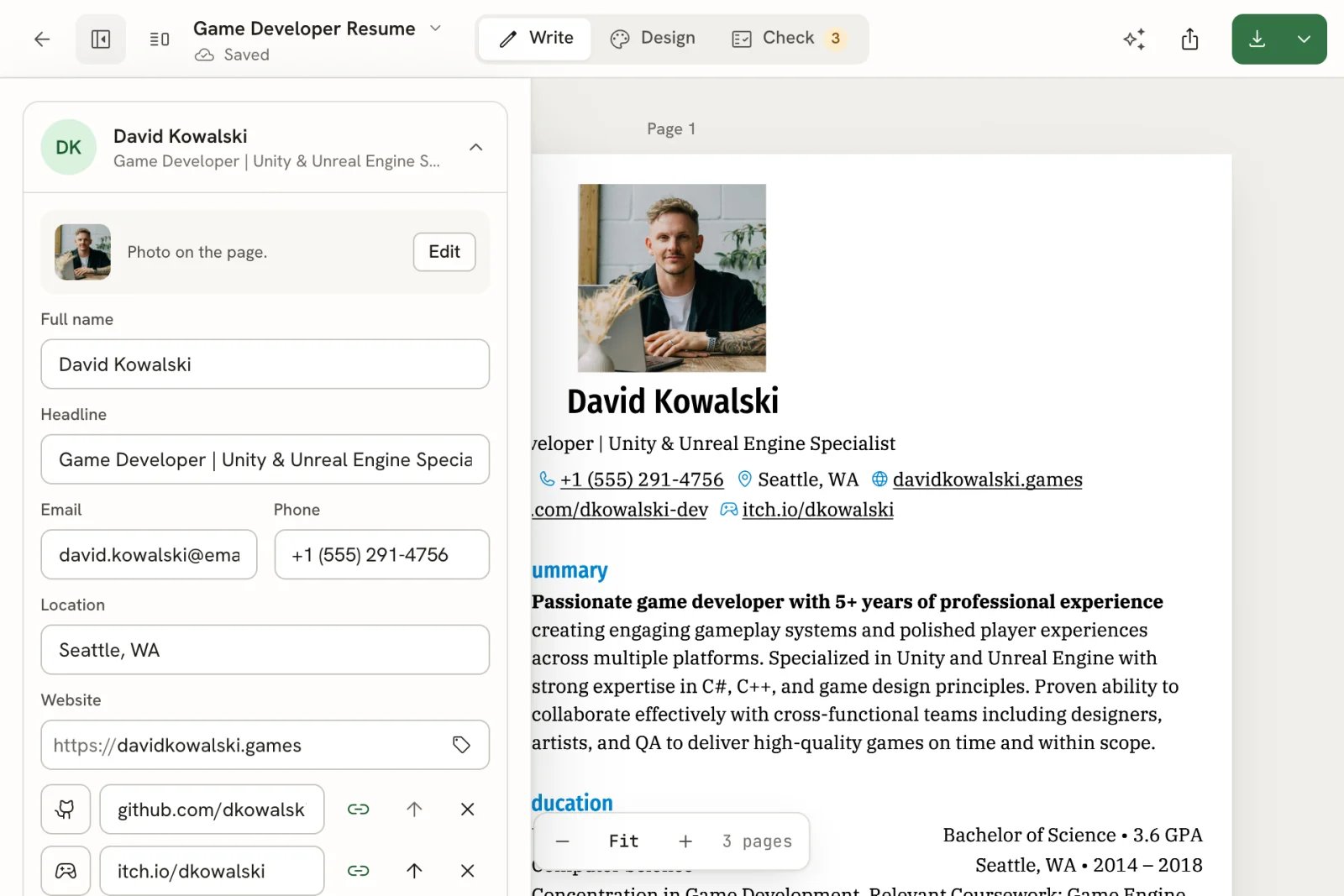 * **Show or hide the panel.** Select the panel button next to the back arrow (**Show panel** / **Hide panel**).
* **Tap a line on the page** to open the drawer on that entry. Tap an empty part of the page to close the drawer again; your selection stays.
* **Keep the panel beside the page.** Held sideways (landscape), a second button appears next to the panel button: **Keep the panel beside the page**. Select it to pin the panel next to the page instead of over it. Select it again to go back to the drawer.
* The assistant opens as a drawer too. **Download PDF** shows only its icon, and **History** is in the Share sheet's **History** tab.
## Install Reactive Resume as an app
You can add Reactive Resume to your home screen so it opens in a window of its own, without the browser's address bar.
* **iPhone and iPad (Safari):** open Reactive Resume, select the **Share** button in Safari, then **Add to Home Screen**.
* **Android (Chrome):** open Reactive Resume, open Chrome's menu, then select **Add to Home screen** or **Install app**.
* **Computer (Chrome or Edge):** select the install icon at the right of the address bar, then **Install**.
The installed app is the same website: you sign in the same way, and your documents stay in your account, not on the device.
## Related guides
* [Getting to know the resume editor](/guides/editor-overview): the editor on a computer, saving and locking.
* [Editing entries](/guides/editing-entries): adding, moving and deleting entries.
* [Keyboard shortcuts](/guides/keyboard-shortcuts): faster editing with a keyboard.
This documentation is built and hosted on [Mintlify](https://mintlify.com), a developer documentation platform.
* **Show or hide the panel.** Select the panel button next to the back arrow (**Show panel** / **Hide panel**).
* **Tap a line on the page** to open the drawer on that entry. Tap an empty part of the page to close the drawer again; your selection stays.
* **Keep the panel beside the page.** Held sideways (landscape), a second button appears next to the panel button: **Keep the panel beside the page**. Select it to pin the panel next to the page instead of over it. Select it again to go back to the drawer.
* The assistant opens as a drawer too. **Download PDF** shows only its icon, and **History** is in the Share sheet's **History** tab.
## Install Reactive Resume as an app
You can add Reactive Resume to your home screen so it opens in a window of its own, without the browser's address bar.
* **iPhone and iPad (Safari):** open Reactive Resume, select the **Share** button in Safari, then **Add to Home Screen**.
* **Android (Chrome):** open Reactive Resume, open Chrome's menu, then select **Add to Home screen** or **Install app**.
* **Computer (Chrome or Edge):** select the install icon at the right of the address bar, then **Install**.
The installed app is the same website: you sign in the same way, and your documents stay in your account, not on the device.
## Related guides
* [Getting to know the resume editor](/guides/editor-overview): the editor on a computer, saving and locking.
* [Editing entries](/guides/editing-entries): adding, moving and deleting entries.
* [Keyboard shortcuts](/guides/keyboard-shortcuts): faster editing with a keyboard.
This documentation is built and hosted on [Mintlify](https://mintlify.com), a developer documentation platform.