> ## Documentation Index
> Fetch the complete documentation index at: https://docs.rxresu.me/llms.txt
> Use this file to discover all available pages before exploring further.
# Exporting your resume
> Learn how to export your resume as PDF, DOCX, or JSON from the builder.
Reactive Resume can export your resume in three formats:
| Format | Best for |
| -------- | ----------------------------------------------------------------------------------------------------------------------------------- |
| **PDF** | Job applications, recruiter emails, printing, and public resume downloads. |
| **DOCX** | Further editing in Microsoft Word, Google Docs, or another word processor. |
| **JSON** | Backups, restoring a resume later, importing into another Reactive Resume account, or sharing structured data with an AI assistant. |
## Export from the right sidebar
Go to the dashboard and open the resume you want to export.
In the right sidebar, select **Export**.
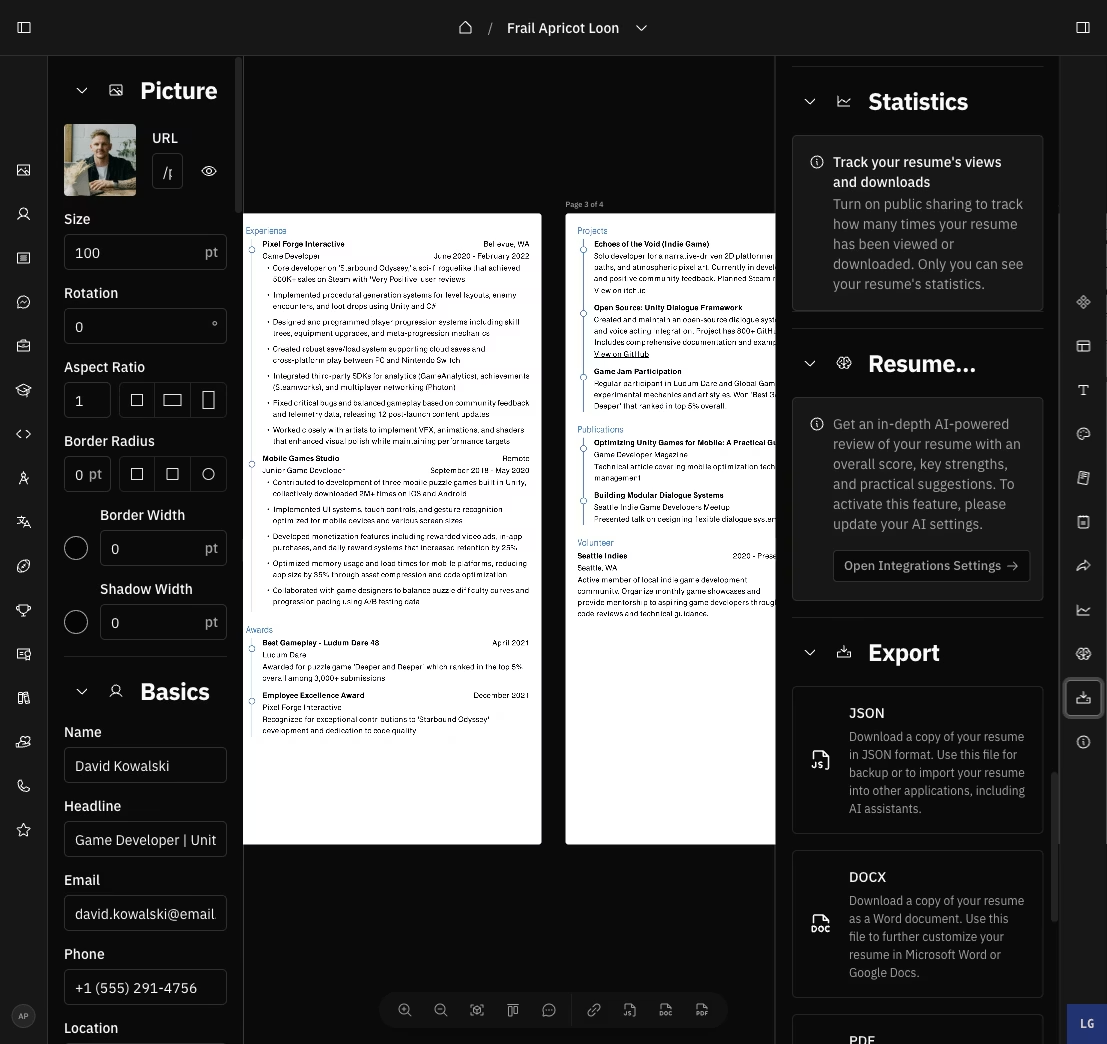 Click **JSON**, **DOCX**, or **PDF**.
Your browser downloads the exported file using the resume name as the filename.
## Export from the builder dock
The floating dock at the bottom of the builder also includes quick download buttons for **JSON**, **DOCX**, and **PDF**.
Use the dock when you already know which format you need. Use the right sidebar's **Export** section when you want the format descriptions next to each button.
For more dock controls, see [Using the builder dock](/guides/using-the-builder-dock).
## Export as PDF
Choose **PDF** when you need a file that preserves your resume layout.
Use PDF for:
* uploading to job applications;
* emailing recruiters or hiring managers;
* printing;
* sharing a finished copy outside Reactive Resume.
The PDF is generated from your current resume data, template, typography, design, layout, and page settings.
## Export as DOCX
Choose **DOCX** when you want to continue editing your resume in a word processor.
Use DOCX for:
* making final manual edits in Microsoft Word;
* collaborating with someone who prefers Word or Google Docs;
* submitting to a system that requires a Word document.
DOCX exports are useful for editing, but the visual layout may not match the PDF exactly. Use PDF when exact visual
fidelity matters.
## Export as JSON
Choose **JSON** when you want a structured backup of your resume.
The JSON export includes your resume content and settings. You can import it later from the dashboard to restore the resume or create another version.
JSON is also useful when working with AI assistants. You can export JSON, ask an assistant to review or edit the structured data, then import the revised JSON as a new resume.
Review AI-generated changes before importing or using them. AI assistants can make mistakes or add details that do not
reflect your experience.
## Public resume downloads
If your resume is public, visitors can download a PDF from the public resume page. You can enable public access in the builder's **Sharing** section.
For the full public sharing workflow, see [Sharing your resume publicly](/guides/sharing-your-resume-publicly).
Click **JSON**, **DOCX**, or **PDF**.
Your browser downloads the exported file using the resume name as the filename.
## Export from the builder dock
The floating dock at the bottom of the builder also includes quick download buttons for **JSON**, **DOCX**, and **PDF**.
Use the dock when you already know which format you need. Use the right sidebar's **Export** section when you want the format descriptions next to each button.
For more dock controls, see [Using the builder dock](/guides/using-the-builder-dock).
## Export as PDF
Choose **PDF** when you need a file that preserves your resume layout.
Use PDF for:
* uploading to job applications;
* emailing recruiters or hiring managers;
* printing;
* sharing a finished copy outside Reactive Resume.
The PDF is generated from your current resume data, template, typography, design, layout, and page settings.
## Export as DOCX
Choose **DOCX** when you want to continue editing your resume in a word processor.
Use DOCX for:
* making final manual edits in Microsoft Word;
* collaborating with someone who prefers Word or Google Docs;
* submitting to a system that requires a Word document.
DOCX exports are useful for editing, but the visual layout may not match the PDF exactly. Use PDF when exact visual
fidelity matters.
## Export as JSON
Choose **JSON** when you want a structured backup of your resume.
The JSON export includes your resume content and settings. You can import it later from the dashboard to restore the resume or create another version.
JSON is also useful when working with AI assistants. You can export JSON, ask an assistant to review or edit the structured data, then import the revised JSON as a new resume.
Review AI-generated changes before importing or using them. AI assistants can make mistakes or add details that do not
reflect your experience.
## Public resume downloads
If your resume is public, visitors can download a PDF from the public resume page. You can enable public access in the builder's **Sharing** section.
For the full public sharing workflow, see [Sharing your resume publicly](/guides/sharing-your-resume-publicly).