> ## Documentation Index
> Fetch the complete documentation index at: https://docs.rxresu.me/llms.txt
> Use this file to discover all available pages before exploring further.
# Importing applications from CSV
> Move existing job applications into the Reactive Resume Application Tracker by uploading a CSV file or pasting spreadsheet rows with headers.
Use CSV import when you already track applications in a spreadsheet and want to move them into Reactive Resume.
## Open CSV import
In the dashboard sidebar, click **Applications**.
If you have no applications yet, click **Import from CSV** in the empty state. Otherwise, click **Import CSV** in the
page header.
 ## Prepare your CSV
The importer uses the first row as headers. Each imported row must include a company and role.
Supported headers include:
| Field | Recognized headers |
| ------------------- | ---------------------------------------- |
| **Company** | `Company`, `Employer`, `Organization` |
| **Role** | `Role`, `Title`, `Position`, `Job Title` |
| **Stage** | `Stage`, `Status` |
| **Location** | `Location` |
| **Salary** | `Salary`, `Salary Range`, `Compensation` |
| **Source** | `Source` |
| **Notes** | `Notes`, `Note` |
| **Job posting URL** | `URL`, `Link`, `Job URL`, `Job Posting` |
| **Tags** | `Tags` |
Tags can be separated with commas, semicolons, or vertical bars.
```csv theme={null}
Company,Role,Stage,Location,Salary,Source,Tags
Stripe,Frontend Engineer,applied,Remote,$180k,LinkedIn,remote;react
```
## Import applications
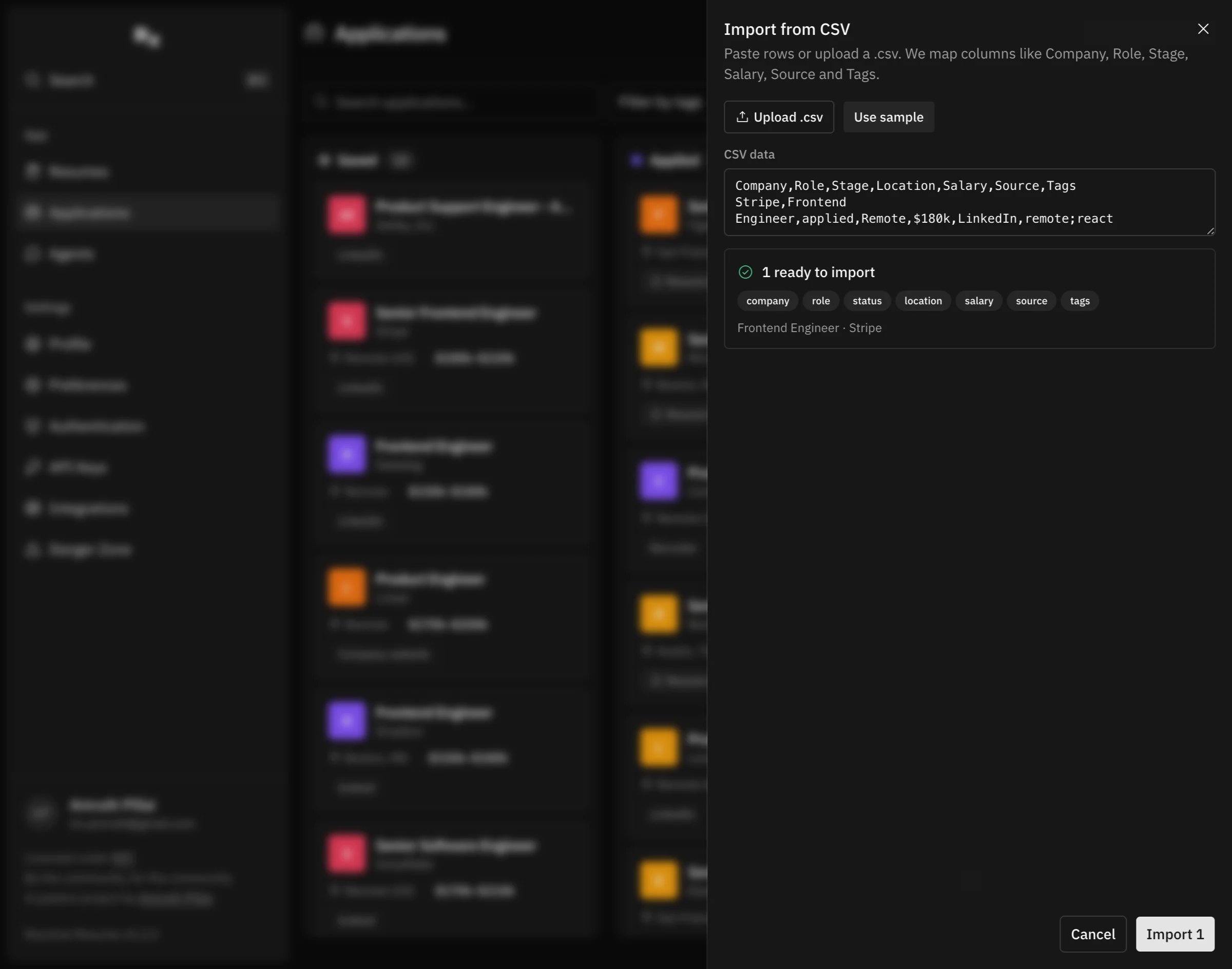
Upload a `.csv` file, or paste CSV rows directly into the **CSV data** field.
Reactive Resume shows how many rows are ready to import, which columns it recognized, and how many rows were skipped.
Rows without a company or role are skipped. Add the missing values before importing if you want those rows included.
Click **Import**. Imported applications are added to your Application Tracker.
## Use valid stages
The **Stage** column is optional. If you include it, use one of these values:
* `saved`
* `applied`
* `screening`
* `interview`
* `offer`
* `rejected`
If a row has an unrecognized stage, the importer ignores that stage value and uses the default application stage.
## Import large files
Reactive Resume imports up to 500 applications at a time. If your CSV has more than 500 valid rows, split it into smaller files and import each file separately.
Import first, then use the table view to select multiple applications and apply tags, move stages, archive rows, or delete rows in bulk.
## Troubleshooting
### Some rows were skipped
Make sure every row has both a company and a role. These fields are required.
### A column was not recognized
Rename the header to one of the recognized names in the table above, then import again.
### Tags did not split correctly
Separate tags with commas, semicolons, or vertical bars, such as `remote;react` or `frontend|senior`.
### A stage did not import
Use lowercase stage values such as `applied` or `interview`. Custom stages are not supported.
## Prepare your CSV
The importer uses the first row as headers. Each imported row must include a company and role.
Supported headers include:
| Field | Recognized headers |
| ------------------- | ---------------------------------------- |
| **Company** | `Company`, `Employer`, `Organization` |
| **Role** | `Role`, `Title`, `Position`, `Job Title` |
| **Stage** | `Stage`, `Status` |
| **Location** | `Location` |
| **Salary** | `Salary`, `Salary Range`, `Compensation` |
| **Source** | `Source` |
| **Notes** | `Notes`, `Note` |
| **Job posting URL** | `URL`, `Link`, `Job URL`, `Job Posting` |
| **Tags** | `Tags` |
Tags can be separated with commas, semicolons, or vertical bars.
```csv theme={null}
Company,Role,Stage,Location,Salary,Source,Tags
Stripe,Frontend Engineer,applied,Remote,$180k,LinkedIn,remote;react
```
## Import applications
Upload a `.csv` file, or paste CSV rows directly into the **CSV data** field.
Reactive Resume shows how many rows are ready to import, which columns it recognized, and how many rows were skipped.
Rows without a company or role are skipped. Add the missing values before importing if you want those rows included.
Click **Import**. Imported applications are added to your Application Tracker.
## Use valid stages
The **Stage** column is optional. If you include it, use one of these values:
* `saved`
* `applied`
* `screening`
* `interview`
* `offer`
* `rejected`
If a row has an unrecognized stage, the importer ignores that stage value and uses the default application stage.
## Import large files
Reactive Resume imports up to 500 applications at a time. If your CSV has more than 500 valid rows, split it into smaller files and import each file separately.
Import first, then use the table view to select multiple applications and apply tags, move stages, archive rows, or delete rows in bulk.
## Troubleshooting
### Some rows were skipped
Make sure every row has both a company and a role. These fields are required.
### A column was not recognized
Rename the header to one of the recognized names in the table above, then import again.
### Tags did not split correctly
Separate tags with commas, semicolons, or vertical bars, such as `remote;react` or `frontend|senior`.
### A stage did not import
Use lowercase stage values such as `applied` or `interview`. Custom stages are not supported.