> ## Documentation Index
> Fetch the complete documentation index at: https://docs.rxresu.me/llms.txt
> Use this file to discover all available pages before exploring further.
# Managing resumes from the dashboard
> Learn how to sort, filter, open, duplicate, lock, update, and delete resumes from the Resumes dashboard.
The **Resumes** dashboard is where you manage every resume in your account. Use it to keep separate versions for different roles, clients, locations, or application stages.
 ## Choose a view
The dashboard supports two views:
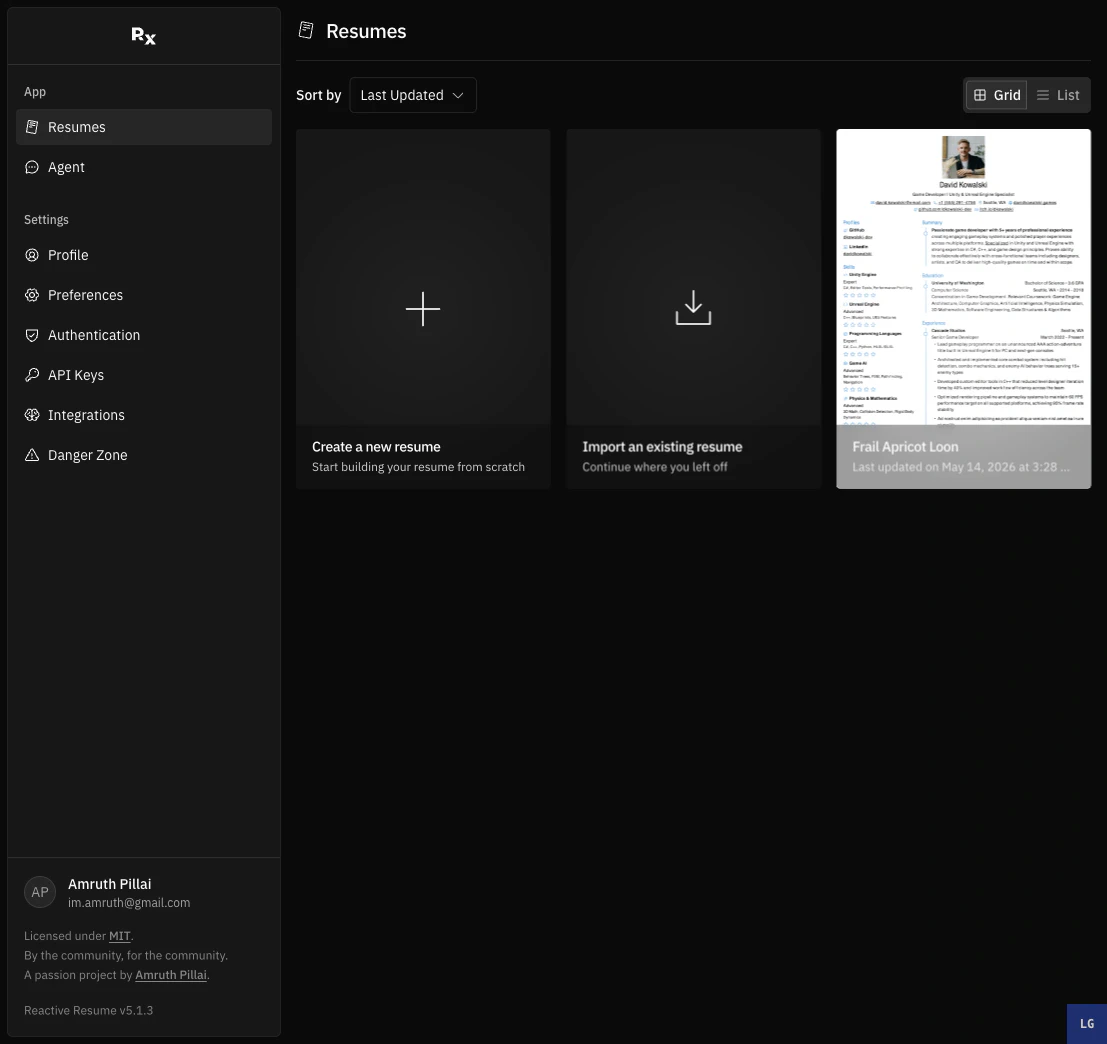
* **Grid** shows each resume as a card. This is useful when you want a visual overview.
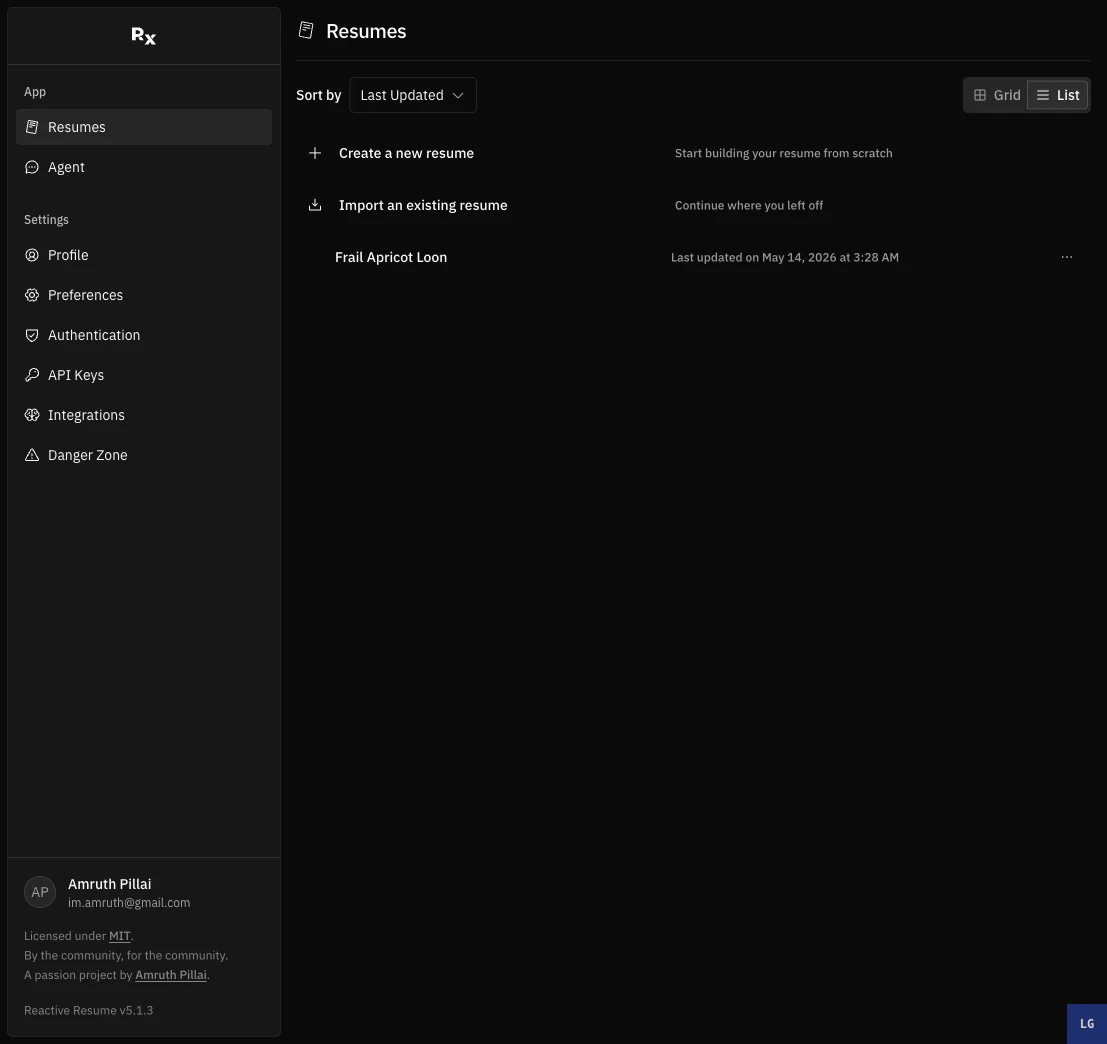
* **List** shows resumes in rows. This is useful when you have many resumes and want a denser view.
Use the **Grid** and **List** tabs in the top-right of the dashboard to switch between them.
## Choose a view
The dashboard supports two views:
* **Grid** shows each resume as a card. This is useful when you want a visual overview.
* **List** shows resumes in rows. This is useful when you have many resumes and want a denser view.
Use the **Grid** and **List** tabs in the top-right of the dashboard to switch between them.
 ## Sort resumes
Use the **Sort by** menu to change the order of your resumes.
| Sort option | When to use it |
| ---------------- | ----------------------------------------------- |
| **Last Updated** | Find the resume you worked on most recently. |
| **Created** | Review resumes by when they were first created. |
| **Name** | Keep resumes in alphabetical order. |
## Filter by tags
If you add tags to your resumes, the dashboard shows a **Filter by** menu. Select one or more tags to show only matching resumes.
Tags are useful for grouping resumes by:
* target role, such as `frontend` or `product`;
* application status, such as `draft` or `sent`;
* market, region, client, or company name.
You can add or change tags when creating, updating, or duplicating a resume.
## Open a resume
Click a resume card or row to open it in the builder.
You can also open the resume menu and choose **Open**.
## Update name, slug, and tags
Use **Update** when you want to change a resume's metadata.
On the dashboard, open the menu for the resume you want to edit.
Select **Update** to open the resume details dialog.
Change the **Name**, **Slug**, or **Tags**.
Click **Save Changes**.
The slug is part of the public URL. If a resume is public, changing the slug changes the link people use to view it.
## Duplicate a resume
Use **Duplicate** when you want to create a new version without changing the original.
The duplicate dialog starts with the same tags, a copied name, and a copied slug. Edit these before saving if you want the new version to be easier to identify.
Good reasons to duplicate a resume:
* tailoring one resume for a specific job posting;
* keeping a short and long version;
* testing a new template or layout;
* creating a localized version.
## Lock or unlock a resume
Use **Lock** to prevent accidental edits or deletion. A locked resume cannot be updated or deleted until you unlock it.
To edit a locked resume later, open the resume menu and choose **Unlock**.
## Delete a resume
Use **Delete** only when you no longer need the resume.
Deleting a resume cannot be undone. If you might need the content later, export a JSON backup first. See
[Exporting your resume](/guides/exporting-your-resume).
## Sort resumes
Use the **Sort by** menu to change the order of your resumes.
| Sort option | When to use it |
| ---------------- | ----------------------------------------------- |
| **Last Updated** | Find the resume you worked on most recently. |
| **Created** | Review resumes by when they were first created. |
| **Name** | Keep resumes in alphabetical order. |
## Filter by tags
If you add tags to your resumes, the dashboard shows a **Filter by** menu. Select one or more tags to show only matching resumes.
Tags are useful for grouping resumes by:
* target role, such as `frontend` or `product`;
* application status, such as `draft` or `sent`;
* market, region, client, or company name.
You can add or change tags when creating, updating, or duplicating a resume.
## Open a resume
Click a resume card or row to open it in the builder.
You can also open the resume menu and choose **Open**.
## Update name, slug, and tags
Use **Update** when you want to change a resume's metadata.
On the dashboard, open the menu for the resume you want to edit.
Select **Update** to open the resume details dialog.
Change the **Name**, **Slug**, or **Tags**.
Click **Save Changes**.
The slug is part of the public URL. If a resume is public, changing the slug changes the link people use to view it.
## Duplicate a resume
Use **Duplicate** when you want to create a new version without changing the original.
The duplicate dialog starts with the same tags, a copied name, and a copied slug. Edit these before saving if you want the new version to be easier to identify.
Good reasons to duplicate a resume:
* tailoring one resume for a specific job posting;
* keeping a short and long version;
* testing a new template or layout;
* creating a localized version.
## Lock or unlock a resume
Use **Lock** to prevent accidental edits or deletion. A locked resume cannot be updated or deleted until you unlock it.
To edit a locked resume later, open the resume menu and choose **Unlock**.
## Delete a resume
Use **Delete** only when you no longer need the resume.
Deleting a resume cannot be undone. If you might need the content later, export a JSON backup first. See
[Exporting your resume](/guides/exporting-your-resume).