> ## Documentation Index
> Fetch the complete documentation index at: https://docs.rxresu.me/llms.txt
> Use this file to discover all available pages before exploring further.
# Using the AI Agent Workspace
> Start an isolated AI draft in the Reactive Resume Agent workspace, chat with the agent, review proposed resume patches, and resume prior threads.
The AI Agent workspace is a dedicated place to work with an AI assistant on a resume draft. It keeps the conversation, tool activity, and read-only resume preview in one full-screen view.
Agent threads edit an AI draft copy of your resume. Your original resume is not changed when you start from an existing resume.
## Before you start
You need at least one AI provider that is tested and enabled in **Dashboard -> Settings -> Integrations**. For setup, see [Using Artificial Intelligence](/guides/using-ai).
If you self-host Reactive Resume, the agent workspace also requires the server-side agent configuration described in [Self-hosting with Docker](/self-hosting/docker).
## Open the agent workspace
From the dashboard sidebar, click **Agents**.
The agent page always shows your thread sidebar. Use it to continue an existing thread, or click **New thread** to start another one.
You can also open the agent from the builder dock. When you do this, the current resume is preselected in the new thread setup screen.
Press `Cmd/Ctrl+K` from anywhere in the app to open the command palette. Select **Threads** to search existing threads by title, resume, or provider, or run **New Thread** to jump straight to the setup screen.
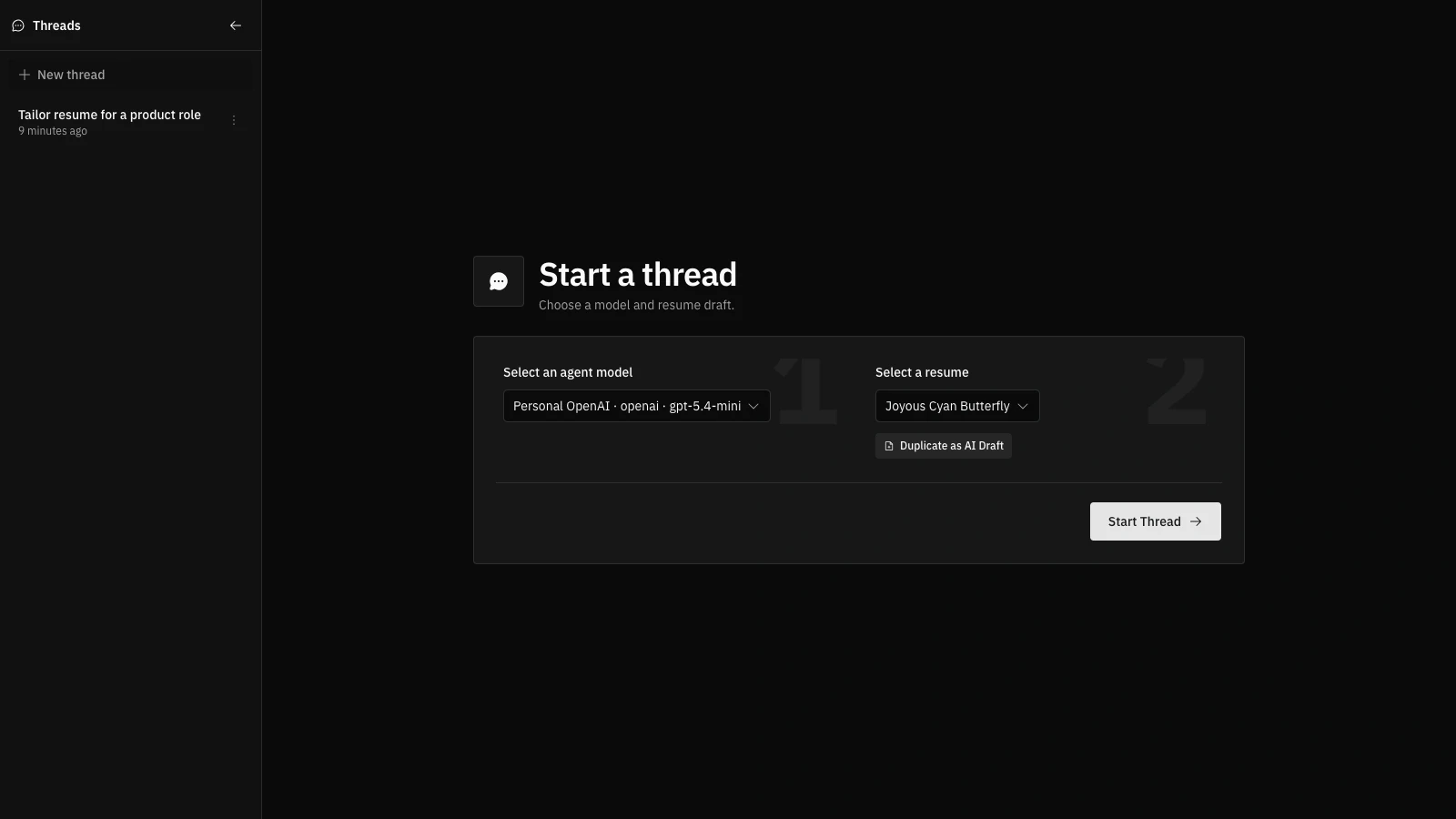
## Start a new thread
Pick the provider/model combo the agent should use. This choice is locked once the thread starts.
Select an existing resume to duplicate as an AI draft, or choose **Create from scratch** for a blank draft.
Click **Start Thread** to create the draft and open the workspace.
 ## Use the three-pane workspace
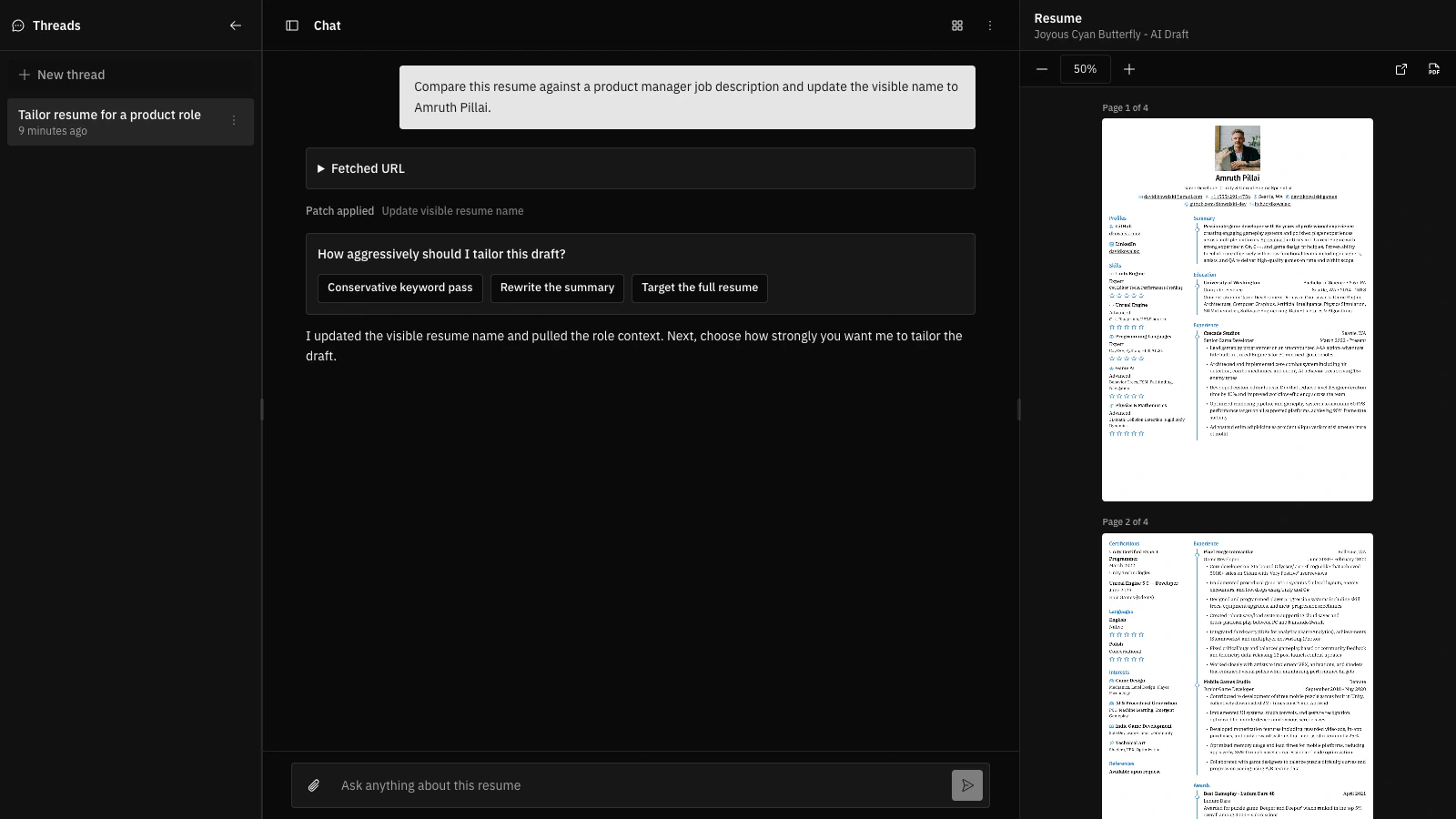
The desktop workspace is split into three panes:
* **Threads** on the left: continue, archive, delete, or start agent threads.
* **Chat** in the center: send prompts, upload files, answer agent questions, and review tool activity.
* **Resume** on the right: read the current AI draft, adjust zoom, open it in the builder, or download a PDF.
## Use the three-pane workspace
The desktop workspace is split into three panes:
* **Threads** on the left: continue, archive, delete, or start agent threads.
* **Chat** in the center: send prompts, upload files, answer agent questions, and review tool activity.
* **Resume** on the right: read the current AI draft, adjust zoom, open it in the builder, or download a PDF.
 On smaller screens, the workspace uses tabs/sheets so you can switch between threads, chat, and preview without losing the active conversation.
## Ask for resume changes
The agent works best with concrete instructions:
* "Tailor this resume to this job description: `https://example.com/job`"
* "Find weak bullets and rewrite them with stronger outcomes."
* "Compare this draft against a product manager role and update the keywords."
* "Ask me before changing anything that looks uncertain."
You can attach files or images from the composer. The agent can read uploaded attachments when they are relevant to your request.
Text input is supported. Voice input is not supported in the agent workspace yet.
## Review patches
When the agent edits the resume, the patch is applied immediately to the AI draft. The chat shows a small **Patch applied** line.
Open the line to inspect the raw JSON Patch and use **Restore** if you want to roll the draft back to the state before that patch. Restoring an older patch also rolls back patches applied after it.
AI-generated changes can still be inaccurate. Review the draft in the preview or builder before exporting or sharing it.
## Answer agent questions
If the agent needs a decision, it may show a question card with recommended answers. Click the answer you want to send it back to the agent.
This is useful when the agent finds ambiguous instructions, missing job context, or a change that depends on your preference.
## Use the resume preview
The resume pane is read-only. Use the toolbar to:
* decrease or increase zoom;
* set an exact zoom percentage;
* open the AI draft in the builder;
* download the draft as a PDF.
Zoom settings are remembered across refreshes.
## Manage threads
Threads are ordered by the newest message. Use the thread menu to archive or delete a thread.
* **Archive** keeps the conversation but makes the thread read-only.
* **Delete** removes the thread conversation and its attachments. The generated resume draft remains in your dashboard.
Threads can also become read-only if the working resume is deleted, the selected provider is deleted, or the thread is archived. If a provider is disabled or no longer tested, re-enable and test it before sending new messages.
On smaller screens, the workspace uses tabs/sheets so you can switch between threads, chat, and preview without losing the active conversation.
## Ask for resume changes
The agent works best with concrete instructions:
* "Tailor this resume to this job description: `https://example.com/job`"
* "Find weak bullets and rewrite them with stronger outcomes."
* "Compare this draft against a product manager role and update the keywords."
* "Ask me before changing anything that looks uncertain."
You can attach files or images from the composer. The agent can read uploaded attachments when they are relevant to your request.
Text input is supported. Voice input is not supported in the agent workspace yet.
## Review patches
When the agent edits the resume, the patch is applied immediately to the AI draft. The chat shows a small **Patch applied** line.
Open the line to inspect the raw JSON Patch and use **Restore** if you want to roll the draft back to the state before that patch. Restoring an older patch also rolls back patches applied after it.
AI-generated changes can still be inaccurate. Review the draft in the preview or builder before exporting or sharing it.
## Answer agent questions
If the agent needs a decision, it may show a question card with recommended answers. Click the answer you want to send it back to the agent.
This is useful when the agent finds ambiguous instructions, missing job context, or a change that depends on your preference.
## Use the resume preview
The resume pane is read-only. Use the toolbar to:
* decrease or increase zoom;
* set an exact zoom percentage;
* open the AI draft in the builder;
* download the draft as a PDF.
Zoom settings are remembered across refreshes.
## Manage threads
Threads are ordered by the newest message. Use the thread menu to archive or delete a thread.
* **Archive** keeps the conversation but makes the thread read-only.
* **Delete** removes the thread conversation and its attachments. The generated resume draft remains in your dashboard.
Threads can also become read-only if the working resume is deleted, the selected provider is deleted, or the thread is archived. If a provider is disabled or no longer tested, re-enable and test it before sending new messages.