> ## Documentation Index
> Fetch the complete documentation index at: https://docs.rxresu.me/llms.txt
> Use this file to discover all available pages before exploring further.
# Using the builder dock
> Learn how to use the builder dock for undo and redo, zoom controls, page stacking, opening the AI Agent, and copying the public resume URL.
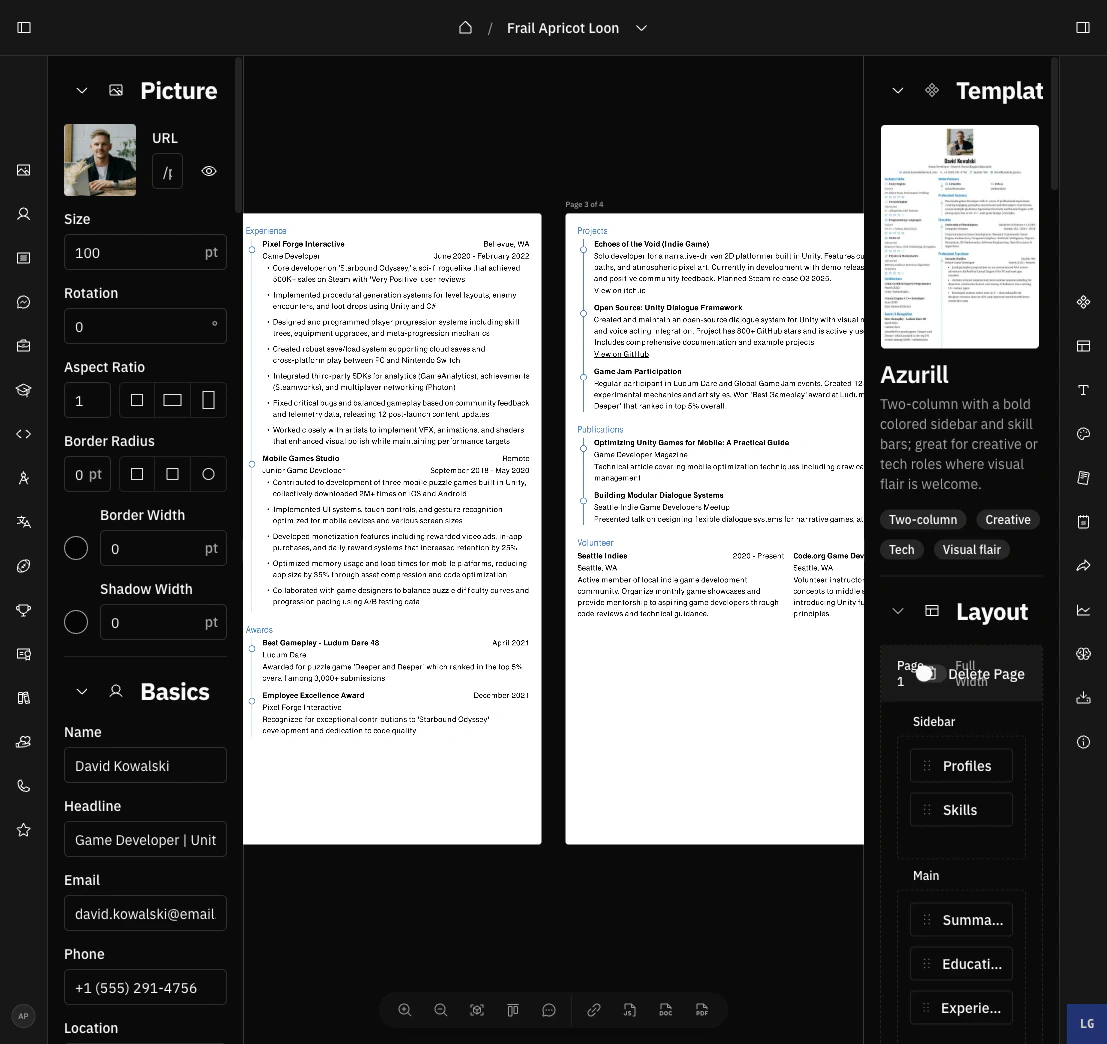
The builder dock is the floating toolbar at the bottom of the resume builder. It gives you quick access to undo and redo, preview controls, the AI Agent workspace, and the resume's public URL without leaving the resume canvas.
 ## Undo and redo
The dock starts with **Undo** and **Redo** buttons. They apply to every change in the builder — typing, drag-and-drop, template switches, layout changes, and AI edits.
You can also use keyboard shortcuts:
| Shortcut | Action |
| ------------------ | --------------------------- |
| `Cmd/Ctrl+Z` | Undo the last change |
| `Cmd/Ctrl+Shift+Z` | Redo the last undone change |
Rapid typing collapses into a single undo step, so undo feels natural.
When your cursor is inside a text field, the shortcut falls back to your browser's native input undo. Click outside the
field, or use the dock buttons, to undo builder-wide changes.
For longer-range recovery — such as jumping back to a template switch, an import, or an AI edit — see [Undoing changes and version history](/guides/undoing-changes-and-version-history).
## Zoom controls
Use the zoom controls to adjust the preview.
| Control | What it does |
| ------------------ | ------------------------------------------------------------------------------------- |
| **Zoom out** | Decreases the preview zoom. |
| **Zoom level (%)** | Shows the current zoom. Opens a menu with **Actual size (100%)** and **Fit to view**. |
| **Zoom in** | Increases the preview zoom. |
Press `Cmd/Ctrl+0` to reset the zoom to fit.
Zoom only affects the editor preview. It does not change the exported PDF, DOCX, or JSON file.
## Toggle page stacking
Use the page-stacking button to switch between stacked pages (vertical) and side-by-side pages (horizontal). This only affects the editor preview.
## Open the AI Agent
Click the chat button to open the **AI Agent** workspace in a new page, pre-scoped to the current resume. Use the agent for larger, standalone conversations that create their own draft.
For chatting about the open resume without leaving the builder, use the AI assistant in the builder header instead. See [Using AI in the builder](/guides/using-ai-in-the-builder).
## Copy the public URL
Click **Copy URL** to copy the resume's public link.
The URL is based on your username and the resume slug:
```txt theme={null}
https://rxresu.me/{username}/{slug}
```
Copying the URL does not make the resume public by itself. To allow visitors to open the link, enable public access in
the **Sharing** section of the right sidebar.
## Downloading your resume
Downloads are no longer on the dock. Use the primary **Download PDF** button in the builder header, or open the dropdown next to it for **DOCX**, **JSON**, and **Print**. See [Exporting your resume](/guides/exporting-your-resume).
## Undo and redo
The dock starts with **Undo** and **Redo** buttons. They apply to every change in the builder — typing, drag-and-drop, template switches, layout changes, and AI edits.
You can also use keyboard shortcuts:
| Shortcut | Action |
| ------------------ | --------------------------- |
| `Cmd/Ctrl+Z` | Undo the last change |
| `Cmd/Ctrl+Shift+Z` | Redo the last undone change |
Rapid typing collapses into a single undo step, so undo feels natural.
When your cursor is inside a text field, the shortcut falls back to your browser's native input undo. Click outside the
field, or use the dock buttons, to undo builder-wide changes.
For longer-range recovery — such as jumping back to a template switch, an import, or an AI edit — see [Undoing changes and version history](/guides/undoing-changes-and-version-history).
## Zoom controls
Use the zoom controls to adjust the preview.
| Control | What it does |
| ------------------ | ------------------------------------------------------------------------------------- |
| **Zoom out** | Decreases the preview zoom. |
| **Zoom level (%)** | Shows the current zoom. Opens a menu with **Actual size (100%)** and **Fit to view**. |
| **Zoom in** | Increases the preview zoom. |
Press `Cmd/Ctrl+0` to reset the zoom to fit.
Zoom only affects the editor preview. It does not change the exported PDF, DOCX, or JSON file.
## Toggle page stacking
Use the page-stacking button to switch between stacked pages (vertical) and side-by-side pages (horizontal). This only affects the editor preview.
## Open the AI Agent
Click the chat button to open the **AI Agent** workspace in a new page, pre-scoped to the current resume. Use the agent for larger, standalone conversations that create their own draft.
For chatting about the open resume without leaving the builder, use the AI assistant in the builder header instead. See [Using AI in the builder](/guides/using-ai-in-the-builder).
## Copy the public URL
Click **Copy URL** to copy the resume's public link.
The URL is based on your username and the resume slug:
```txt theme={null}
https://rxresu.me/{username}/{slug}
```
Copying the URL does not make the resume public by itself. To allow visitors to open the link, enable public access in
the **Sharing** section of the right sidebar.
## Downloading your resume
Downloads are no longer on the dock. Use the primary **Download PDF** button in the builder header, or open the dropdown next to it for **DOCX**, **JSON**, and **Print**. See [Exporting your resume](/guides/exporting-your-resume).