> ## Documentation Index
> Fetch the complete documentation index at: https://docs.rxresu.me/llms.txt
> Use this file to discover all available pages before exploring further.
# Using the command bar
> Open the command bar with ⌘K to search your resumes and applications, jump to any page, change theme or language, or ask the assistant a question.
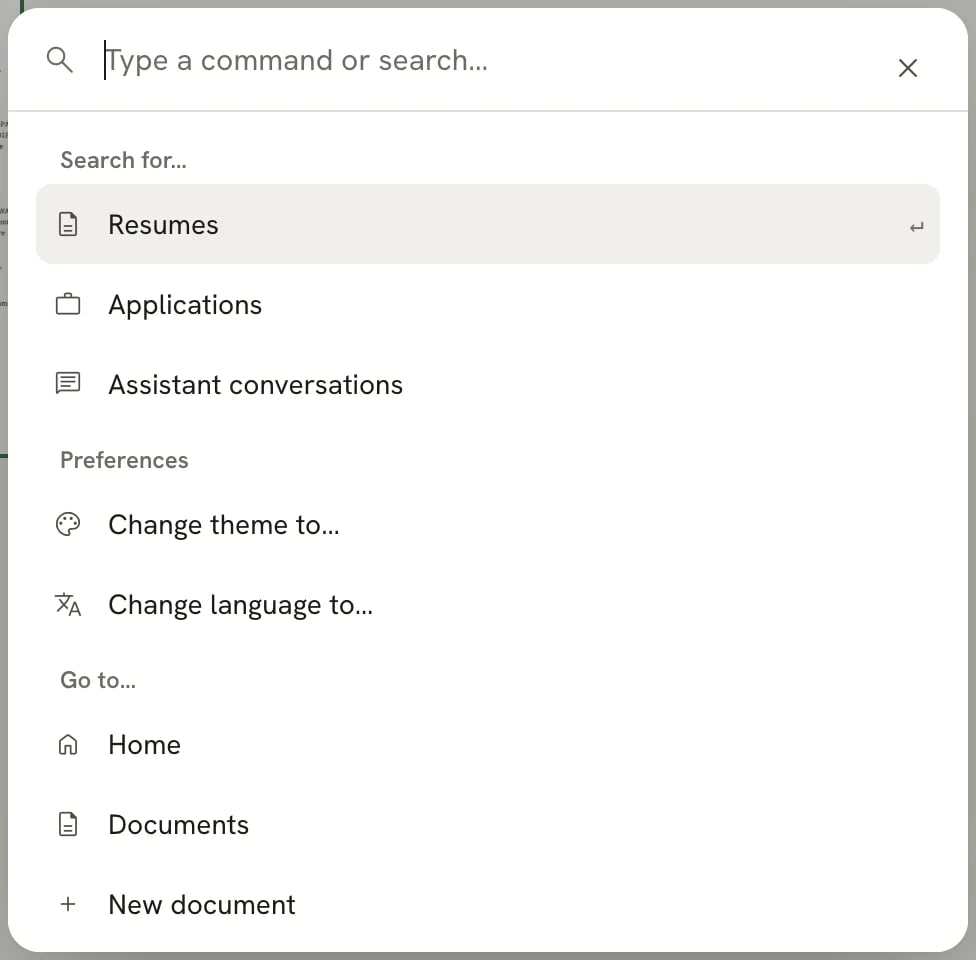
The command bar is a search box that runs commands. Use it to open a resume or application by name, jump to any page,
switch the theme or language, or send a question straight to the assistant, without reaching for the mouse.
 ## Open the command bar
Press ⌘ K on a Mac or Ctrl K on Windows and Linux. It works on every page,
including inside the editor. On **Documents**, **Applications** and **Settings**, you can also select **Search or
run…** at the top of the sidebar.
To close it, press Esc or press ⌘ K again.
## Run a command
Start typing to filter the list. For example, type "theme" to find **Change theme to…**, or "trash" to find
**Trash**.
Use ↑ and ↓ to move, then press Enter, or select the row with the mouse.
Some rows open a second list, such as your resumes or the list of languages. To get back to the first list, press
Esc to close the command bar, then open it again.
## What you can do
The command bar groups its rows by what they do. Rows that need an account appear or become available once you're
signed in.
### Search for…
| Row | What it does |
| - | - |
| **Resumes** | Lists your resumes, most recently edited first. Type to filter by name, then press Enter to open one in the editor. The first row, **Create a new resume**, opens the **New document** dialog. |
| **Applications** | Lists your job applications. Type a company or role to filter, then open one to see its details. **New Application** starts a new one. |
| **Assistant conversations** | Lists your past conversations with the assistant. Opening one takes you to its document with the conversation showing. |
### Preferences
| Row | What it does |
| - | - |
| **Change theme to…** | Choose **Light theme**, **Dark theme** or **Match system theme**. |
| **Change language to…** | Choose one of the 55 languages the app is available in. |
### Go to…
| Row | Where it goes |
| - | - |
| **Home** | The Reactive Resume home page. |
| **Documents** | Your resumes and cover letters. |
| **New document** | Opens the **New document** dialog. |
| **Trash** | Documents you moved to Trash. |
| **ATS Checker** | The public [ATS checker](/guides/using-the-ats-checker) for any PDF resume. |
| **Applications** | Your job application tracker. |
| **New Application** | Opens the dialog to add an application. |
| **Settings** | Opens a second list with **Account**, **Preferences** and **AI & developer**. |
## Ask the assistant
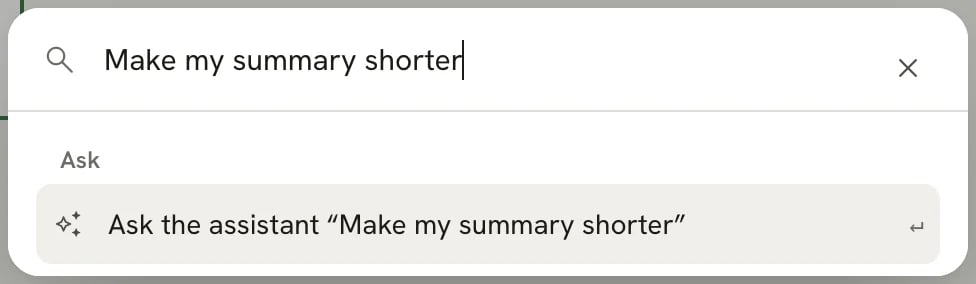
When you're signed in, anything you type also appears as a last row: **Ask the assistant "…"**, with your text in the
quotes. Choosing it sends your text to the [assistant](/guides/using-the-assistant).
## Open the command bar
Press ⌘ K on a Mac or Ctrl K on Windows and Linux. It works on every page,
including inside the editor. On **Documents**, **Applications** and **Settings**, you can also select **Search or
run…** at the top of the sidebar.
To close it, press Esc or press ⌘ K again.
## Run a command
Start typing to filter the list. For example, type "theme" to find **Change theme to…**, or "trash" to find
**Trash**.
Use ↑ and ↓ to move, then press Enter, or select the row with the mouse.
Some rows open a second list, such as your resumes or the list of languages. To get back to the first list, press
Esc to close the command bar, then open it again.
## What you can do
The command bar groups its rows by what they do. Rows that need an account appear or become available once you're
signed in.
### Search for…
| Row | What it does |
| - | - |
| **Resumes** | Lists your resumes, most recently edited first. Type to filter by name, then press Enter to open one in the editor. The first row, **Create a new resume**, opens the **New document** dialog. |
| **Applications** | Lists your job applications. Type a company or role to filter, then open one to see its details. **New Application** starts a new one. |
| **Assistant conversations** | Lists your past conversations with the assistant. Opening one takes you to its document with the conversation showing. |
### Preferences
| Row | What it does |
| - | - |
| **Change theme to…** | Choose **Light theme**, **Dark theme** or **Match system theme**. |
| **Change language to…** | Choose one of the 55 languages the app is available in. |
### Go to…
| Row | Where it goes |
| - | - |
| **Home** | The Reactive Resume home page. |
| **Documents** | Your resumes and cover letters. |
| **New document** | Opens the **New document** dialog. |
| **Trash** | Documents you moved to Trash. |
| **ATS Checker** | The public [ATS checker](/guides/using-the-ats-checker) for any PDF resume. |
| **Applications** | Your job application tracker. |
| **New Application** | Opens the dialog to add an application. |
| **Settings** | Opens a second list with **Account**, **Preferences** and **AI & developer**. |
## Ask the assistant
When you're signed in, anything you type also appears as a last row: **Ask the assistant "…"**, with your text in the
quotes. Choosing it sends your text to the [assistant](/guides/using-the-assistant).
 * **In the editor**, the question is about the document you have open. The assistant panel opens and sends it.
* **Anywhere else**, Reactive Resume opens the document you edited most recently, opens the assistant and sends your
question there. If you don't have any documents yet, it asks you to create a resume first.
The assistant needs an AI provider. If you haven't connected one, the assistant panel helps you set one up first. See
[Connecting an AI provider](/guides/using-ai).
## Related guides
* [Keyboard shortcuts](/guides/keyboard-shortcuts): the shortcuts for Documents, the editor and the assistant.
* [Managing documents](/guides/managing-documents): search, sort and organize your documents from their own page.
* [Changing appearance and language](/guides/changing-appearance-and-language): the same theme and language choices
in Settings.
This documentation is built and hosted on [Mintlify](https://mintlify.com), a developer documentation platform.
* **In the editor**, the question is about the document you have open. The assistant panel opens and sends it.
* **Anywhere else**, Reactive Resume opens the document you edited most recently, opens the assistant and sends your
question there. If you don't have any documents yet, it asks you to create a resume first.
The assistant needs an AI provider. If you haven't connected one, the assistant panel helps you set one up first. See
[Connecting an AI provider](/guides/using-ai).
## Related guides
* [Keyboard shortcuts](/guides/keyboard-shortcuts): the shortcuts for Documents, the editor and the assistant.
* [Managing documents](/guides/managing-documents): search, sort and organize your documents from their own page.
* [Changing appearance and language](/guides/changing-appearance-and-language): the same theme and language choices
in Settings.
This documentation is built and hosted on [Mintlify](https://mintlify.com), a developer documentation platform.