Move resume items between sections or across pages in the Reactive Resume builder to reorganize content and split lengthy sections cleanly.
If you have a long work history or a long list of projects, you may want to split items across multiple pages or reorganize them into different sections. The Move to feature relocates any item to another section or page.
Navigate to your resume and open it in the builder.
Make sure you have at least one item in a section (e.g., an experience entry, project, or skill) before proceeding.
2
Locate the item you want to move
In the left sidebar, find the section containing the item you want to relocate. Click on the section to expand it and view all items.
Screenshot of the left sidebar with an expanded section containing multiple items
3
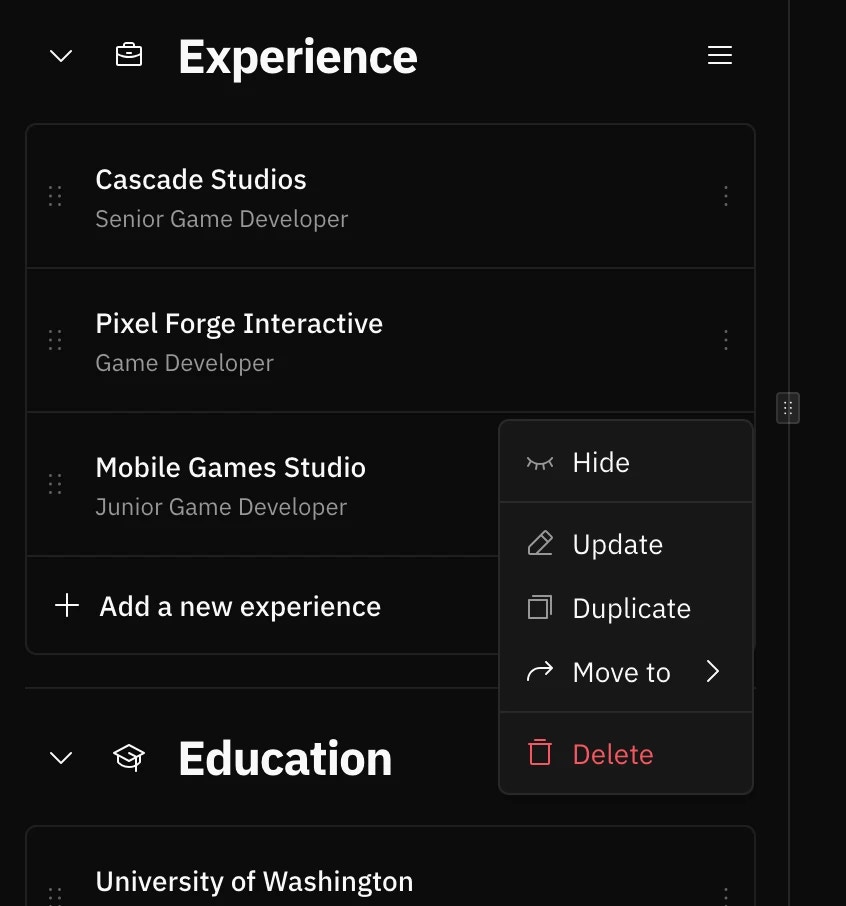
Open the item dropdown menu
Each item has a dropdown menu (three-dot icon or chevron) on the right side. Click this icon to reveal the available actions.
Screenshot of the dropdown menu icon on a section item
4
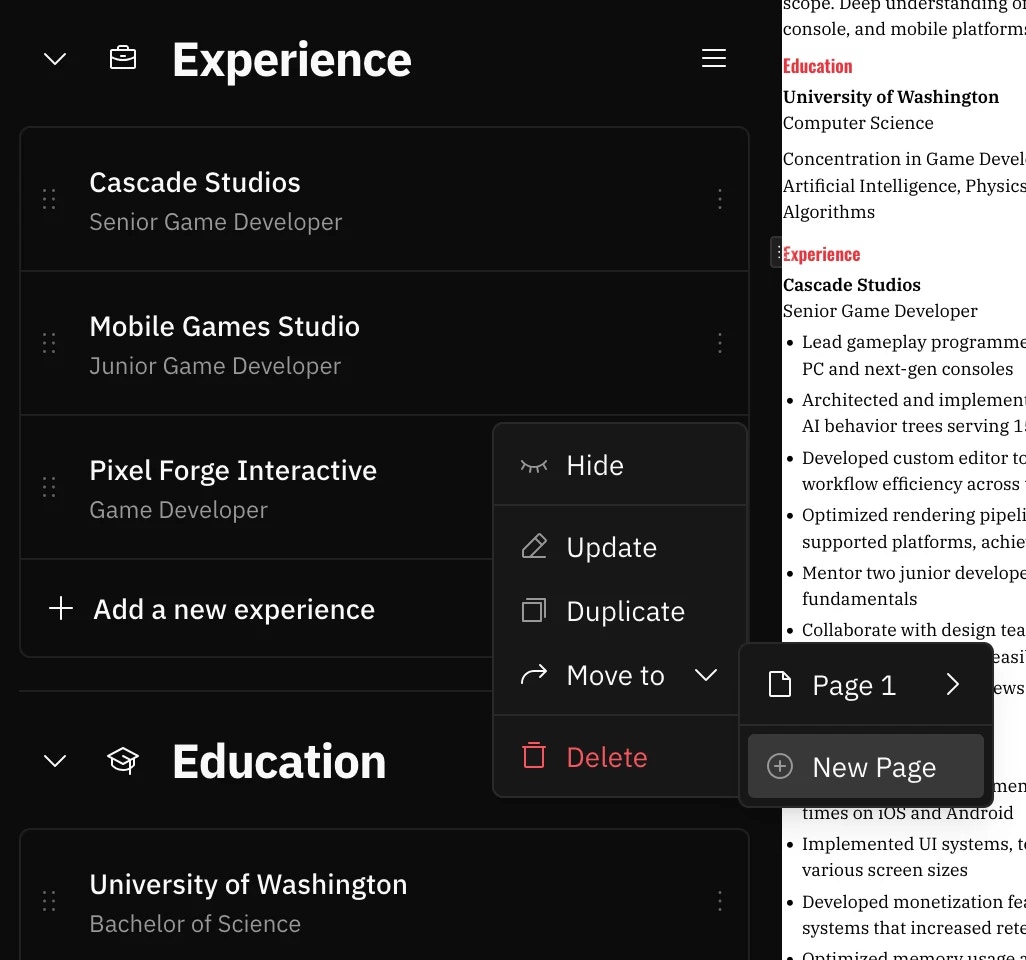
Hover over 'Move to'
In the dropdown menu, hover over or click the Move to option. This will open a submenu showing all
available destinations.
5
Select a destination
The submenu displays available destinations organized by:
Existing sections of the same type (e.g., other Experience sections)
Pages where you can place the item
Custom sections if any exist
Click on your desired destination to move the item there.
Screenshot of the 'Move to' submenu with destination options
If a custom section of the same type doesn’t exist on your target page, Reactive Resume creates one for you, so you can split a section across pages without setting it up first.
6
Verify the move
After selecting a destination, the item will be moved immediately. You can verify by:
Checking the destination section in the left sidebar
Looking at the resume preview to see where the item now appears
A common case is a work history that is too long to fit on a single page.
1
Identify items to move
Review your Experience section and decide which roles should appear on page 1 (typically your most recent and relevant positions) and which can go on page 2.
2
Move older positions
For each older position you want to relocate:
Open the item’s dropdown menu
Click Move to
Select Page 2 (or the appropriate page)
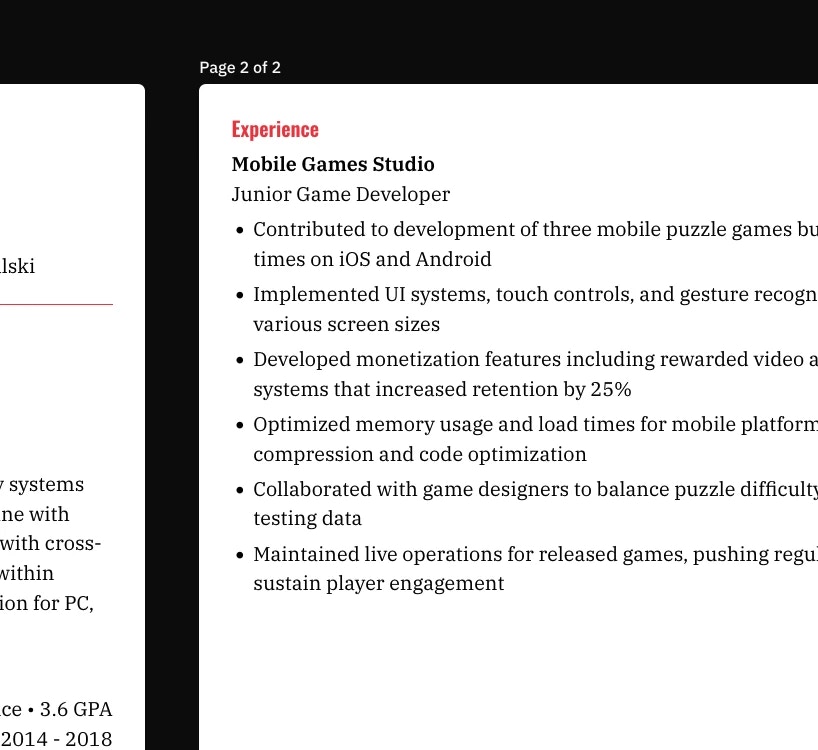
If no Experience section exists on page 2, a new custom section will be created automatically with the same type, so your formatting stays consistent.
3
Review the result
Check the resume preview to ensure:
Page 1 contains your most important, recent roles
Page 2 continues with your earlier experience
The section headings and styling remain consistent
Keep chronological order within each page, and move complete job entries rather than splitting a single role across
pages.
After moving items to a new custom section, rename it (e.g., “Earlier Experience” or “Additional Projects”) so
recruiters know what they are looking at.
Moving items reorganizes your content but doesn’t change the data itself. You can always move items back, or to a
different section.
Make sure you’re clicking the dropdown menu on a section item (like an individual job or project), not the section header itself. The Move to feature is only available for items within sections.
The Move to submenu shows destinations compatible with the item type. For example, an Experience item can only be moved to other Experience-type sections. If you need to change an item’s type entirely, recreate it in the section you want.
If you’re moving to a page that already has a section of the same type, the item will be added to that existing section rather than creating a new one. This is by design to avoid duplicate sections.