

Sign up with email and password
1
Open the sign-up page
Go to rxresu.me and select Build your resume. On the sign-in page, select Create one now.If you run your own copy of Reactive Resume, use its address instead of
rxresu.me.2
Fill in your details
- Name: your name as you want it shown in the app (3 to 64 characters). - Username: 3 to 64 characters, using
lowercase letters, numbers, dots, hyphens and underscores. It becomes part of every public resume link, for example
rxresu.me/alexmorgan/game-developer. - Email Address: an address you can open. You need it to reset a forgotten password. - Password: at least 8 characters, up to 64.
3
Select Sign up
Your account is created and you are signed in straight away.
4
Continue to your documents
A You’ve got mail! screen confirms that a verification link is on its way. Verifying is optional, so you can select Continue and start working, then open the link from your inbox later.
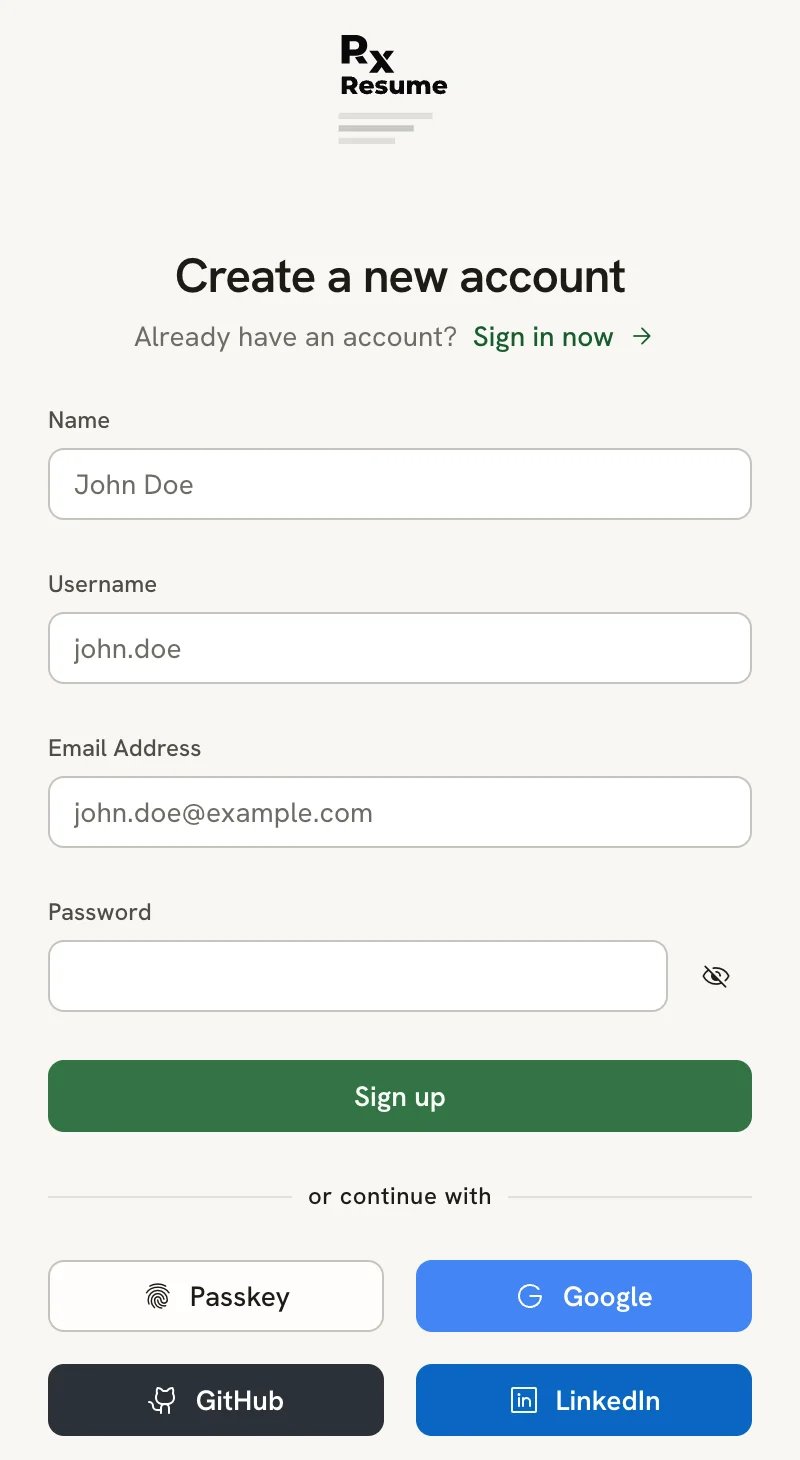
The sign-up form. The buttons under it depend on what the site has turned on.
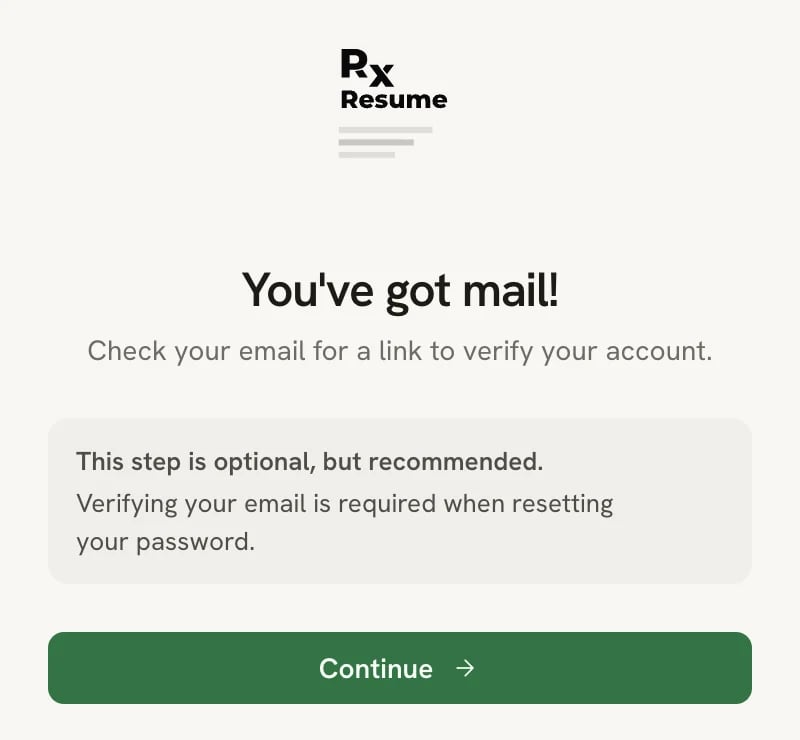
After signing up, you can verify your email now or later
Sign up with a social account
Under or continue with, select Google, GitHub or LinkedIn and approve the request on that site. Reactive Resume creates your account from the name, email and photo the provider shares, and picks a username for you. You can change it afterwards in Settings → Account. These buttons only appear when the site has set them up. On a self-hosted copy you may see none of them, or a single button for your organization’s sign-in service.If sign-up doesn’t work
The username or email is already taken
The username or email is already taken
Usernames and email addresses are unique. Try another username. If the email is yours, you already have an account: go back to the sign-in page and use Forgot Password? to get back in.
The verification email didn't arrive
The verification email didn't arrive
Check your spam folder. You can ask for a new link from Settings → Account: under the Email field, select
Not verified yet. Resend the link. On self-hosted copies without email delivery, the field says so instead, and no
email is sent.
There is no Create one now link
There is no Create one now link
The site’s owner has turned off new sign-ups. Only existing accounts can sign in.
Next steps
Create your first resume
Start from a blank page, a sample or an existing file.
Protect your account
Add two-step verification or a passkey.