

Schedule an interview
You can start from the application or from the calendar.- From an application
- From the calendar
1
Open the application
Select it in Applications to open its details.
2
Choose Schedule an interview…
Under Next step, select Edit, then Schedule an interview….
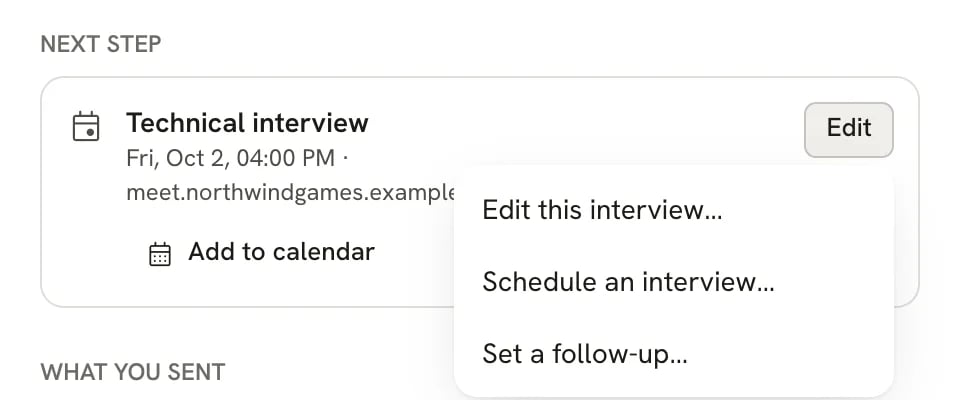
The Next step Edit menu
1
Pick the interview type
Choose Screening, Technical, Behavioral, Onsite or Other.
2
Set the date, time and timezone
Enter Date and Time. The timezone is shown beside Time and starts from your account’s setting in Settings
→ Preferences. If the invitation uses another timezone, select Interview is in another timezone and choose it.
Check the equivalent time shown for your own timezone.
3
Set the length
Under Length · minutes, choose 30, 45, 60 or 90. An existing interview with another length keeps that value
available when you edit it.
4
Add the meeting details
Location can hold a meeting link, address or phone number. Under Who you’ll meet, use Add a person for
each interviewer and add their name, role and optional public profile link. Copy the employer’s request into What
they asked you to prepare.
5
Save
Select Save interview.
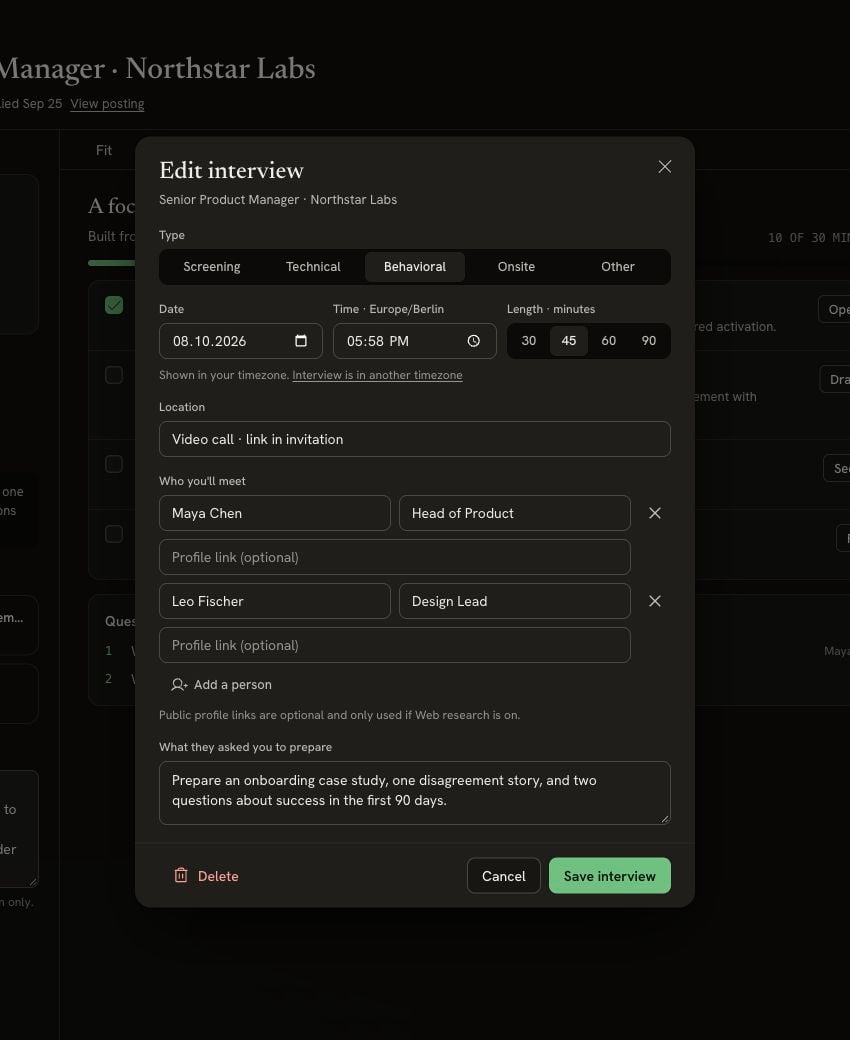
The interview form separates the time, length, people and employer's preparation request. This fictional interview is being edited.
Edit or delete an interview
Select the interview on the calendar, in Upcoming interviews, or in the application’s Activity. You can also use Edit → Edit this interview… in the details sheet, or Next step → Edit in its workspace. Change what you need and select Save interview. A date and time skipped by a daylight-saving change is rejected. Pick a valid local time instead of accepting an automatic shift. To remove it, select Delete. The notice offers Undo for six seconds. Undo keeps the original round and its linked schedules. Removing an interview pauses its briefing schedules; rescheduling moves them to the new time. Check Career → Today → Schedules after a change.Prepare for the round
Open the application’s workspace and choose Prepare for a timed plan, briefing and questions to ask. You can enable a morning briefing in advance, then use Practise to rehearse out loud. See Get ready for interview day.Use the Calendar view
The Calendar tab shows one month of interviews across all your applications.- Use the arrows to change month, and This month to come back to today.
- Each day shows up to three interviews, with the time and company. Select +n more to see the rest of a busy day.
- Upcoming interviews, on the right, lists every interview that hasn’t finished yet, grouped by day. Select a card to edit the interview, or View application to open the application.
- The legend under the calendar shows the color of each interview type.
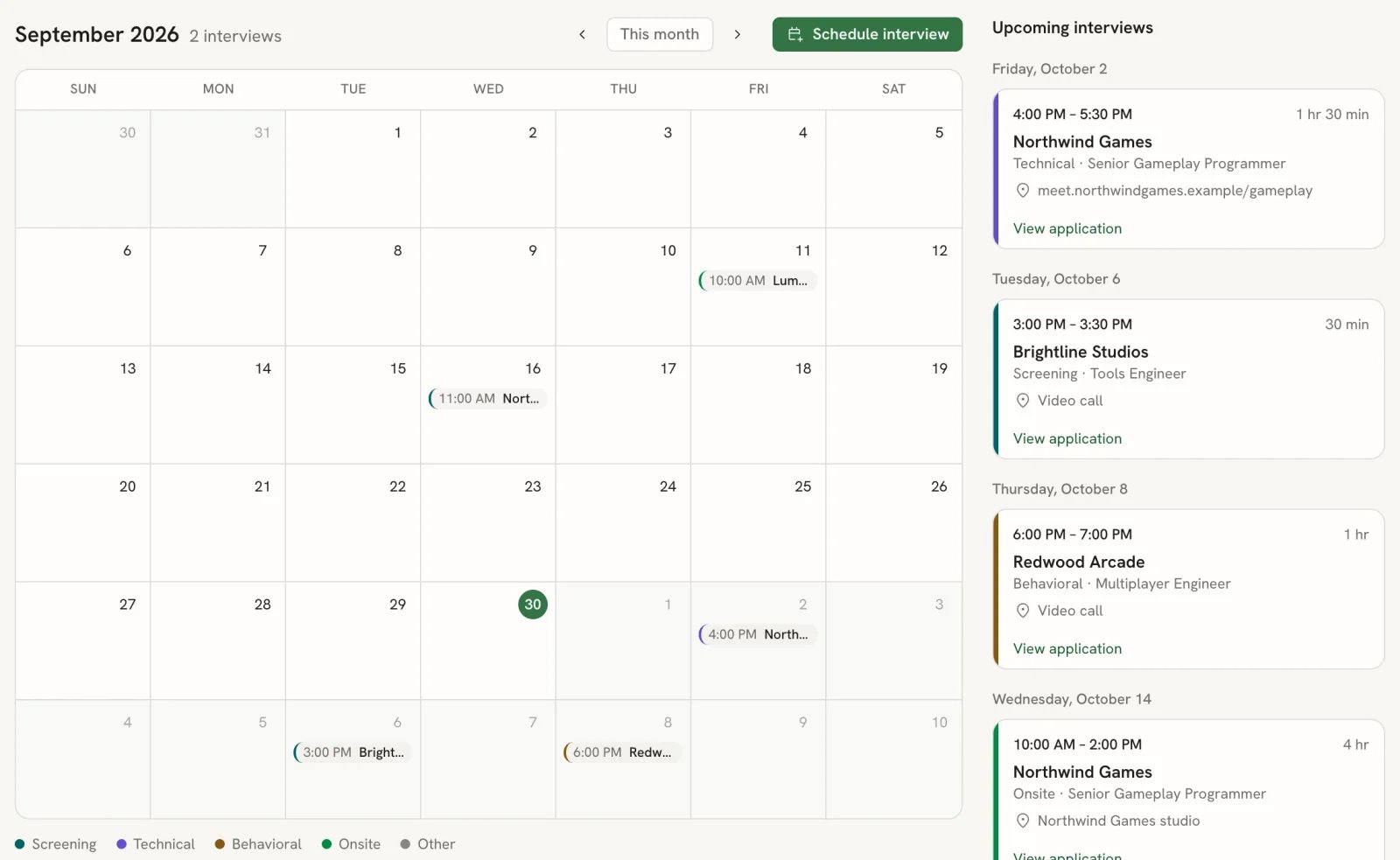
The Calendar view with upcoming interviews
Set a follow-up reminder
A follow-up is a reminder to check in, for example to email the recruiter a week after applying.1
Open Set a follow-up…
In the application’s details, under Next step, select Edit, then Set a follow-up… (or Change the
follow-up…).
2
Pick a date and say what to do
Choose a Date and, if you like, fill in What to do, such as “Email the recruiter”. When you change an
existing follow-up, the fields start empty, so enter the date and note again.
3
Save
Select Save. To remove the reminder, select Clear.
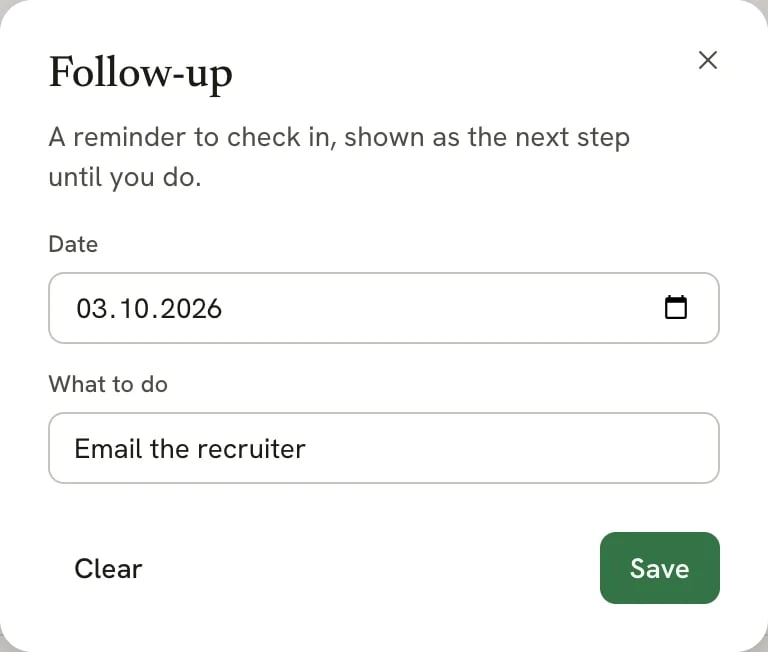
The Follow-up dialog
Add a step to your calendar
When the next step is an interview or a follow-up, select Add to calendar under it. Reactive Resume downloads an.ics file named after the company and date. Open it to add the event to Apple Calendar, Google Calendar, Outlook or any other calendar app.
The event includes the type of step, the role and company, and the start and end time. Interviews also include where and your notes. Follow-ups are added as 30-minute events at 9:00 on the chosen day.
Related guides
- Managing an application: the rest of the details sheet.
- Get ready for interview day: morning briefings, spoken practice and debriefs.