The form asks for your best project again. Your story is already in Knowledge; use Apply to turn it into an answer for this job.

Add the employer’s question

  1. Open the application’s workspace and choose Apply.
  2. Select Add a question from the form.
  3. Paste the question, including any limit such as “Maximum 200 words.”
  4. Press Enter or leave the question field to finish editing it.
Use Question options → Edit question to change it later. Remove question offers Undo.

Draft from your experience

Read what the AI action sends, then choose Draft. The proposal shows what would change. Review the claims and choose Accept or Skip. Check the Backed by facts. Make sure “I” describes your contribution and “we” describes the team’s work. Do not accept a result, responsibility or number you cannot support. You can type or edit an answer yourself. Question and answer edits save as you work; AI suggestions need your acceptance. An answer can contain up to 6,000 characters. If your draft exceeds that storage limit, it stays visible with a warning; shorten it before saving or recording submission. This is separate from the employer’s limit. If another tab changes the same answers, the app reports a conflict instead of silently overwriting them.
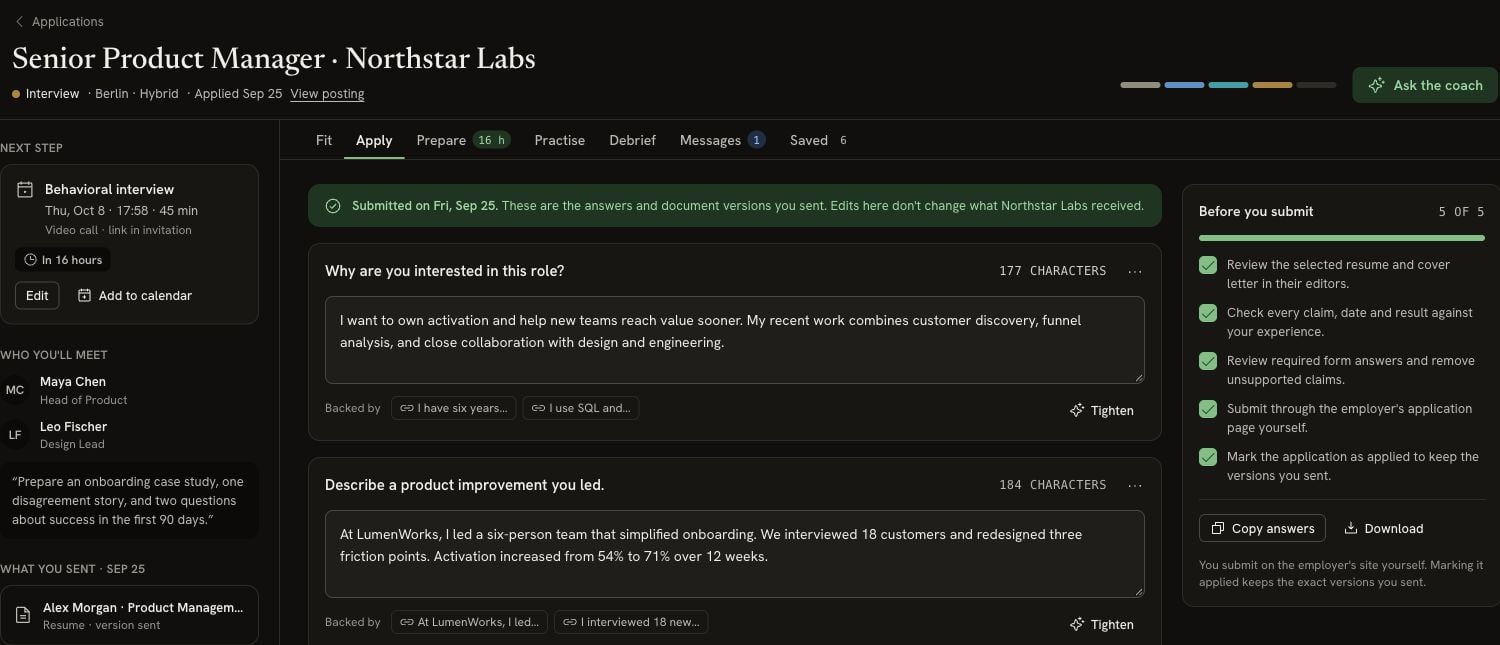
Two application answers showing 177 and 184 character counts, supporting facts, Tighten buttons and the Before you submit checklist

Each answer has its count and backing facts. The checklist sits beside the answers; this example shows an application that has already been submitted.

Fit a word or character limit

Select the count beside any question to switch all displayed counts between words and characters. Select it again to switch back. Character counts include spaces. Choose Tighten on an existing answer for a shorter proposal using the same facts. Review it and choose Accept or Skip. If you need a specific length, put the limit in the question before asking again. The counter shows your answer’s length; it does not block submission or guarantee the employer counts text the same way. Check the final text in the employer’s form too.

Copy or download your answers

Copy answers copies the nonempty questions and answers together. Download offers Markdown (.md) and Plain text (.txt). You can also copy one answer’s text directly for a single field.

Submit and record what you sent

Use Before you submit to review the linked resume and letter, check claims, and complete required answers. Make sure the application links to the actual document versions you intend to send. See Managing an application. Submit on the employer’s website yourself. Then choose Mark as applied in Apply. This keeps a saved copy of your written answers and the linked documents’ versions, and moves the application to Applied. The current answer text, submitted answer copy, document versions and stage change are recorded together. A failed save leaves the application unsubmitted and your draft available to retry. Marking it applied records your submission; it does not submit a form for you. Later edits in Apply do not change the copy you kept at submission.

Reopen a past version

Open Saved, find Answers, and choose Open in Apply to read that saved version. It is read-only. Select Back to current to return to your editable answers. For a later interview, the same facts and stories can support your opening and practice answers.