

Before you start
- Install an authenticator app, such as Google Authenticator, Microsoft Authenticator, 1Password, Bitwarden or Authy.
- Your account needs a password. If you signed up with a social account, the Two-step verification row doesn’t appear until you set a password.
Turn on two-step verification
1
Open Sign-in & security
Select your name at the bottom of the sidebar, then Settings. On the Account page, find Two-step verification under Sign-in & security.
2
Turn the switch on and enter your password
The Enable Two-Factor Authentication dialog asks for your Password. Enter it and select Continue.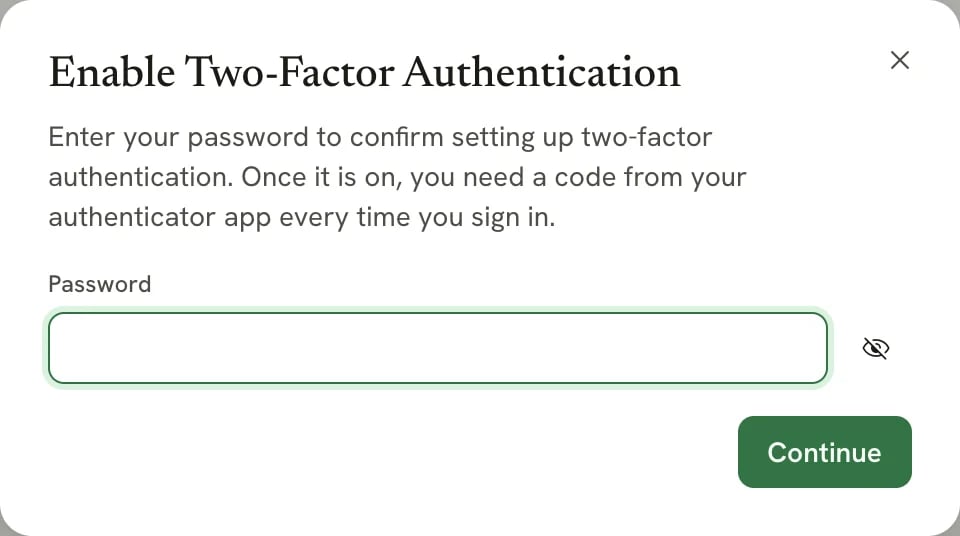
3
Save your backup codes
Copy Backup Codes shows 10 one-time codes. Select Download to save them as a text file, or Copy to paste them somewhere safe, such as your password manager. Then select Continue.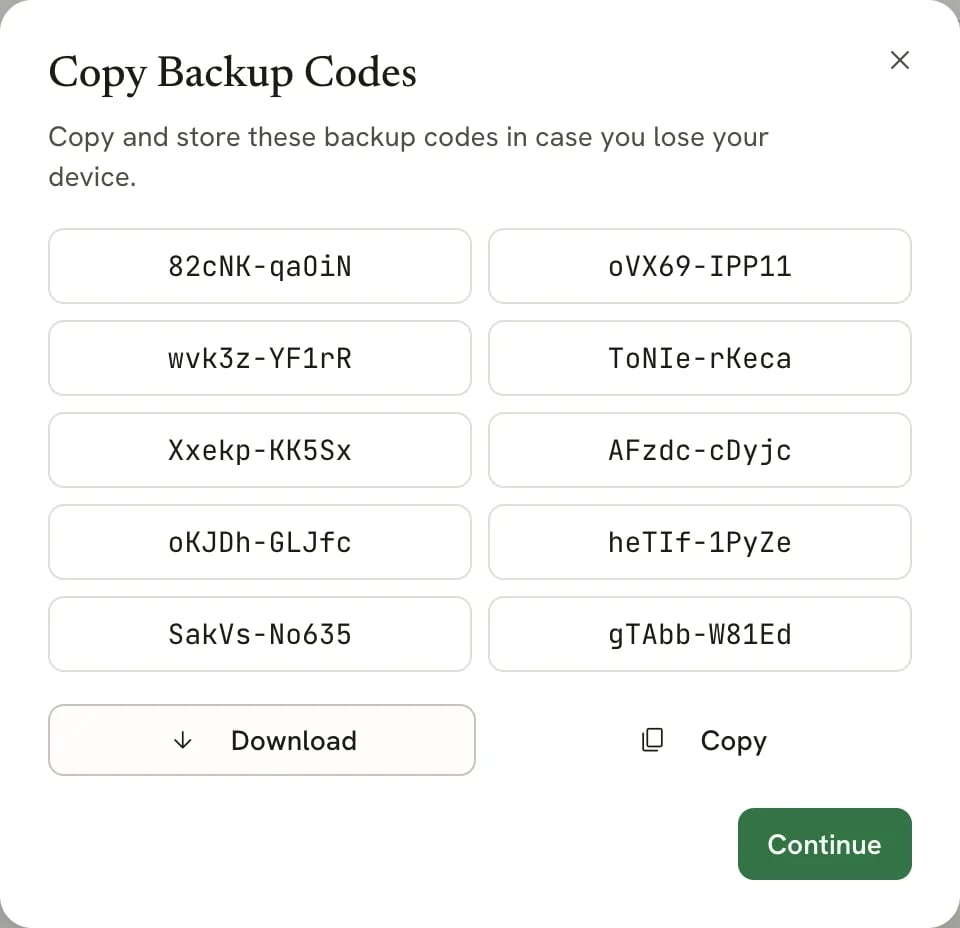
4
Add Reactive Resume to your authenticator app
In Setup Authenticator App, scan the QR code with your app. If you can’t scan it, select the copy button next to the secret key above the code and paste the key into your app.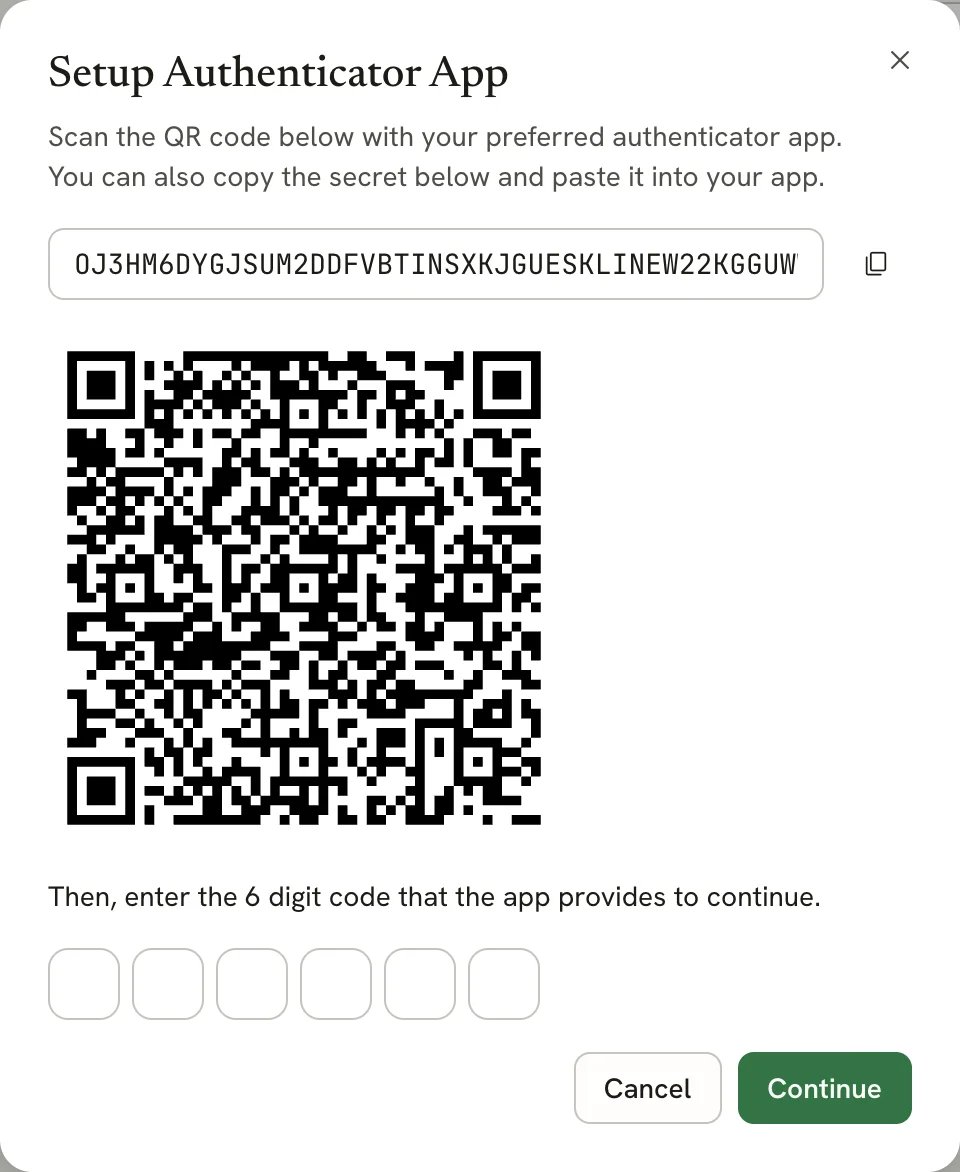
5
Enter the 6-digit code
Type the code your app shows for Reactive Resume. The dialog verifies it as soon as the code is complete, or you can select Continue. An accepted code turns on two-step verification and closes the dialog.
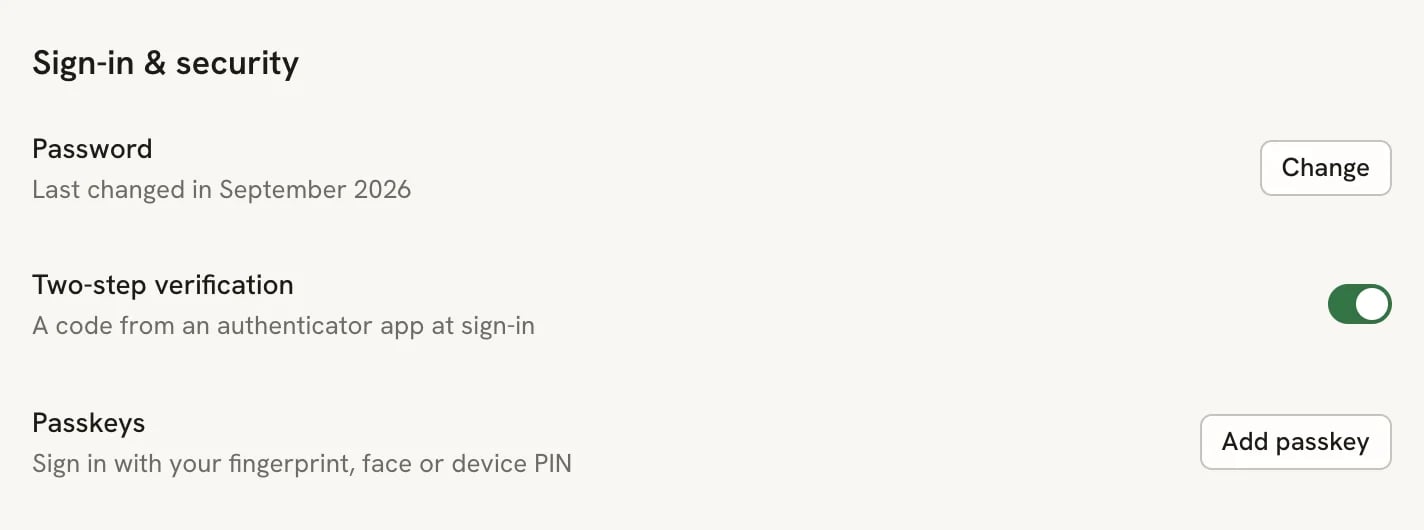
Two-step verification turned on
Sign in with a code
After your password, enter the code from your app on the Two-Factor Authentication page. If you don’t have your app, select Lost access to your authenticator? and enter a backup code. Each backup code works once. See Signing in for details. Signing in with a passkey or a linked social account doesn’t ask for a code.Turn off two-step verification
1
Turn the switch off
In Sign-in & security, turn off Two-step verification.
2
Confirm with your password
In Disable Two-Factor Authentication, enter your Password and select Disable 2FA.
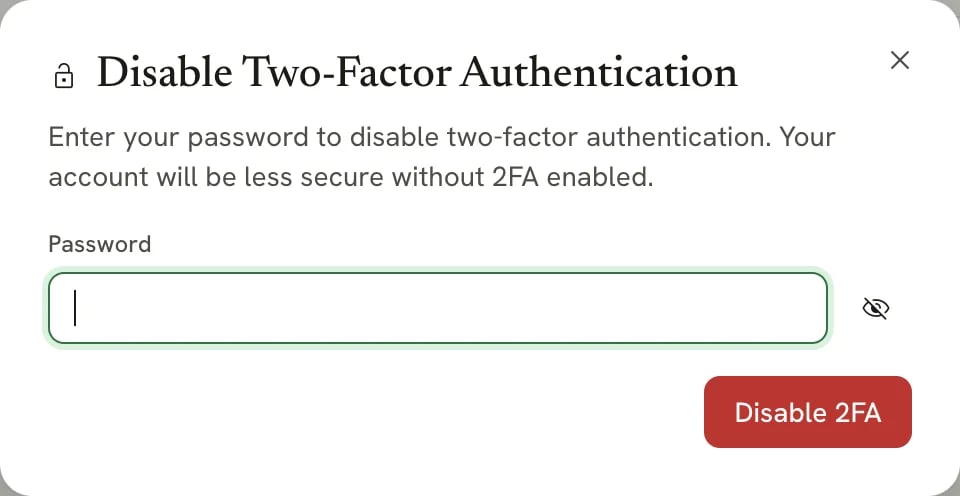
Turning off two-step verification needs your password
Related guides
- Setting up passkeys: a faster sign-in that is also resistant to phishing.
- Updating your profile: change or set your password.