

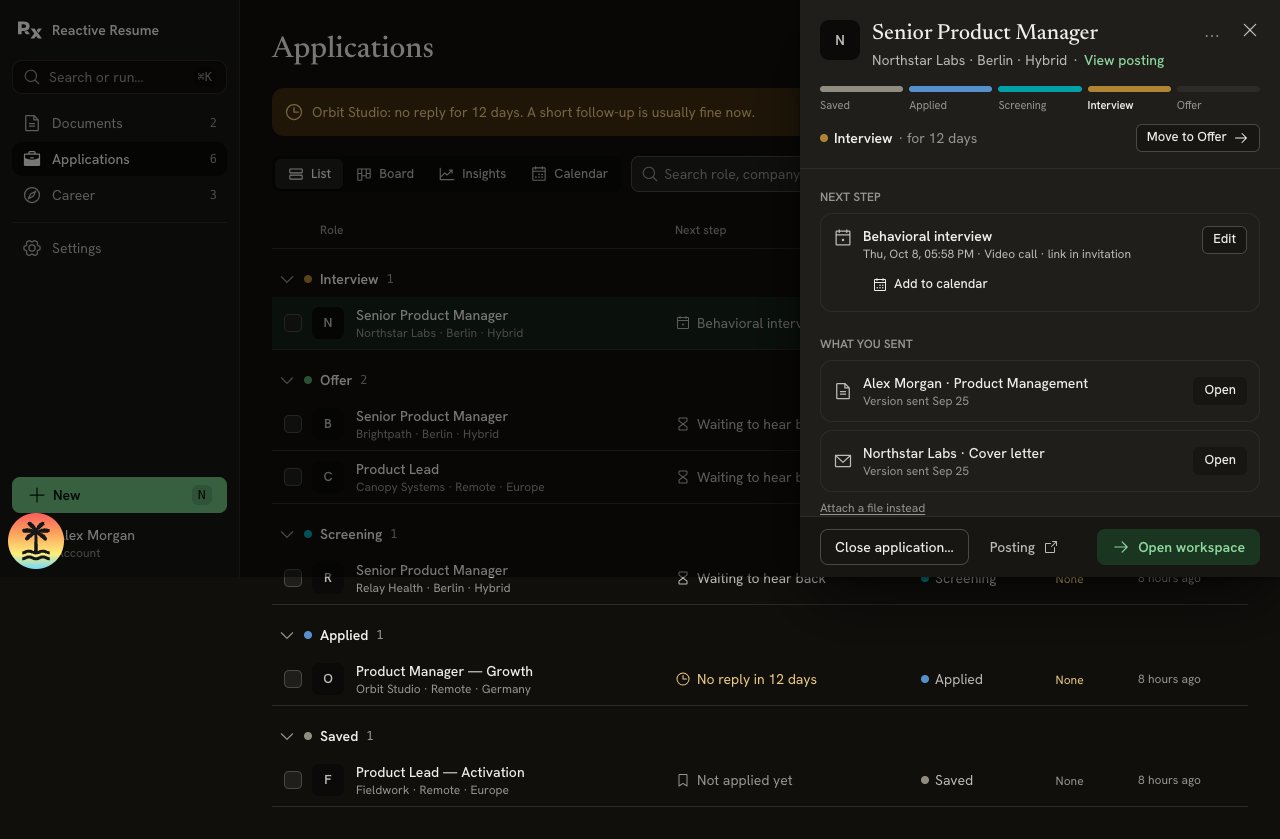
An application's details sheet
Open the application workspace
Select Open workspace at the bottom of the details sheet. Each application has its own Fit, Apply, Prepare, Practise, Debrief, Messages and Saved tabs. Ask the coach opens a conversation beside the current tab. Start with Career and Application Workspaces, or prepare your first application. Your shared facts and stories live in Career → Knowledge; answers, interview preparation and messages stay with the job.Moving to another stage
The row of bars under the title is the stage stepper: Saved, Applied, Screening, Interview and Offer. Below it you see the current stage and how long the application has been there.- To move one stage forward, select Move to next stage (for example Move to Offer).
- To jump to any stage, forwards or back, select its name in the stepper.
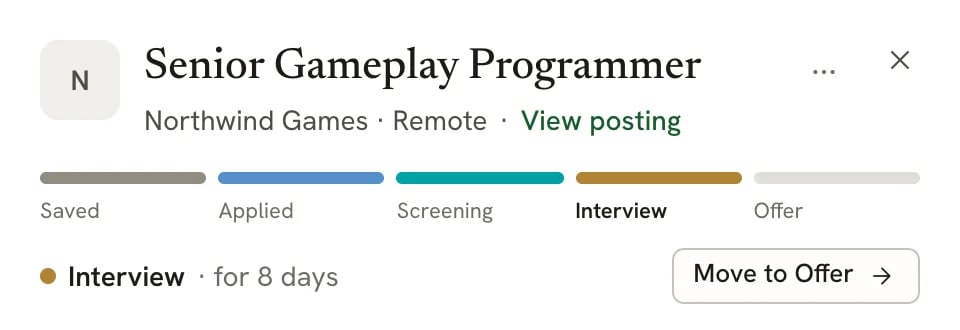
The stage stepper and Move to button
Planning the next step
Next step shows what this application needs now. Reactive Resume works it out in this order:- The next interview that hasn’t finished yet.
- Otherwise, the follow-up you set.
- Otherwise, for Applied, how long ago you applied, turning into “No reply in n days” after 10 days; for later stages, how long you’ve been waiting to hear back.
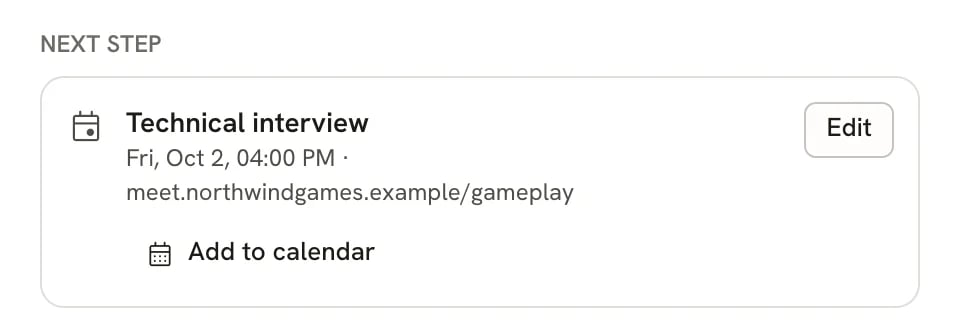
Next step showing an upcoming interview
.ics file. See Scheduling interviews.
Seeing what you sent
For a Saved job, Documents for this job shows the resume and cover letter you’re preparing. After submission, this section becomes What you sent.- Before the application reaches Applied, a linked document reads “Linked · not sent yet”.
- When you confirm submission, Reactive Resume saves the current version of each selected document. The row then reads “Version sent date”, plus the resume’s Check score at that moment. Choose the actual submitted documents even if you prepared a different copy.
- Open opens that sent version, read-only, in the document’s history. Select Back to now there to return to the latest version.
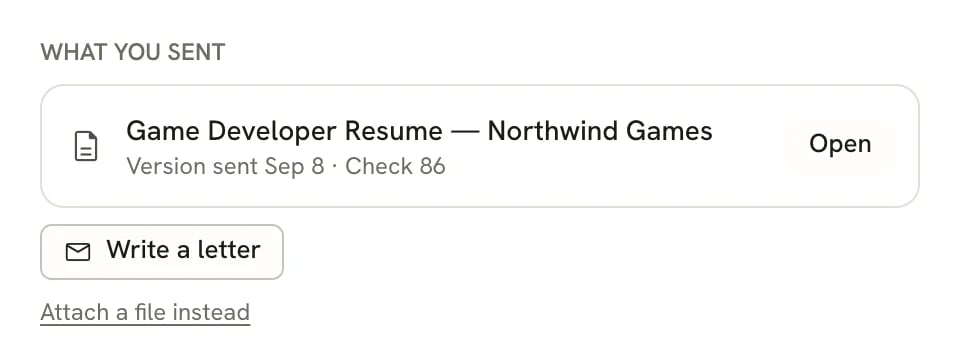
What you sent, with a linked resume
Attaching a PDF instead
If you sent a file made elsewhere, select Attach a file instead, then Attach a resume file (PDF) or Attach a cover letter file (PDF). Only PDF files are accepted. Select the file name to open it, or × to remove it.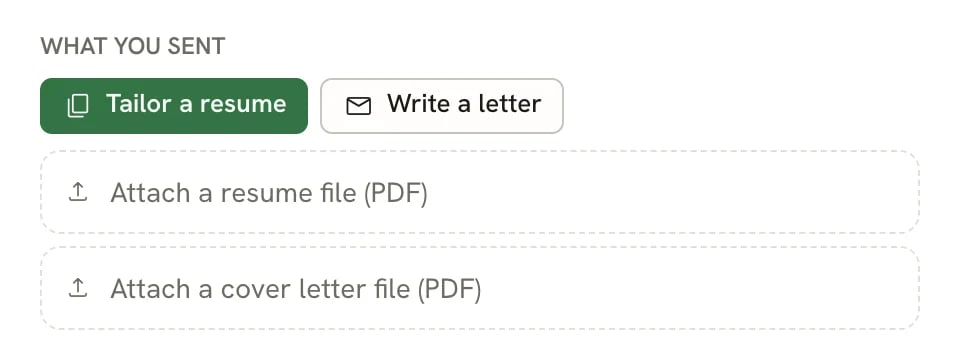
Attaching PDF files
Editing the key facts
Below What you sent are four facts:- Salary and Source: select the value to edit it in place. Press Enter or select elsewhere to save, or Esc to cancel.
- Applied: the date you applied (a dash for Saved applications).
- Contact: the first contact’s name, with “and n more” when there are others.
Contacts
Select the Contact value to see every contact. Select Add contact, then enter a Name and, if you like, a role, a label (such as Recruiter, Hiring manager, Referral or Interviewer), an email and a phone number. Emails and phone numbers become links you can select. Select × next to a contact to remove it.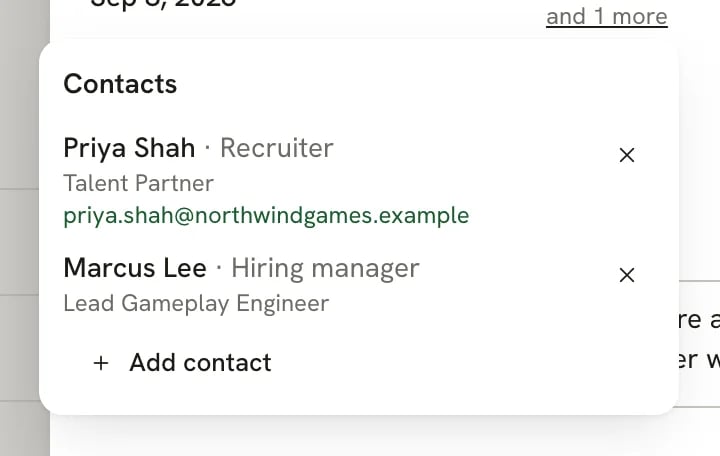
The contacts list
Tags
Type in Add a tag and press Enter to add a tag. Select × on a tag to remove it. Tags are searchable from the Applications page.Keeping notes and history
Notes is a free-form space for anything to remember about the job. It saves automatically a moment after you stop typing, and also when you close the sheet. Activity is the dated history of the application: stage changes, notes and interviews, newest first.- To add a dated note, type in Add a note… and select Add.
- To change an entry, hover over it, open its ⋯ menu and select Edit… (for a note, you can change the text and the date; for a stage change, the date). For an interview, the menu has Edit interview… instead, or select the interview itself.
- To remove an entry, select Delete… in the same menu and confirm. The entry that marks when the application entered its current stage can’t be deleted.
Editing all details
Open ⋯ at the top of the sheet and select Edit details… to edit everything in one form: Company, Role / title, Location, Salary range, Source, Stage, Job posting link, the linked Resume or an uploaded resume PDF, a Cover letter PDF, Tags, Follow-up date, Follow-up note and Notes. Select Save changes when you’re done. If you’ve connected an AI provider, the form also has a Job description section at the top. Select it to expand it, then paste the full posting there and Reactive Resume fills in the company, role, location and salary; select Fill fields to run it again.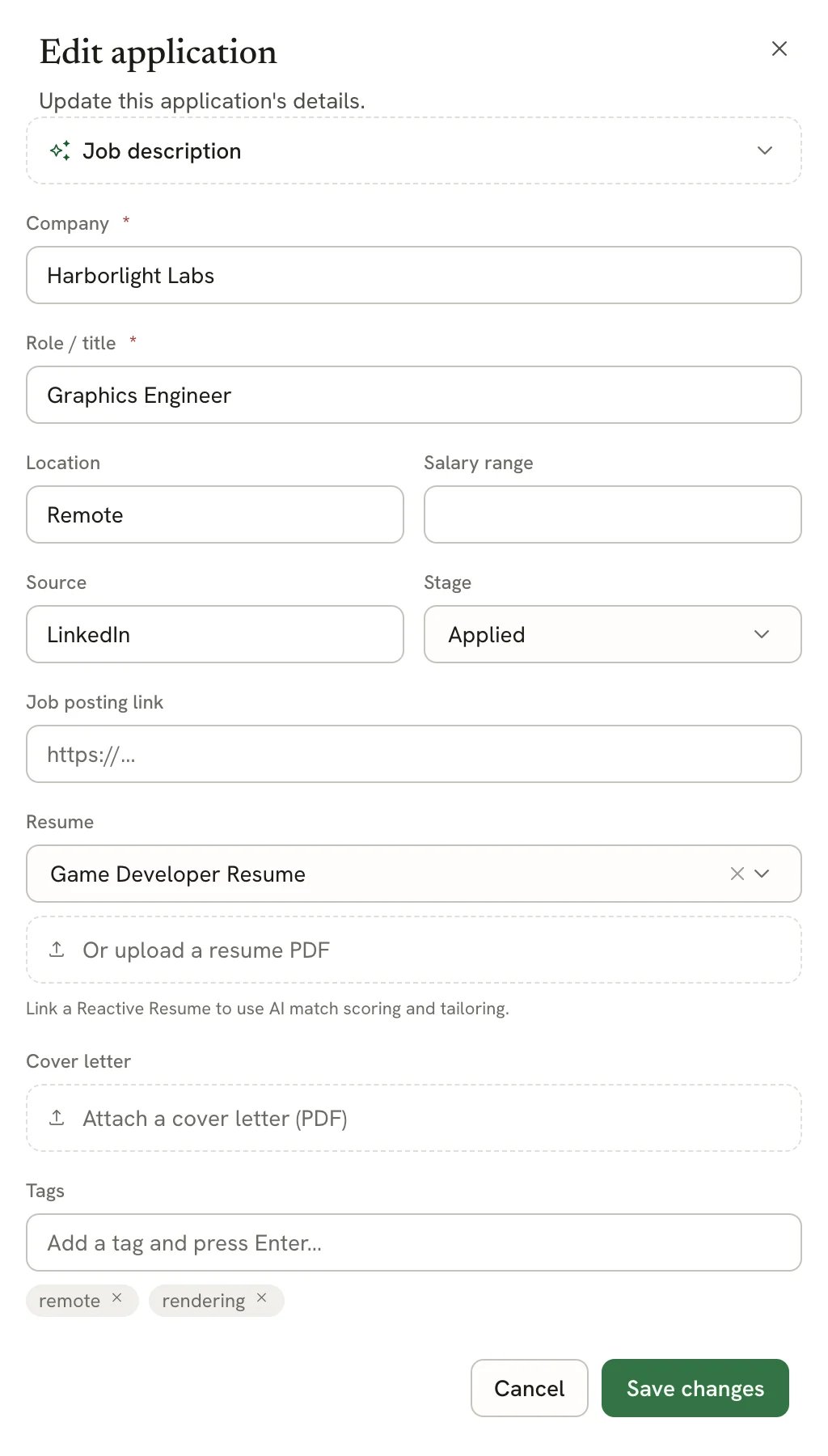
The Edit application form
Closing an application
When an application ends, close it rather than deleting it, so its history still counts in Insights.1
Select Close application…
It’s at the bottom of the details sheet.
2
Choose a reason
Pick Not selected, I withdrew, Accepted another offer or No response.
3
Confirm
Select Close application. Linked documents aren’t changed.
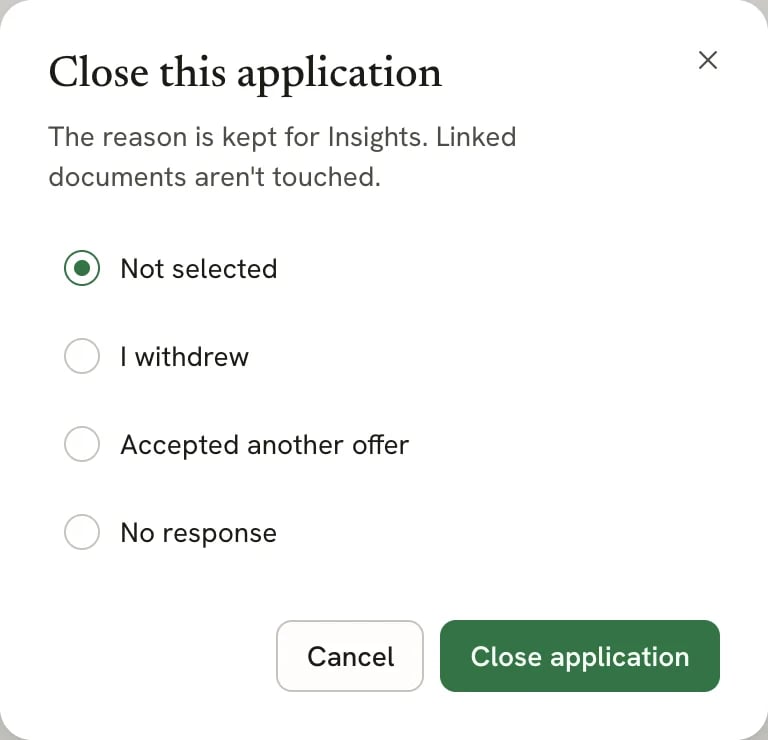
Choosing why the application closed
Deleting an application
Open ⋯ at the top of the sheet, select Delete… and confirm. The application, its history and any PDF files you attached to it are deleted permanently; there is no Trash for applications. Your resumes and letters are not deleted.Related guides
- Scheduling interviews: add interviews and follow-ups, and put them in your calendar.
- Tailoring a resume for a job: tailor a resume, write a letter, and prepare for the next step.
- Undoing changes and version history: how sent versions appear in a document’s history.