

Open the Entries settings
1
Open your resume
From Documents, open the resume you want to change.
2
Switch to Design
Select Design in the editor bar. In the web editor, you can also press 2 while you’re not typing in a
field.
3
Go to Entries
In a computer or tablet browser, select Entries in the row of links at the top of the Design panel, or scroll to
the Entries group below Template. On a phone, and in the Android and iPhone apps, tap the Entries tab in
the design sheet.
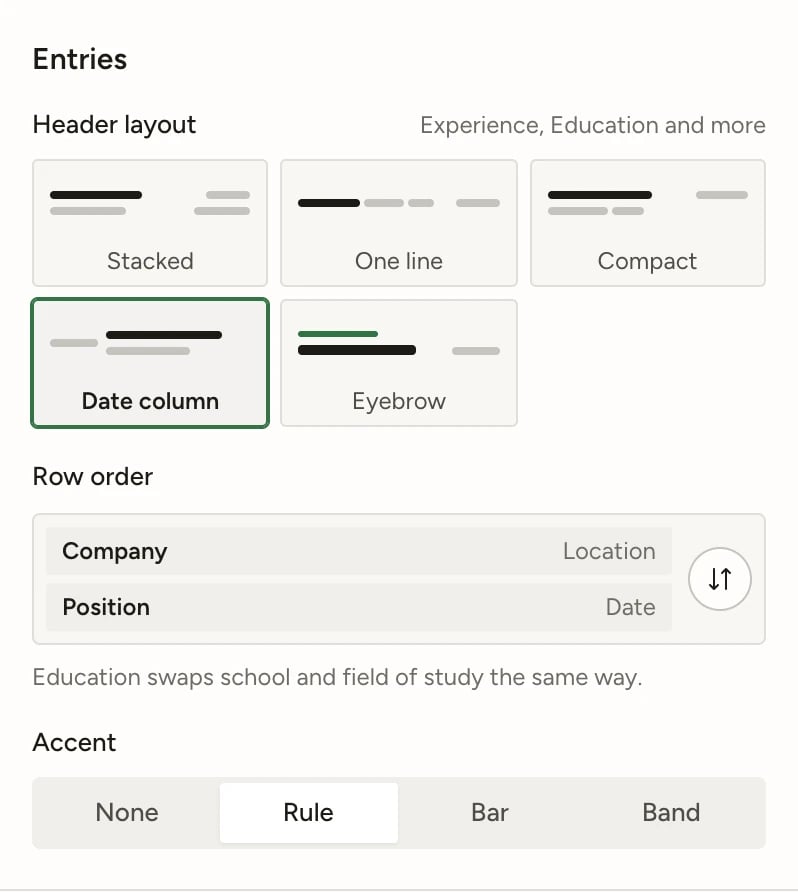
The Entries group, with Date column and the Rule accent selected
Choose a header layout
Under Header layout, select one of the five tiles. Each tile sketches the layout, and the page updates straight away.
The layouts apply to Experience, Education and Volunteer entries. A few things change what you see:
- Date column also moves other dates. With Date column, the dates of Projects, Awards, Certifications and Publications move into the column too. Those sections keep their usual header with every other layout.
- Narrow entries can fall back to Stacked. One line and Date column need the full width of the main column. Entries in the sidebar, or in a section split into more than one column, use Stacked instead of either of those layouts. Compact and Eyebrow work everywhere.
Lead with the position
By default, each entry starts with the company or school. To put your job title first instead:1
Find Row order
Row order shows the two header rows in their current order, for example “Company · Location” above “Position ·
Date”.
2
Select the swap button
Select the swap button (⇅), labelled Swap rows: lead with position. Every Experience entry now starts with the
position, in every layout.
- Education swaps the school and the area of study the same way.
- Volunteer entries always start with the organization.
- An entry with no position or area of study keeps the company or school first.
Add an accent
Under Accent, choose how the accent color marks each entry header:
In a colored sidebar, the accent uses the sidebar’s text color instead of the accent color. To change the accent color itself, see Choosing colors.
What Word and OpenDocument files keep
PDF downloads, printing and the editor page all use your Entries settings. Word (.docx) and OpenDocument (.odt) downloads follow Row order only. They keep their plain layout, without header layouts or accents. See Downloading your resume.
Custom styles still apply on top of these settings. See Applying custom styles.
Go back to the default look
There is no separate reset for Entries. To return to Stacked, company first and no accent, either change the three settings back by hand, or reset the whole design:1
Open Advanced
On a computer or tablet, open Advanced at the bottom of the Design panel. On a phone, and in the apps, it’s at
the bottom of the Page tab.
2
Select Reset design defaults
A message confirms the reset and offers Undo.
If the controls are greyed out, the resume is locked. Open the document name menu at the top left and select Unlock
editing.
Related guides
Choosing a template
Pick the overall layout before you fine-tune entries.
Choosing colors
Set the accent color the Eyebrow layout and accents use.
Arranging the layout
Move sections to the sidebar or split them into columns.
Editing entries
Fill in the positions, dates and locations the header shows.