

Your profile is separate from your resumes. Changing your account name or photo does not change the name or picture on
any resume. Those live in each resume’s Basics section.
Open your profile
Select your name at the bottom of the sidebar, then Settings. Account opens first, with Profile at the top. On a phone, Settings opens a short list first. Tap Account.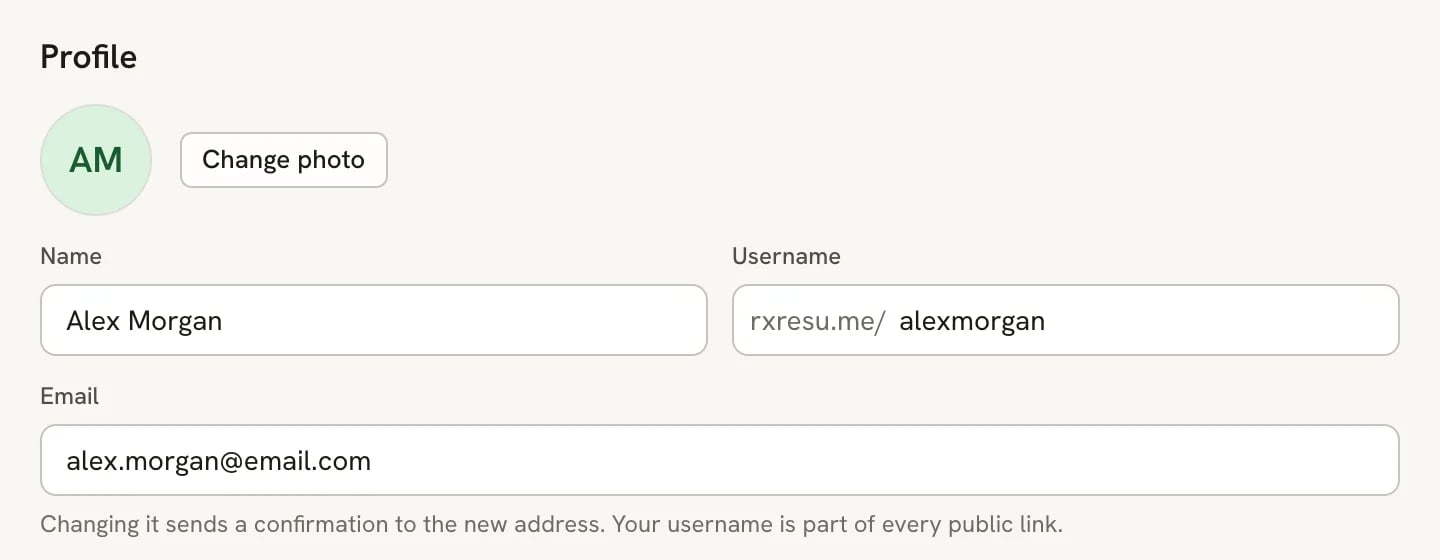
The Profile section in Settings → Account
Change your name, username or email
Click a field, type the new value, then press Enter or click anywhere else. The change saves as soon as you leave the field. Press Esc before leaving to undo what you typed. If a value can’t be saved, it stays in the field with the reason underneath, for example when a username is already taken.- Name: up to 64 characters. Shown in the app, not on your resumes.
- Username: 3 to 64 characters, using lowercase letters, numbers, dots, hyphens and underscores. The field shows your site address in front of it, because the username is part of every public resume link.
- Email: see below. Changing it takes an extra step.
Confirm a new email address
When you change Email, Reactive Resume sends a confirmation link to the new address and shows a message saying so. Your account keeps the old address until you open that link. Check the new inbox, including spam, and follow the link to finish. If your current address isn’t verified yet, the hint under the field offers Not verified yet. Resend the link. On self-hosted copies without email delivery, the hint says the address can’t be verified instead.Change your photo
Select Change photo and choose an image. It uploads right away and replaces your initials across the app. Images up to 10 MB work; the site usually shrinks them to fit 800 × 800 pixels. Select Remove to go back to your initials.Change your password
1
Open the password dialog
In Sign-in & security, next to Password, select Change.
2
Enter your current and new password
Fill in Current Password and New Password. The new password must be different from the current one and at
least 8 characters long. Select Sign out from all other devices to revoke your other sessions when changing it.
3
Select Update Password
A message confirms the change. You stay signed in on this device.
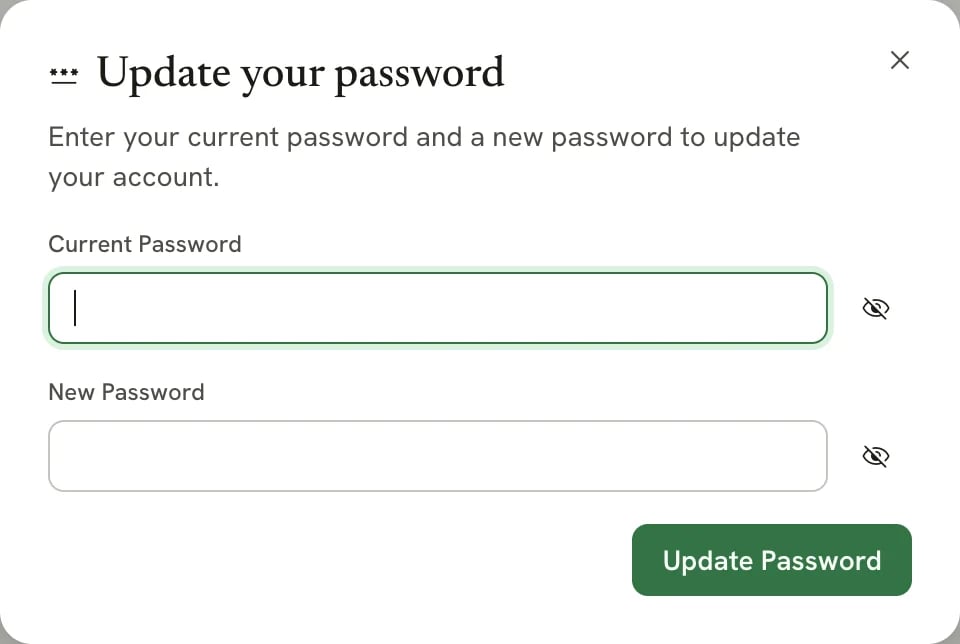
The Update your password dialog
Related guides
- Linking social accounts: sign in with Google, GitHub or LinkedIn.
- Changing appearance and language: theme and interface language.
- Filling in your details: the name, photo and contact details on a resume.