

The formatting toolbar
Click into a summary or description and a toolbar appears under the text. It stays out of the way until the text has focus, and clicking its buttons doesn’t move your cursor.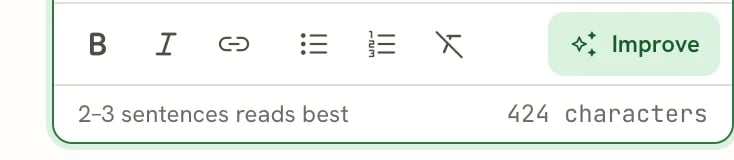
The formatting toolbar under the summary
A button is highlighted when its formatting applies where your cursor is. Under the toolbar, a footer shows a hint for the field and how many characters it holds.
Keyboard and Markdown shortcuts
You can format without the toolbar:
Press Enter for a new bullet, and Enter twice to end the list.
Inside a text field, ⌘ Z (Ctrl Z) undoes your typing in that field. Click outside the field, or press Escape, to undo changes across the whole resume.
Add a link
1
Select the text
Highlight the words you want to link, for example a project name.
2
Select Link
The Link address dialog opens with
https:// filled in.3
Enter the address and confirm
Type or paste the full web address, then select Confirm. The text becomes a link on the page and in the PDF.
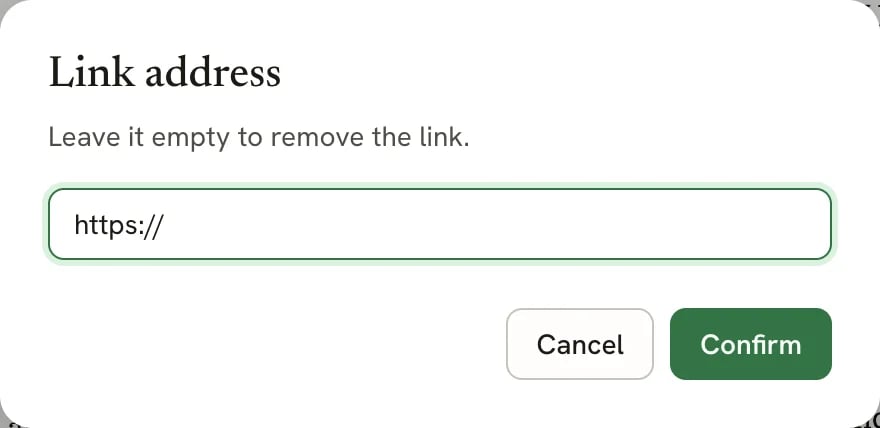
The Link address dialog
https://) and select Confirm.
Links don’t open when you click them in the editor, so you can click into linked text to edit it.
Formatting the toolbar doesn’t offer
The toolbar keeps to formatting that reads well on a resume and survives applicant tracking systems. Text you import, or wrote in an older version of Reactive Resume, may carry other formatting, such as headings, colors, highlights, underlines or centered text. That formatting is kept and still prints. To remove it, select the text and choose Clear formatting. If a description contains a table, the editor keeps the table as it is and shows “Original table formatting is preserved. This content is read-only because it cannot be edited safely.” You can still see it on the page, but you can’t edit it in the text box.Improving a line with AI
Improve rewrites one line at a time: a single paragraph of your summary or a single bullet.1
Put your cursor in the line
Click anywhere in the line you want to improve. Improve is unavailable until the cursor is in a line with text.
2
Select Improve and pick a change
Choose Stronger verb, Add a result or Make it shorter, or select Ask for something else…, describe
what should change, and select Ask.
3
Review the suggestion
Select Replace to use it, or Keep mine to leave your line as it was. If the suggestion adds facts, it asks
you to check they’re accurate.
On a phone
On screens narrower than 768 pixels, such as phones and small tablets held upright, the toolbar docks to the bottom of the screen, just above the keyboard, with larger buttons. Swipe the formatting buttons sideways to reach every action. Done stays visible at the right; select it to close the keyboard, or tap outside the text box.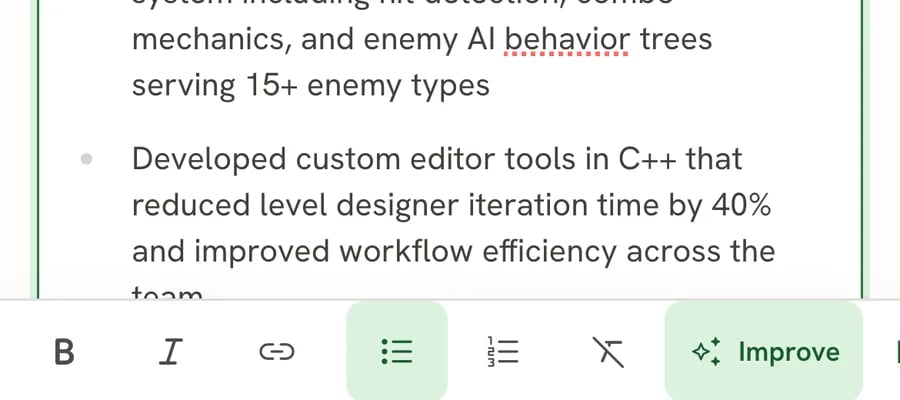
The formatting toolbar docked above the keyboard on a phone
Related guides
- Filling in your details: the summary and your contact details.
- Editing entries: descriptions for jobs, projects and other entries.
- Using the assistant: larger rewrites and questions about your whole resume.