“My interview is at 2pm and my mind is blank.” Open the application’s Prepare tab. A saved briefing gives you a focus, an opening, stories to bring and questions to ask. If you have only a few minutes, go straight to Read the short briefing. Set up a schedule beforehand when you want the next briefing ready without opening the app.

Add the interview details

Open the application’s workspace. In Next step, choose Edit to schedule or edit the interview. Record the date, time, timezone, duration, who you will meet and what they asked you to prepare. See Scheduling interviews. Check What you sent too. Preparation uses recorded sent resume and letter versions when available. Without a sent version, it can use the linked current document. A linked resume is not required to start preparation.

Make a plan before the day

  1. Open Prepare and choose Plan my preparation.
  2. Read the timed plan. Open a suggested story, draft a missing one, or rehearse a question.
  3. Tick completed steps. Your progress stays with the application.
  4. Review Questions to ask. Fit questions you saved for this job appear here too.
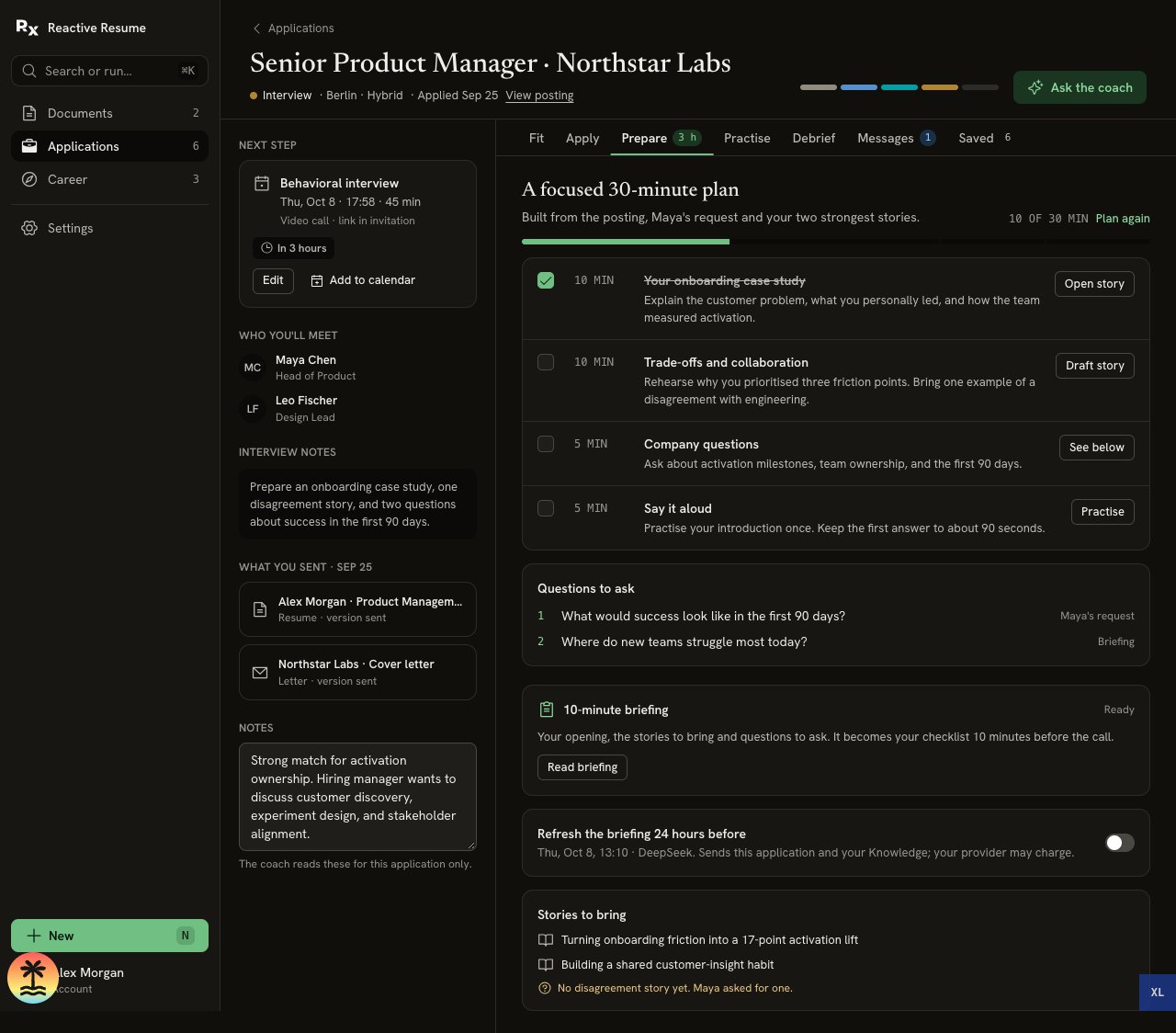
Prepare tab with a 30-minute plan, linked stories, a missing disagreement story, questions to ask, Read briefing and a briefing refresh switch

The plan connects each task to a story, question or practice session. The missing disagreement story stays visible instead of being invented.

Use Plan again when you need a fresh plan. Earlier generated briefings remain available in Saved.

Have the briefing ready in the morning

  1. Check your timezone in Settings → Preferences.
  2. Open Career → Today → Schedules → Add.
  3. Choose Prepare, then the correct interview.
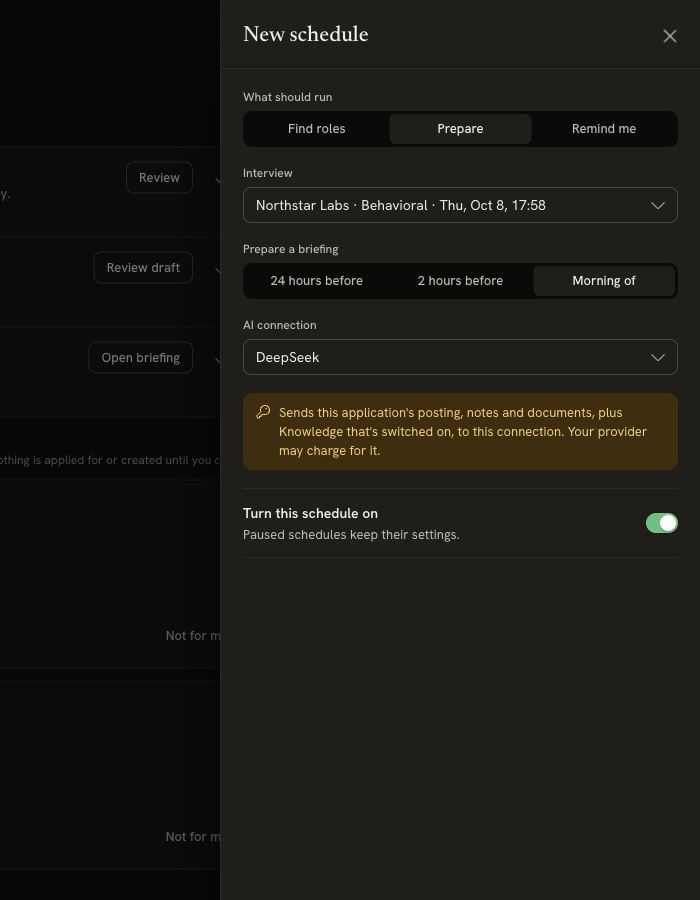
  4. Choose Morning of, check the AI connection, and leave Turn this schedule on enabled.
  5. Select Save schedule.
For a 14:00 interview, Morning of schedules the briefing at 08:00 in your account timezone. For an interview before 10:00, it schedules two hours before the start instead. If the scheduled time has passed when you save, the work becomes due now.
Prepare schedule with a selected interview, 24 hours before, 2 hours before and Morning of choices, an AI connection and Turn this schedule on

Choose Morning of for an interview-day briefing. Check the connection and what the scheduled action sends before saving.

You can choose 24 hours before or 2 hours before instead. The Refresh the briefing 24 hours before switch in Prepare is a shortcut for a 24-hour schedule, not an 08:00 schedule. The browser can be closed. Delivery depends on the installation’s scheduler and a working provider; a due time is not a guarantee of an exact arrival minute. When ready, the notification appears in Today. If it fails, check the notice and schedule troubleshooting.

Read the short briefing

From Today, select Open briefing, or use Prepare → Read briefing. Read four things:
  1. Your focus: What to make clear in this round.
  2. Your opening: A starting point you can put into your own words.
  3. Two stories: Real examples to have ready.
  4. Keep it honest: What is not supported yet and how to handle it.
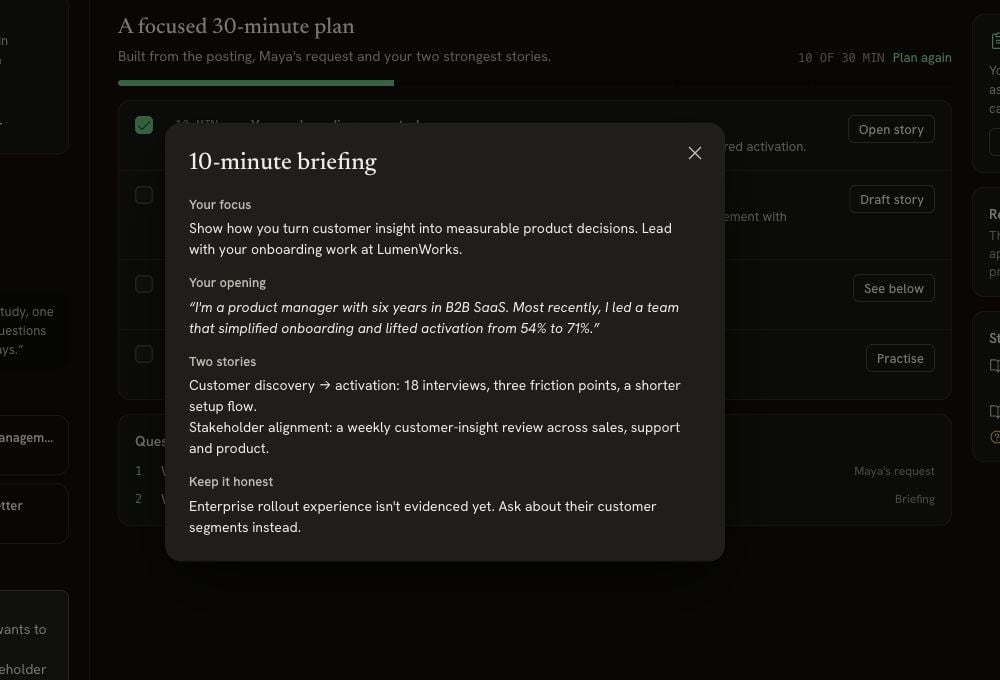
10-minute briefing with Your focus, Your opening, Two stories and Keep it honest, including an enterprise-experience gap

The short briefing includes an opening and stories, then names the evidence gap to keep honest.

Near the interview start, Prepare switches to a short checklist. Saved material can be read without another AI call. Keep your meeting link and the interviewer’s request within reach.

Practise one answer

Open Practise from the plan or workspace tabs. Choose a question and select Hear it to have it read aloud. Opening Practise from a Knowledge story keeps that story selected. Typed answers and corrected transcripts stay in this browser tab through navigation and refresh. Leaving the session stops recording and speech playback.
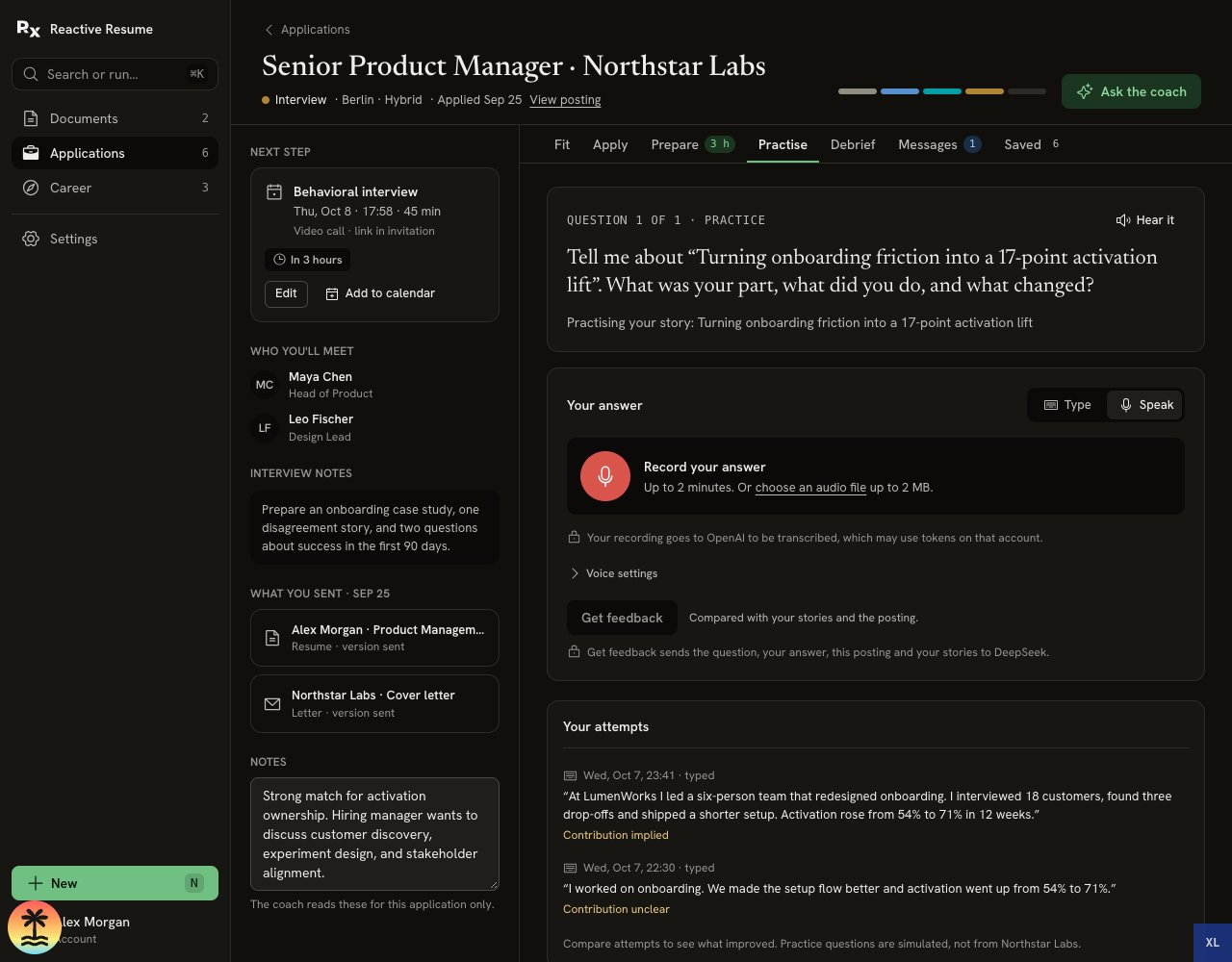
Practise with the selected onboarding story named in its question and a separate Interview notes heading in the application context

Practise carries the selected Knowledge story into its question. Interview notes stay separate from the people you will meet.

  1. Choose Speak, then Record your answer. Allow the microphone if you want to use it.
  2. Answer for up to two minutes, then stop.
  3. Read the transcript and correct anything the transcription got wrong.
  4. Select Get feedback.
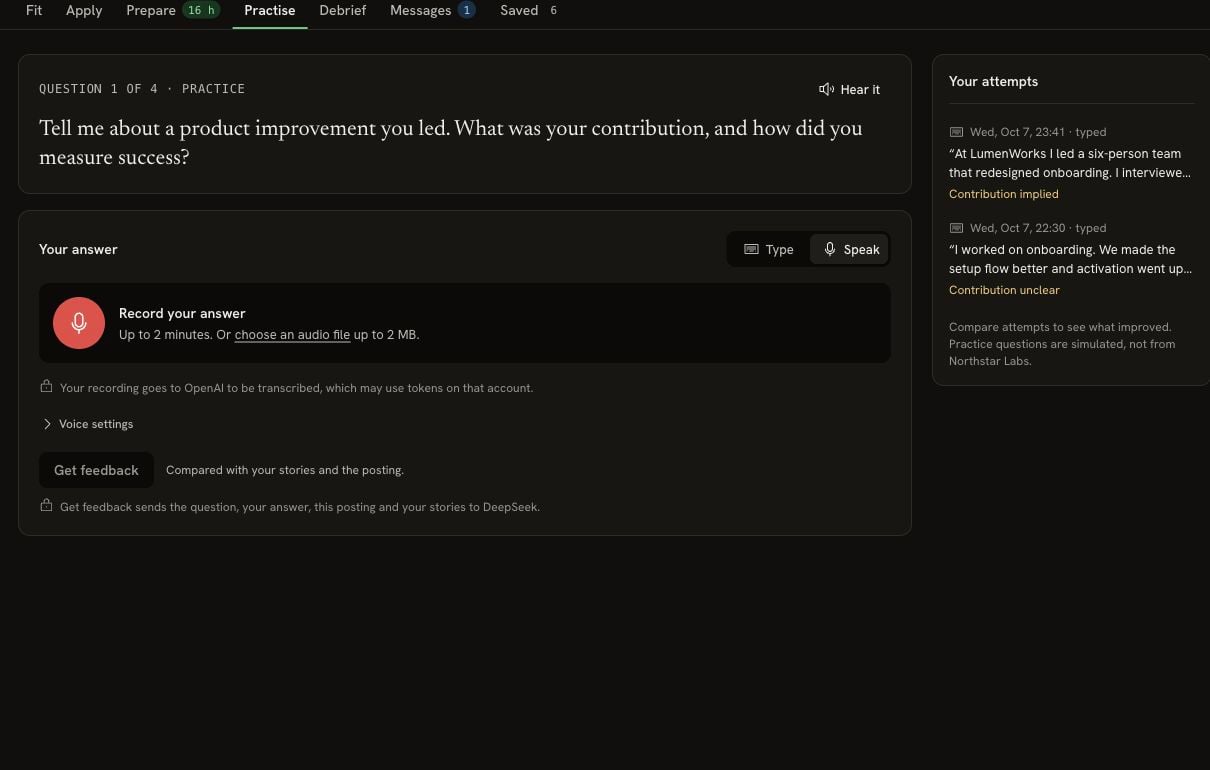
Use Voice settings to choose who reads questions and who transcribes answers. Those can be different connections from the AI that reviews your answer. When no suitable speech connection is available, the app uses browser speech where supported. You can always choose Type instead.
Practise tab in Speak mode with Record your answer, an audio-file option, a two-minute limit, OpenAI transcription notice and Voice settings

Speak lets you record or choose an audio file. The page names the service that transcribes it; getting feedback is a separate action.
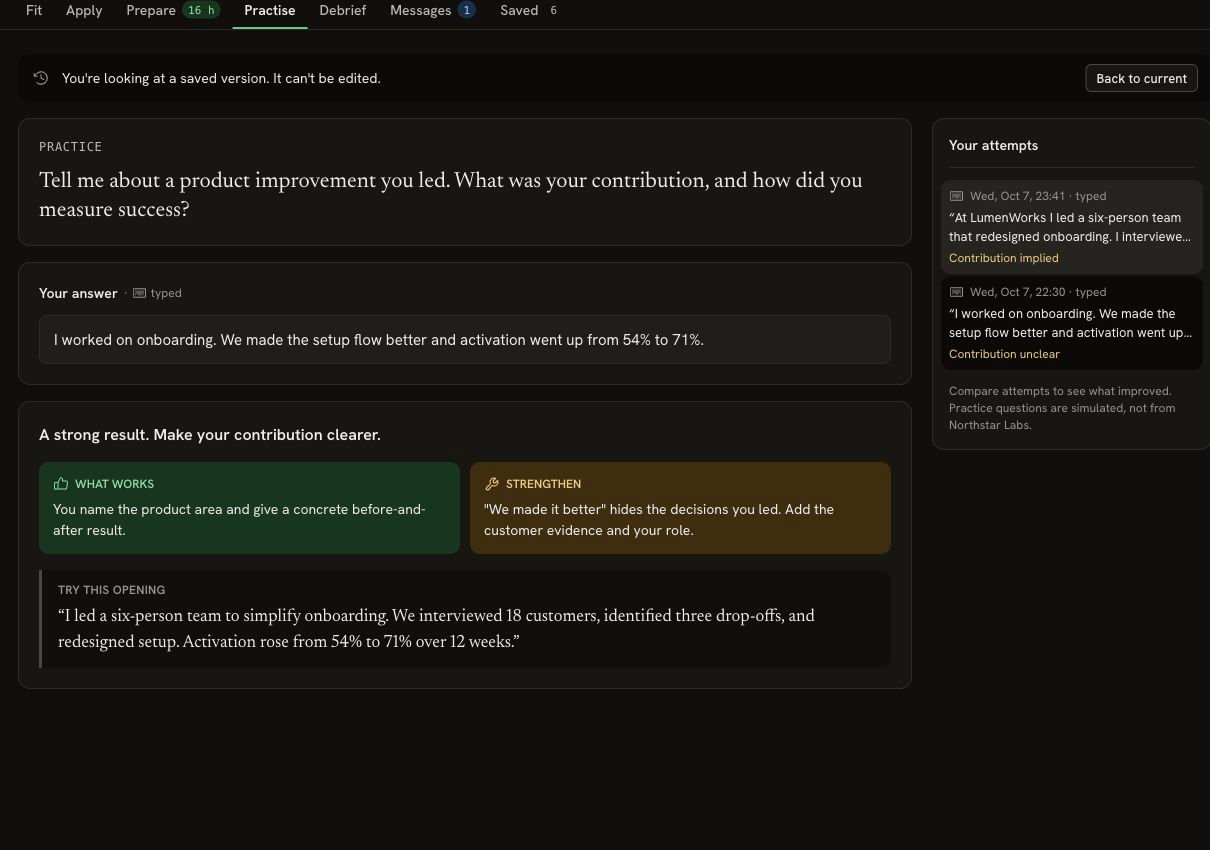
Feedback explains What works, one thing to Strengthen, and an opening to try. Open a previous attempt to compare your answers. Practice questions are simulations; they are not a claim about what this employer will ask.
Saved typed practice answer with feedback on what works, what to strengthen and a suggested opening that explains the applicant's contribution

An earlier attempt shows a concrete improvement: explain your own contribution, not only the team's result.

See Voice limits and data for browser fallback, uploads and recording retention.

Debrief while it is fresh

After the real interview, open Debrief:
  1. Write the question they asked.
  2. Record what you said as closely as you remember it.
  3. Choose Went well, Mixed or Didn’t land for how you felt it landed.
  4. Select Review my answer.
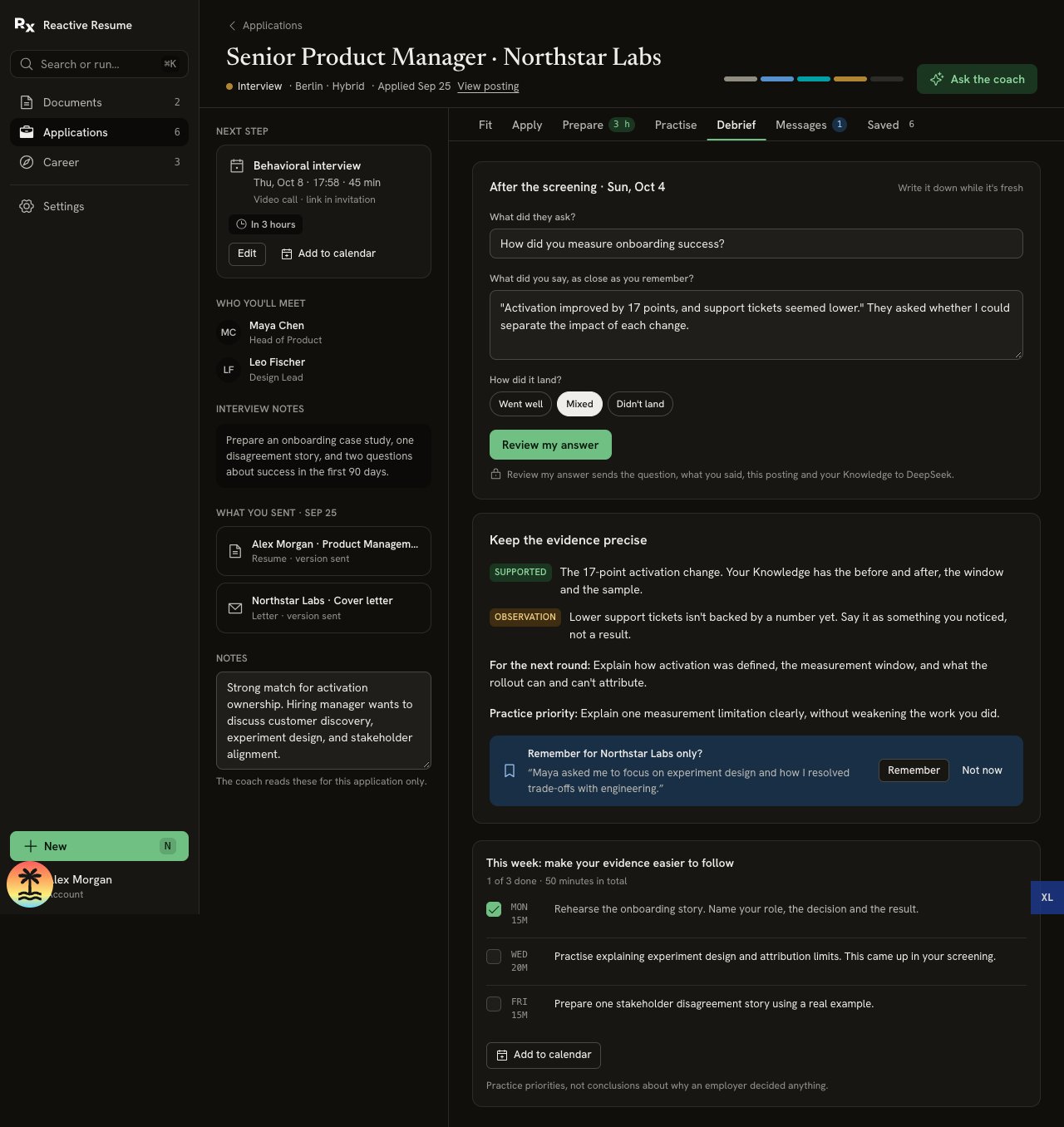
The review separates supported claims from observations and suggests a practice priority for the next round. Recalled questions can feed later practice. Your impression of the interview is not proof of why an employer made a decision.
Debrief form and review with Supported and Observation labels, a practice priority, an application-private memory proposal and a weekly practice plan

Debrief keeps a measured result separate from an observation and offers a detail to remember for this application only.

If the coach offers Remember for this company only?, check the wording before choosing Remember. Follow the light practice plan when useful, or reply to the recruiter when the next message arrives.