

1. Save the job
Open Applications and add an application. Paste the job link or posting text, review the company and role, then save it at Saved. See Adding an application for the import options. Open the application’s details and select Open workspace. The workspace brings together that job’s posting, next step, notes, documents and seven tabs. You can switch tabs whenever you need to. In the native iPhone app, choose Prepare application for a newly saved job. The primary action changes to suit an upcoming interview or a follow-up. Job capture keeps optional fields under More details, so Company and Role are enough to start.2. Add one fact you can support
Open Career → Knowledge → Facts. In the fact input, write one concrete thing you did. Choose its type and select Add. For example, a fictional applicant could write:I interviewed 18 new customers, identified three problems in setup, and worked with design and engineering to shorten the setup flow.Use your own details. If you do not know the outcome, describe the work without inventing a number. Your new fact can be reused across applications.
3. Turn the experience into a story
In Knowledge → Stories, select Add a story. Give it a title you will recognize, then write:- Situation: What was happening?
- Task: What were you responsible for?
- Action: What did you personally do?
- Result: What changed, if you can support it?
- Reflection: What did you learn or what would you do differently?
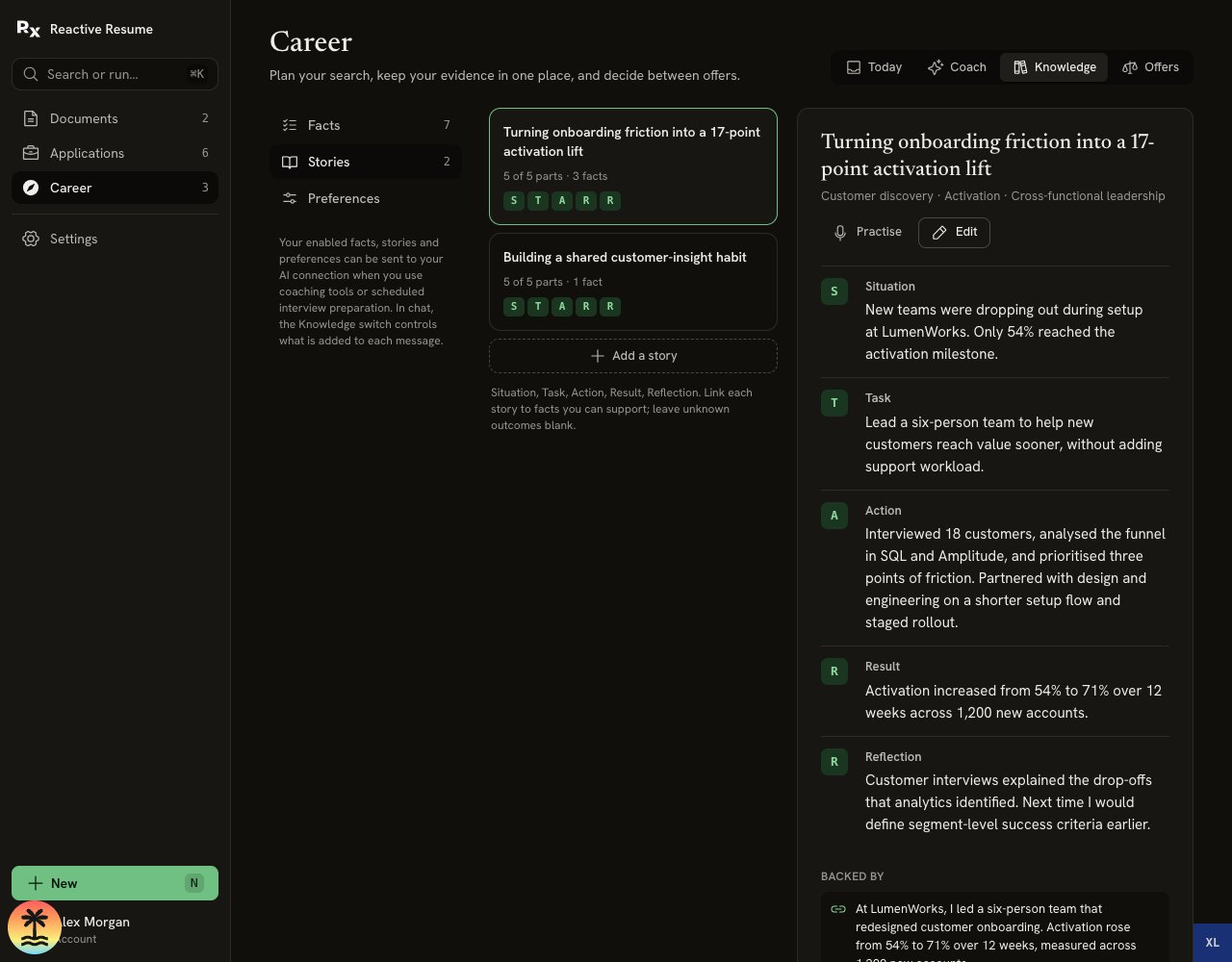
A story keeps the experience and its supporting facts together. The numbers here belong to a fictional example, not a template to copy into your own history.
4. Check the role against your evidence
Return to the application’s workspace and select Fit → Check fit. Read the requirements and their evidence. Find one supported requirement and one that is partly supported or has no evidence yet. If you have relevant experience that you have not recorded, add it. If you have not done it, keep the gap visible. Choose one useful question to ask the recruiter. For example: “Does this role work mainly with small businesses or enterprise customers?” Checking job fit explains the table.5. Prepare one form answer
Open Apply and select Add a question from the form. Paste the employer’s question, including any word or character limit, and finish editing the question. Select Draft. Review the proposed answer and its supporting facts. Choose Accept if it is accurate, or Skip and write your own answer. Change anything that does not sound like you. Select the count beside the question to switch between words and characters. Check the final answer against the employer’s limit.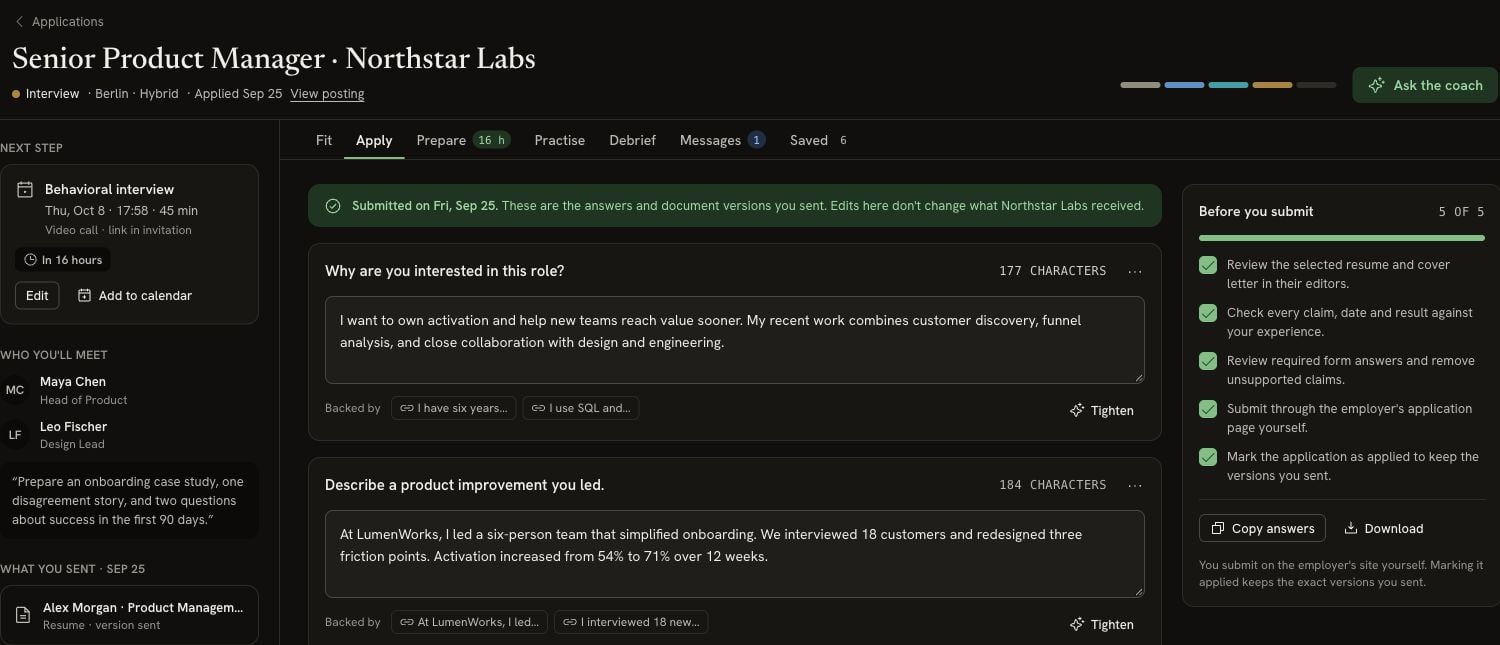
Apply keeps answers, their supporting facts and the submission checklist together. This example has already been submitted and shows character counts.