

Add an application
1
Open the Save a job dialog
In Applications, select Save job. You can also press ⌘ K (Ctrl K
on Windows and Linux) and run New application.
2
Paste the job link or posting
Paste into Job link or posting text. A single web address counts as a link; anything else counts as posting
text. Select Read posting to retrieve a link’s text and any available job details. Reading starts only when you
select the button; you can also save the link without reading it.
3
Check the role and company
Reading may fill Role, Company, Location and Salary. Correct anything that was found, and fill
missing fields yourself. Only Role and Company are required.
4
Pick a stage
Saved is the default. Choose Already applied or Already interviewing only if that happened, then confirm
the application date and select any documents you actually submitted.
5
Add it
Select Save job to open its details, or Record application when recording a submission. Save and prepare
resume also opens the flow for copying a resume for this job; your original stays unchanged. See Tailoring a
resume for a job.
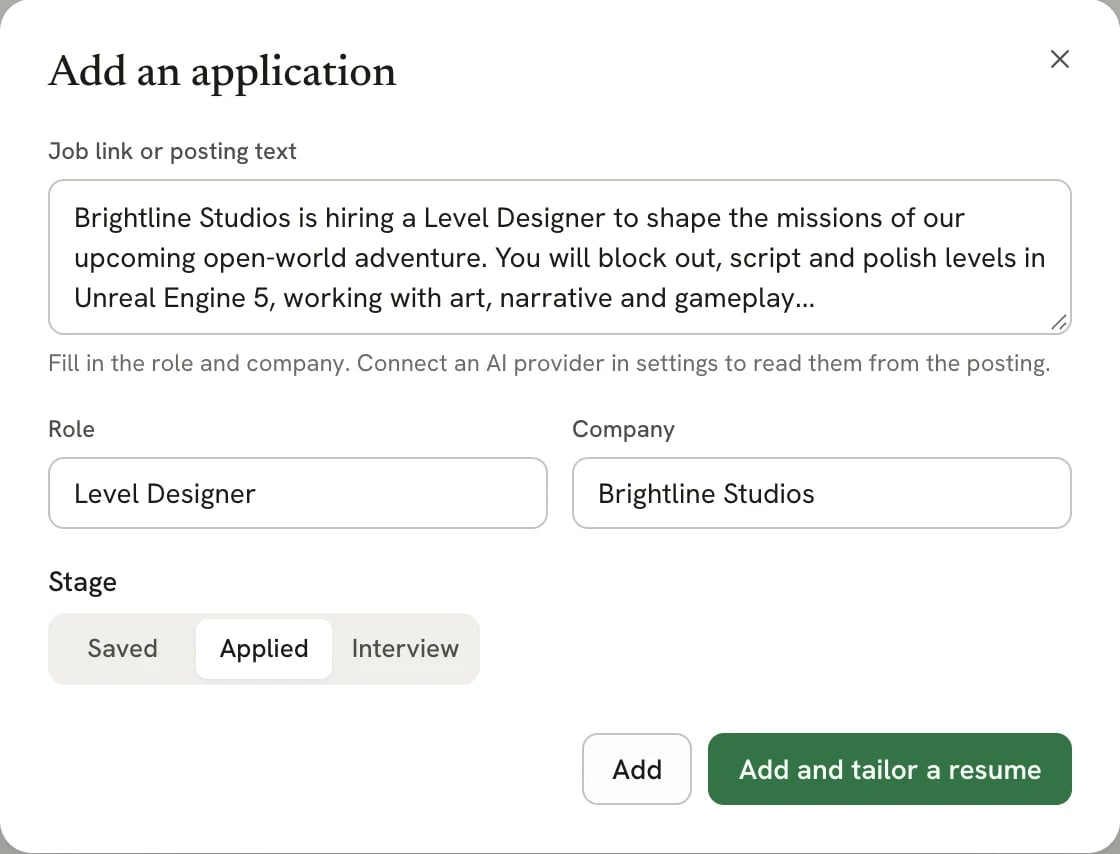
The Add an application dialog with pasted posting text
What gets read from a posting
What Read posting can fill depends on what you paste and whether you already have a usable AI connection:
Pasted text is saved up to 20,000 characters. A link keeps its original address; its description stays empty until you read it or paste text. Review Saved description after reading. If the description is clipped or incomplete, use Paste description instead to replace it before preparing your resume; the original link is retained. Source details such as retrieval time appear when available, and do not guarantee the posting is current.
AI enrichment is optional. If it fails, the retrieved description is retained so you can complete the fields manually.
Only public HTTP(S) pages can be read. If a page requires sign-in or can’t be retrieved, paste its description in
Paste description instead, fill in the role and company, and save. The original link stays with the job.
Add more details
The Add dialog keeps things short on purpose. Once the application is saved, its details sheet opens, where you can add the salary, source, contacts, tags, notes and a follow-up date. To edit everything in one form, including the job posting link, location and linked resume, open the ⋯ menu in the details sheet and select Edit details…. See Managing an application.Other ways to add applications
- From a spreadsheet: import many at once from a CSV file in the web app. See Importing applications from CSV.
- From an AI client: create applications over MCP. See Managing applications with MCP.
Next steps
- Managing an application: move it through stages and keep notes.
- Tailoring a resume for a job: make a version of your resume for this posting.