

Where things live
Application workspace tabs
The initial tab follows the application’s stage and interview timing. Select any tab to work elsewhere. The context column shows the next step, people, documents and notes for the job.
The native iPhone app opens the relevant tab through a task-named action in application details, such as Prepare application or Draft a follow-up. Workspace arrows reveal additional tabs when the strip is wider than the screen. Native Knowledge uses inline Facts, Stories and Preferences choices. Native iPhone controls also explains unsynced recovery and form dismissal.
Saved versions
Generated fit checks, briefings, practice feedback, debriefs and message reviews are saved. Drafted or tightened form answers first need Accept; answers are copied into Saved when recorded through Apply → Mark as applied. Saved lists items newest first and offers filters by type. Removing the last item in a selected type returns the list to All. Open in… opens an earlier version read-only in its tab; Back to current returns to current work. Offer items open in Career → Offers.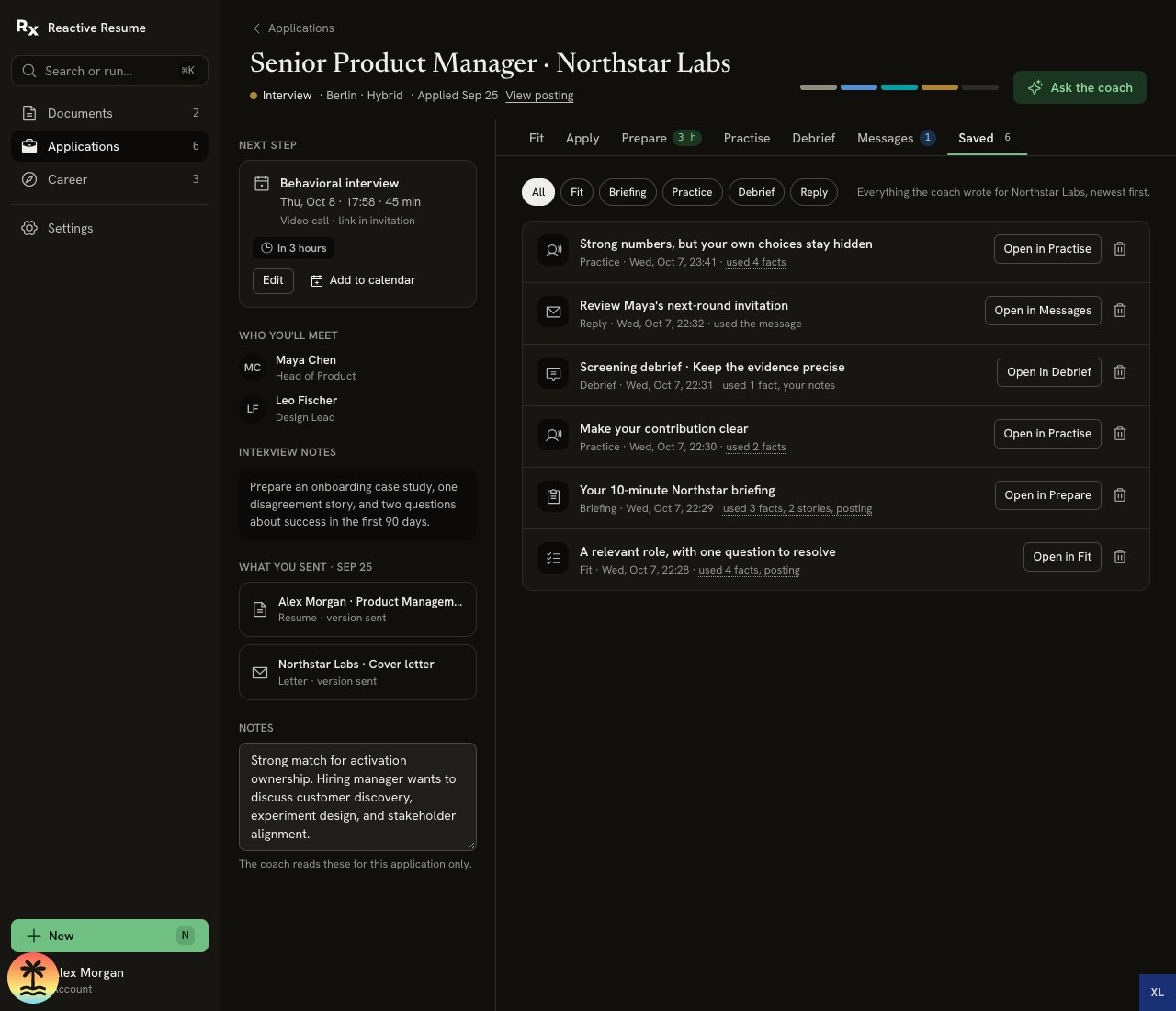
Saved lets you return to earlier work in the tab that created it.
Coach context and AI actions
Ask the coach opens application coaching beside a workspace tab. The coach receives the job and tab context selected for that conversation. You can start another conversation or reopen one from its history. In Career → Coach, context controls include: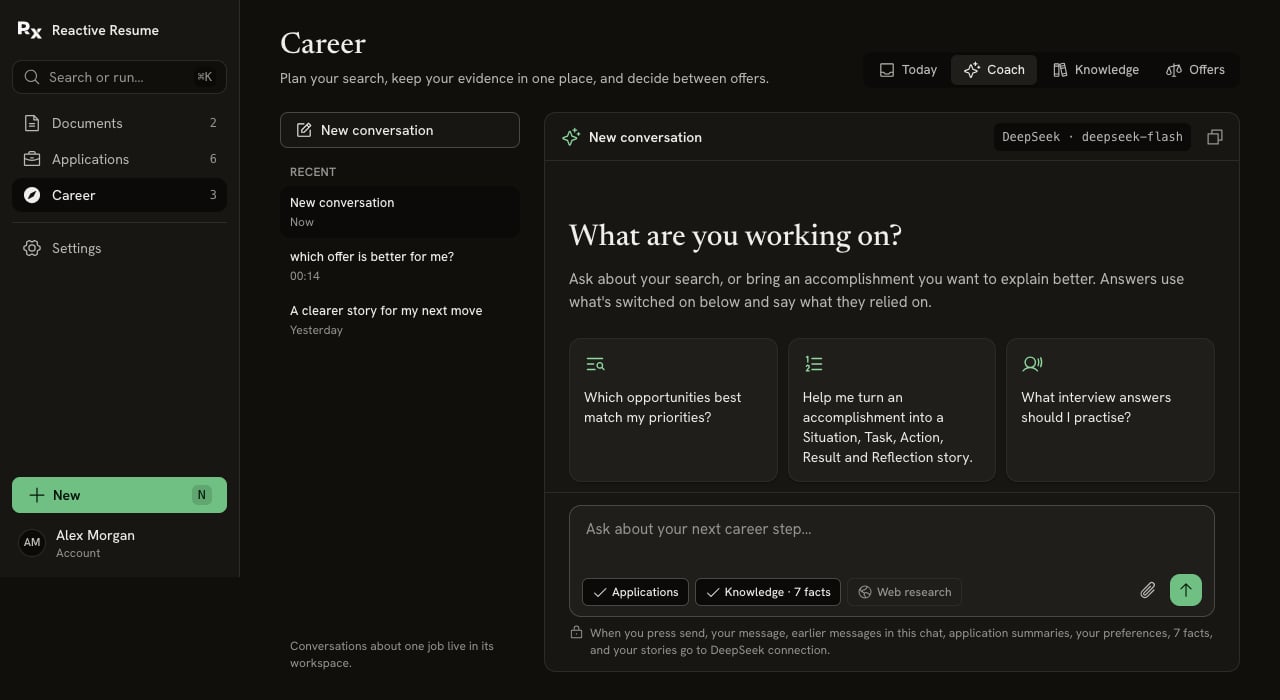
The line below the message explains what the next send includes and which AI connection receives it.
Schedules
Schedules use the account timezone from Settings → Preferences. Morning of means 08:00 on the interview day, or two hours before interviews starting before 10:00. Saving a preparation schedule whose run time has passed makes it due now.
Find roles and other web searches target the countries in Where you’re looking for work under Career → Knowledge → Preferences: up to three, your account timezone’s country until you change it, or none to search anywhere. Untouched UTC accounts adopt the device timezone’s country on their first search or enabled discovery schedule. Each country is a separate search with the web service.
An account can keep up to 100 schedules; delete ones you no longer need to add more. The schedule switch pauses work while keeping settings. Editing the interview moves its briefing schedule. Removing an interview pauses related preparation schedules and produces a notice. Recurring searches keep their local time across daylight-saving changes; missed runs are coalesced rather than all replayed.
Interview and schedule forms reject local times skipped by a daylight-saving change. Choose a valid time in the selected timezone instead of accepting an automatic one-hour shift.
Delivery depends on server scheduling and connections. The browser can be closed. Also email…, when offered, requires a verified account email and email delivery configured by the administrator. Email copies are optional; in-app notices remain in Today.
Self-hosters: see Career scheduling operations. Node/Docker uses a server timer; Vercel and Cloudflare use their native schedulers. Installation limits can delay due work.
Voice
Text feedback uses your selected text AI connection. Reading questions and transcribing answers are separate tasks chosen in Voice settings.
Speech connections may charge separately from text AI. Browser speech does not use your AI-provider account; the browser maker may process audio for dictation. The page names who handles each action. See Practice one answer.
Your data
Undo notices for Career deletions and applied message changes last six seconds. Once committed, deletion is not an ongoing trash or restore feature. Exported copies, previously sent material, provider-retained data and installation backups have their own lifetimes.
Knowledge can support Fit, answers, preparation, practice and message reviews as well as Coach. Each AI action names the selected connection and the context it sends. Facts with coaching switched off, forgotten facts, unsupported stories and stories awaiting correction review are excluded from new context.
Unsent Coach messages, story drafts, practice answers and edited recruiter replies survive navigation and refresh within the same browser tab and signed-in account. Successful sends or saves clear the corresponding draft. Browser storage must be available for refresh recovery.