

Undo and redo
In the resume editor, undo steps back through your changes: typing, adding or deleting entries, moving sections, template and design changes, custom styles, and edits you accept from the Assistant.
These shortcuts undo resume-wide changes when your cursor isn’t in a text field. Inside a field, they undo your typing
in that field. Click outside the field first to undo a change such as a template switch.
Many actions also show a message with an Undo button right after you make them, for example deleting an entry,
switching template, Fit to one page or Reset to template defaults.
How undo behaves:
- Typing groups into one step. Edits to the same field less than a second apart undo together, so one undo removes a phrase rather than a letter.
- Up to 200 steps are kept.
- Undo lasts while the resume is open. Reloading the page or opening the resume again starts a fresh undo history. So does restoring a version, or a change arriving from somewhere else, such as another tab or an API client.
Open History
On a desktop-width window, select the History icon (a clock) in the editor bar, next to the Assistant icon. History opens in the Share & export panel on its History tab. On a narrower window, select Share, then the History tab.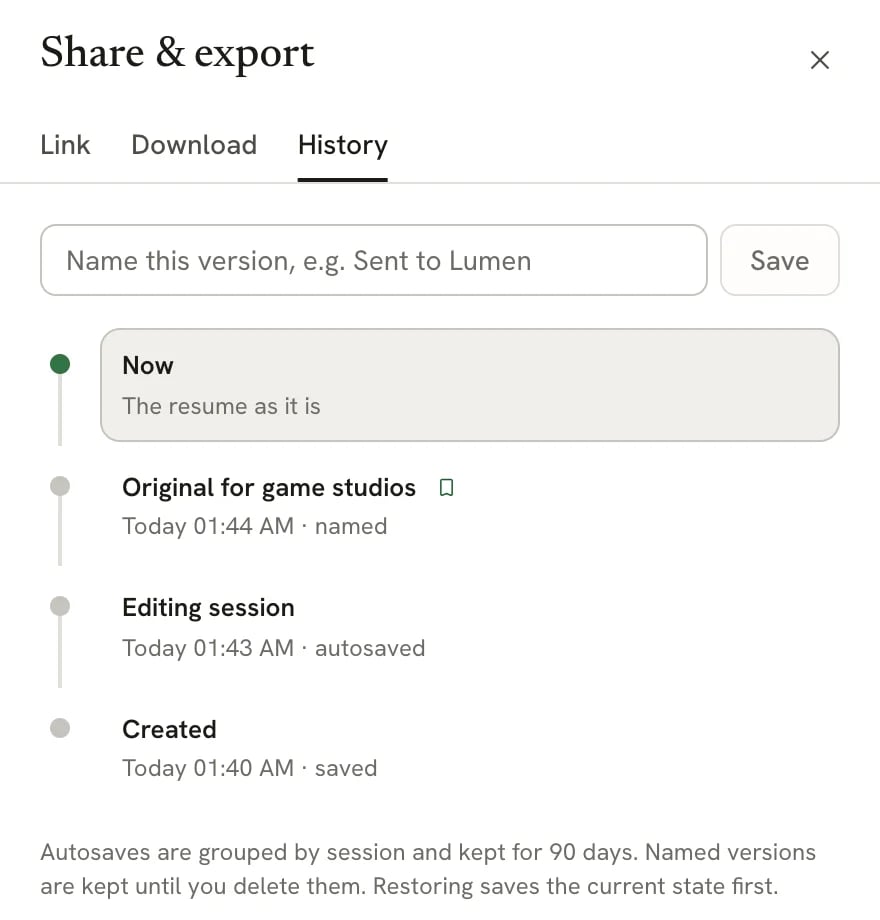
History lists Now at the top, then saved versions from newest to oldest
What gets saved automatically
You don’t need to save anything for History to work. Versions are added when:
Resumes and cover letters both have History. A letter’s versions work the same way; only the kinds that apply to
letters appear.
Save a named version
Name a version before a big change, or when you send the resume somewhere, so it’s easy to find later.1
Open History
Select the History icon, or Share then History.
2
Type a name
In Name this version, type a short name such as “Sent to Lumen” or “Before tailoring” (up to 80 characters).
3
Save
Select Save. The version appears in the timeline with a bookmark icon and the detail “named”.
Preview and restore a version
1
Select a version
Select any version in the timeline. The page shows that version, read-only, and a bar at the top of History says
which version you’re viewing.
2
Restore it, or go back
Select Restore this version to make it your current resume, or Back to now to leave it. Closing the panel
also takes you back to now.
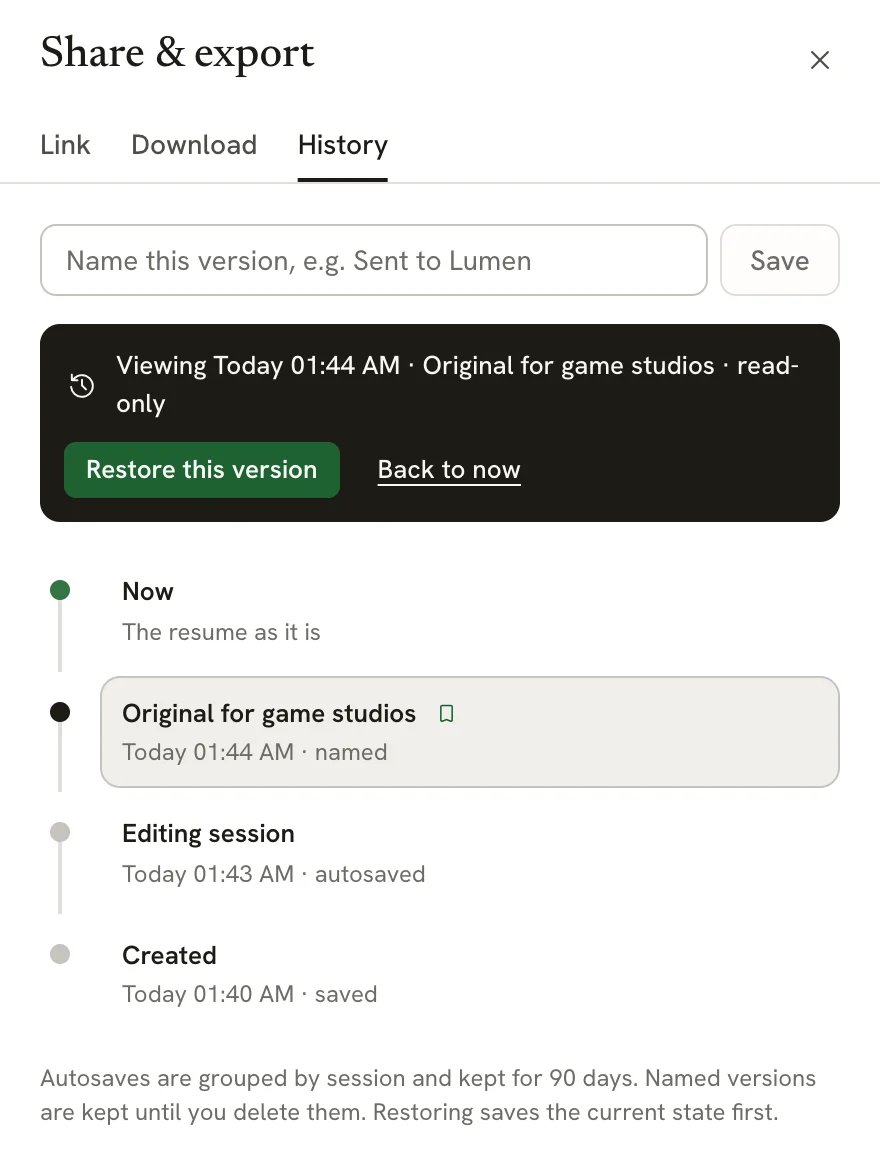
Previewing a named version: the page shows it read-only until you restore it or go back to now
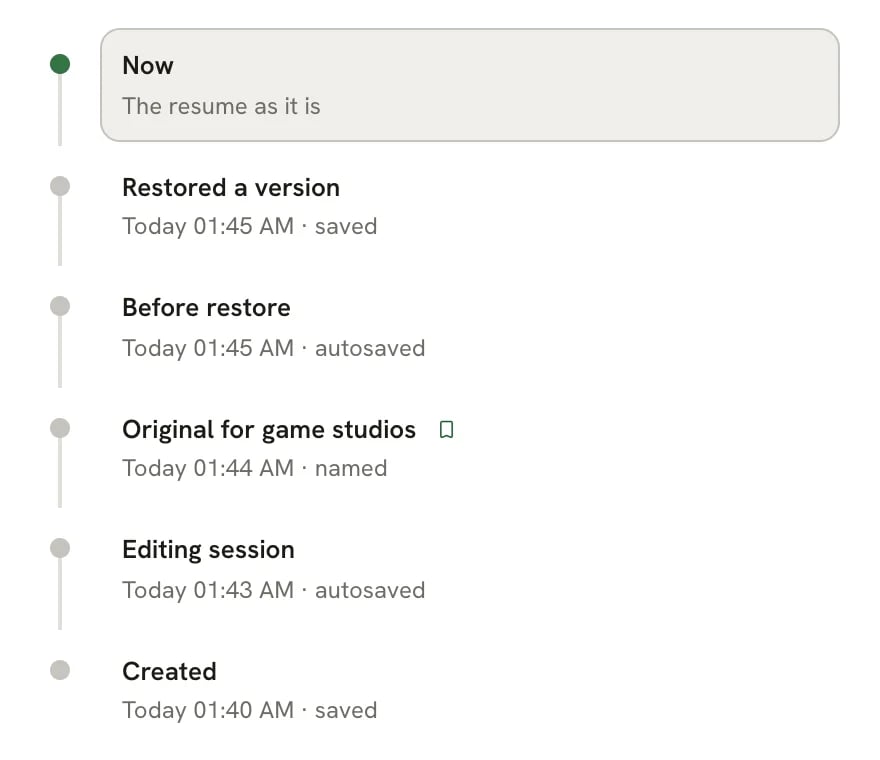
After a restore, the state you replaced is saved as Before restore
Restoring clears the editor’s undo history, so ⌘ Z can’t reverse it. Use Before restore
instead. A locked resume can’t be restored over; select Unlock editing in the document menu first.
Related guides
- Tracking job applications: applications keep the exact version you sent.
- Using the Assistant: accepted edits can be undone like any other change.
- Keyboard shortcuts: every editor shortcut in one place.