

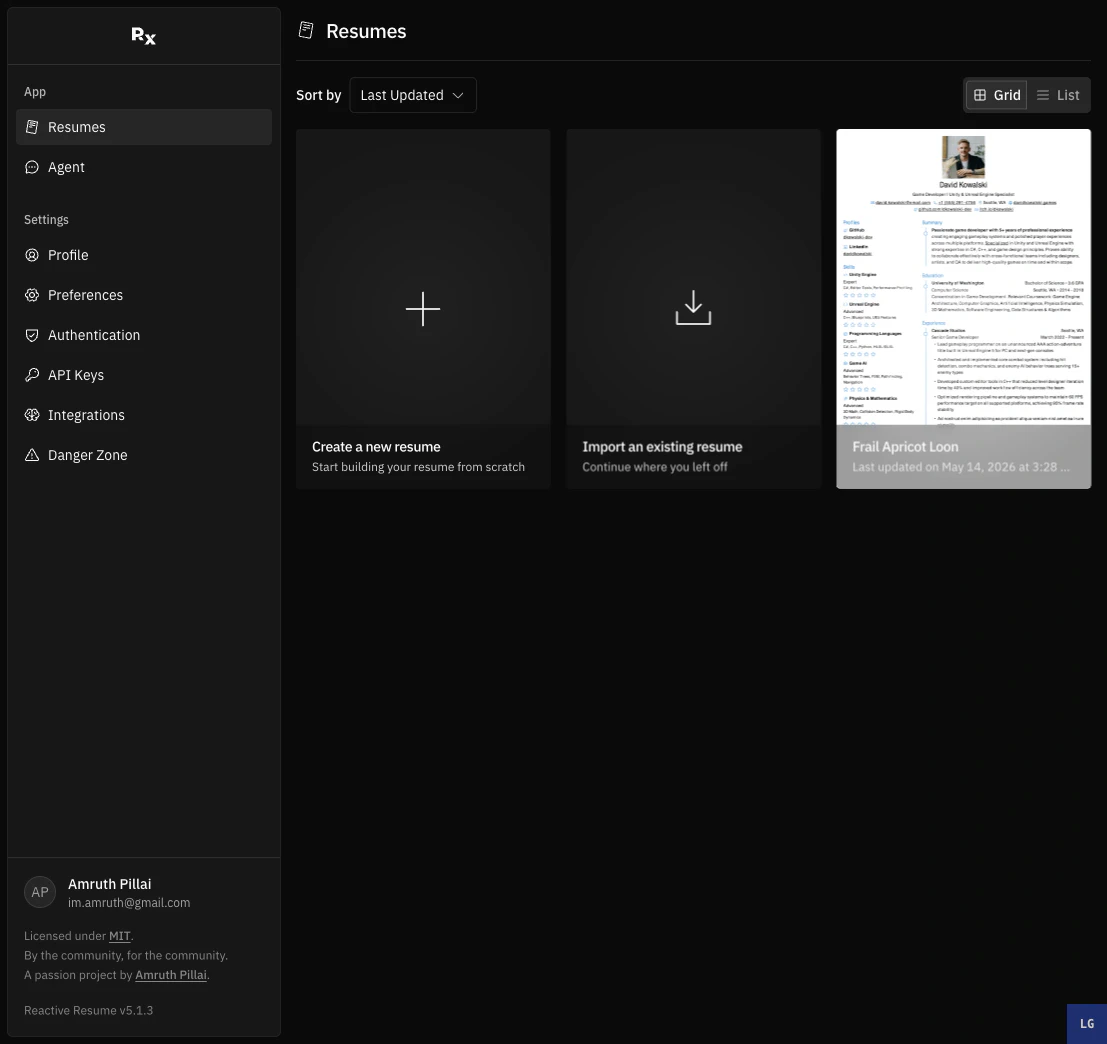
Resumes dashboard in grid view
Search your resumes
Once you have more than a few resumes, a Search field appears above the list. Type any part of a resume name to filter the dashboard in place. You can also open the command palette from anywhere in the app withCmd/Ctrl+K, or by clicking Search in the dashboard sidebar. From there you can jump to a resume, application, or agent thread by name, or run quick actions like New Application and New Thread. Select Resumes, Applications, or Threads to filter results to a single entity type.
Choose a view
The dashboard supports two views:- Grid shows each resume as a card. This is useful when you want a visual overview.
- List shows resumes in rows. This is useful when you have many resumes and want a denser view.
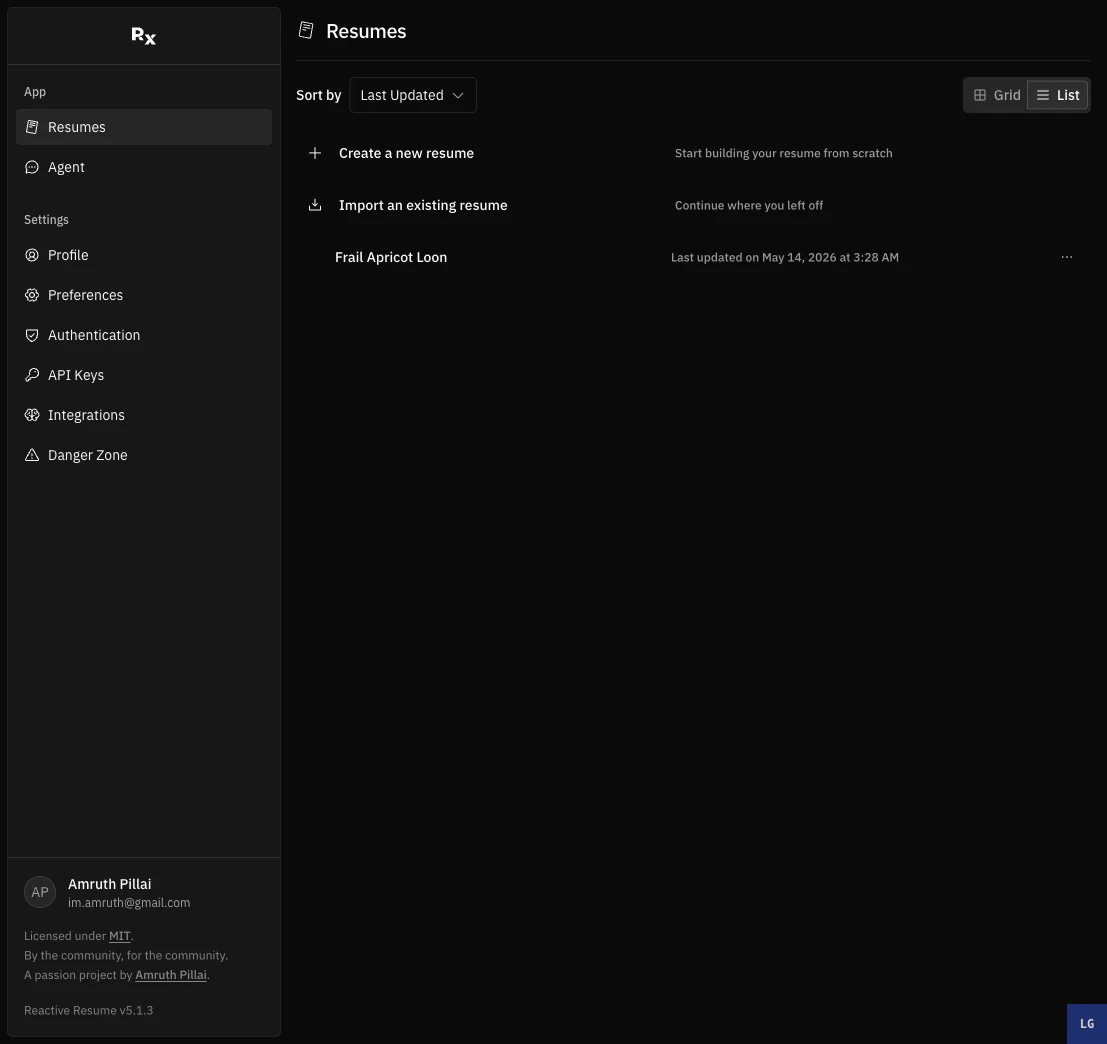
Resumes dashboard in list view
Sort resumes
Use the Sort by menu to change the order of your resumes.Filter by tags
If you add tags to your resumes, the dashboard shows a Filter by menu. Select one or more tags to show only matching resumes. Tags are useful for grouping resumes by:- target role, such as
frontendorproduct; - application status, such as
draftorsent; - market, region, client, or company name.
Open a resume
Click a resume card or row to open it in the builder. You can also open the resume menu and choose Open.After you create or import a resume, Reactive Resume opens it directly in the builder instead of returning you to the
dashboard.
Update name, slug, and tags
Use Update when you want to change a resume’s metadata.1
Open the resume menu
On the dashboard, open the menu for the resume you want to edit.
2
Choose Update
Select Update to open the resume details dialog.
3
Edit the fields
Change the Name, Slug, or Tags.
4
Save changes
Click Save Changes.
Duplicate a resume
Use Duplicate when you want to create a new version without changing the original. The duplicate dialog starts with the same tags, a copied name, and a copied slug. Edit these before saving if you want the new version to be easier to identify. Good reasons to duplicate a resume:- tailoring one resume for a specific job posting;
- keeping a short and long version;
- testing a new template or layout;
- creating a localized version.