

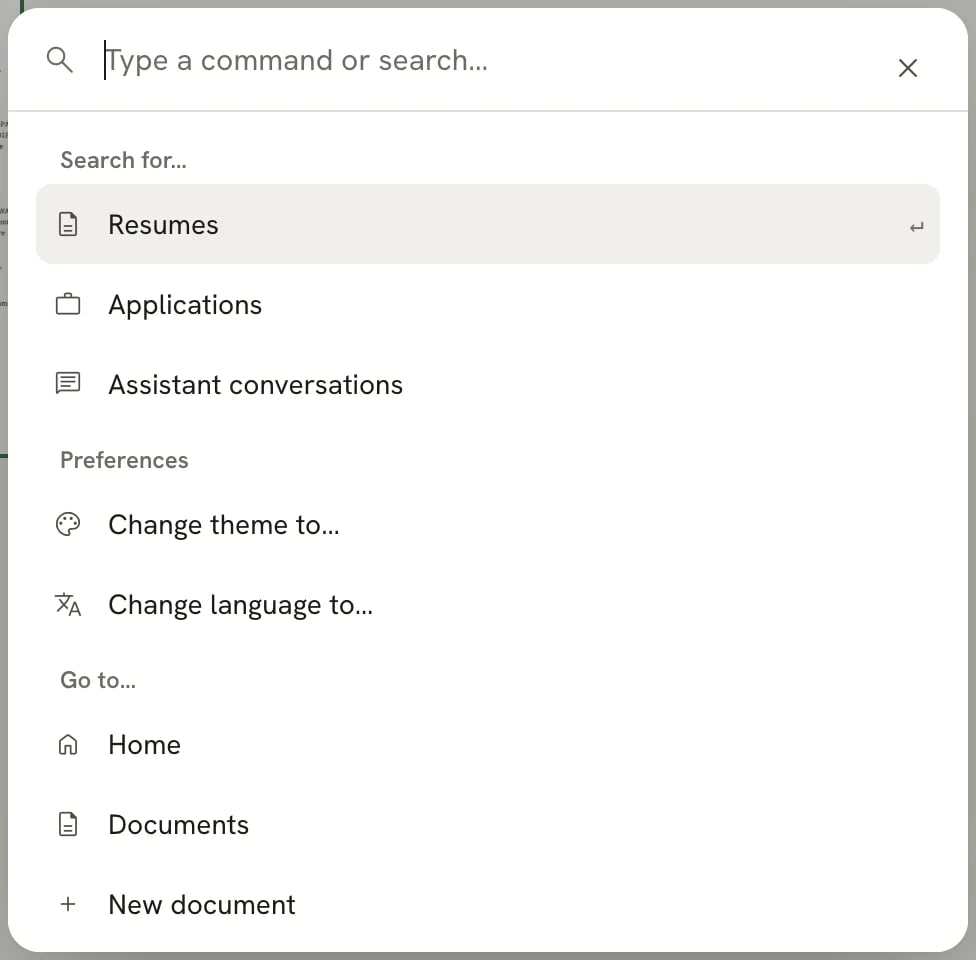
The command bar when it first opens
Open the command bar
Press ⌘ K on a Mac or Ctrl K on Windows and Linux. It works on every page, including inside the editor. On Documents, Applications and Settings, you can also select Search or run… at the top of the sidebar. To close it, press Esc or press ⌘ K again.Run a command
1
Type what you're looking for
Start typing to filter the list. For example, type “theme” to find Change theme to…, or “trash” to find
Trash.
2
Pick a row
Use ↑ and ↓ to move, then press Enter, or select the row with the mouse.
3
Start over if you need to
Some rows open a second list, such as your resumes or the list of languages. To get back to the first list, press
Esc to close the command bar, then open it again.
What you can do
The command bar groups its rows by what they do. Rows that need an account appear or become available once you’re signed in.Search for…
Preferences
Go to…
Ask the assistant
When you’re signed in, anything you type also appears as a last row: Ask the assistant ”…”, with your text in the quotes. Choosing it sends your text to the assistant.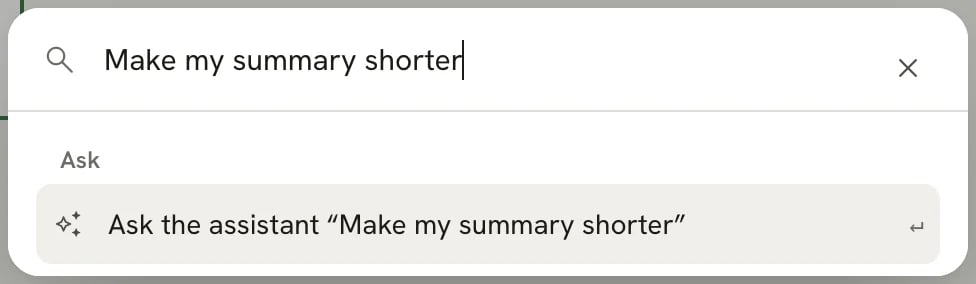
Type a request, then choose the Ask row
- In the editor, the question is about the document you have open. The assistant panel opens and sends it.
- Anywhere else, Reactive Resume opens the document you edited most recently, opens the assistant and sends your question there. If you don’t have any documents yet, it asks you to create a resume first.
Related guides
- Keyboard shortcuts: the shortcuts for Documents, the editor and the assistant.
- Managing documents: search, sort and organize your documents from their own page.
- Changing appearance and language: the same theme and language choices in Settings.