

Set what you are looking for
In Career → Knowledge → Preferences, record target roles, places, minimum base salary, maximum office days and what matters to you. These help explain matches and unknown details. Where you’re looking for work sets the countries web searches target, up to three. It starts with the country of your account timezone, marked From your timezone. If your account is still on UTC and you have never set search countries, your first search or enabled discovery schedule saves the country of your device timezone. Select Add a country to search for more, or remove every country to search anywhere. Use my timezone returns to the automatic country. Enter salary as a full amount, such as 95000, rather than 95k. Invalid shorthand stays visible until corrected. Choose Any for maximum office days when you have no requirement; it clears a previous choice.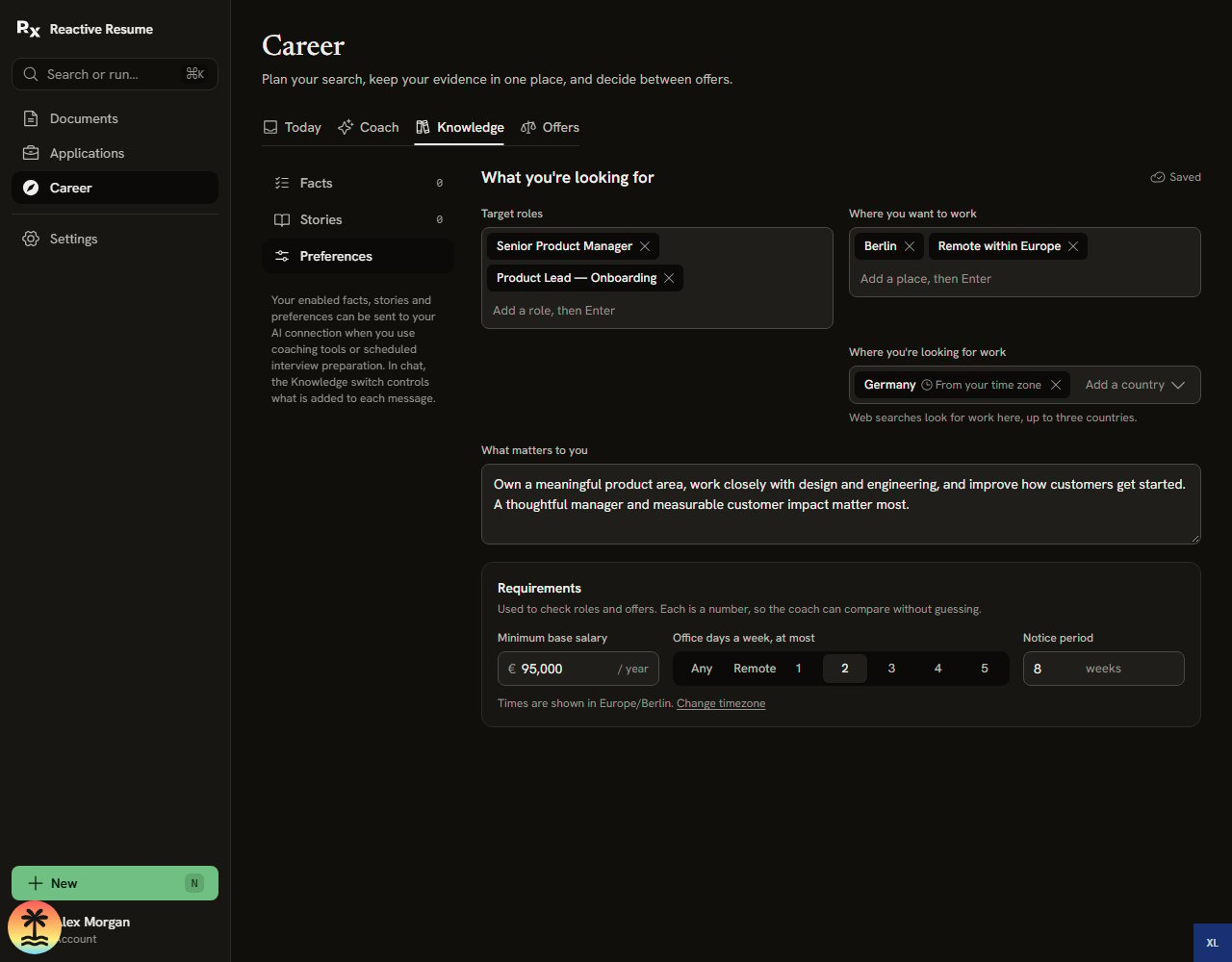
Germany comes from the Europe/Berlin account timezone until you add or remove a country. Salary is a full amount, and this example allows at most two office days.
Schedule the search
- Open Career → Today.
- In Schedules, select Add, then Find roles.
- Edit Look for. It starts from your preferences; include roles, places or companies to focus the search.
- Choose Every day, Every 3 days or Every week.
- Set First run and Time. For morning results, choose a morning time such as 08:00.
- Leave Turn this schedule on enabled and select Save schedule.
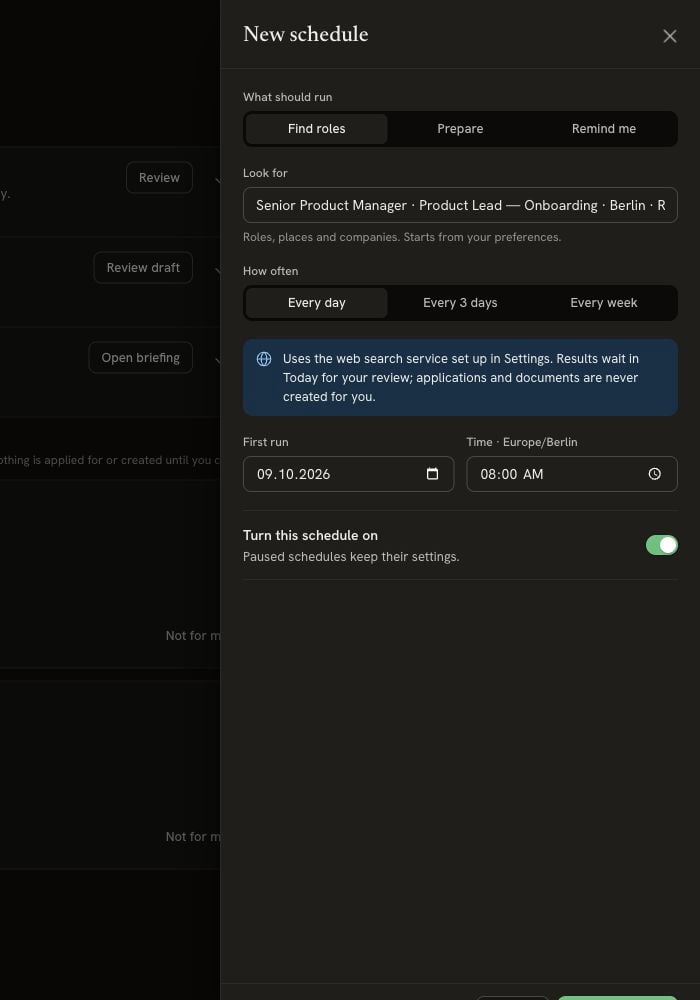
A focused search and a recurring time are enough to start. Results wait for your review; the schedule does not apply for jobs.
Review the roles on Today
When discovery finishes, Needs you tells you there are results to review. Under New roles from your search, each role has a summary, posting link and match details.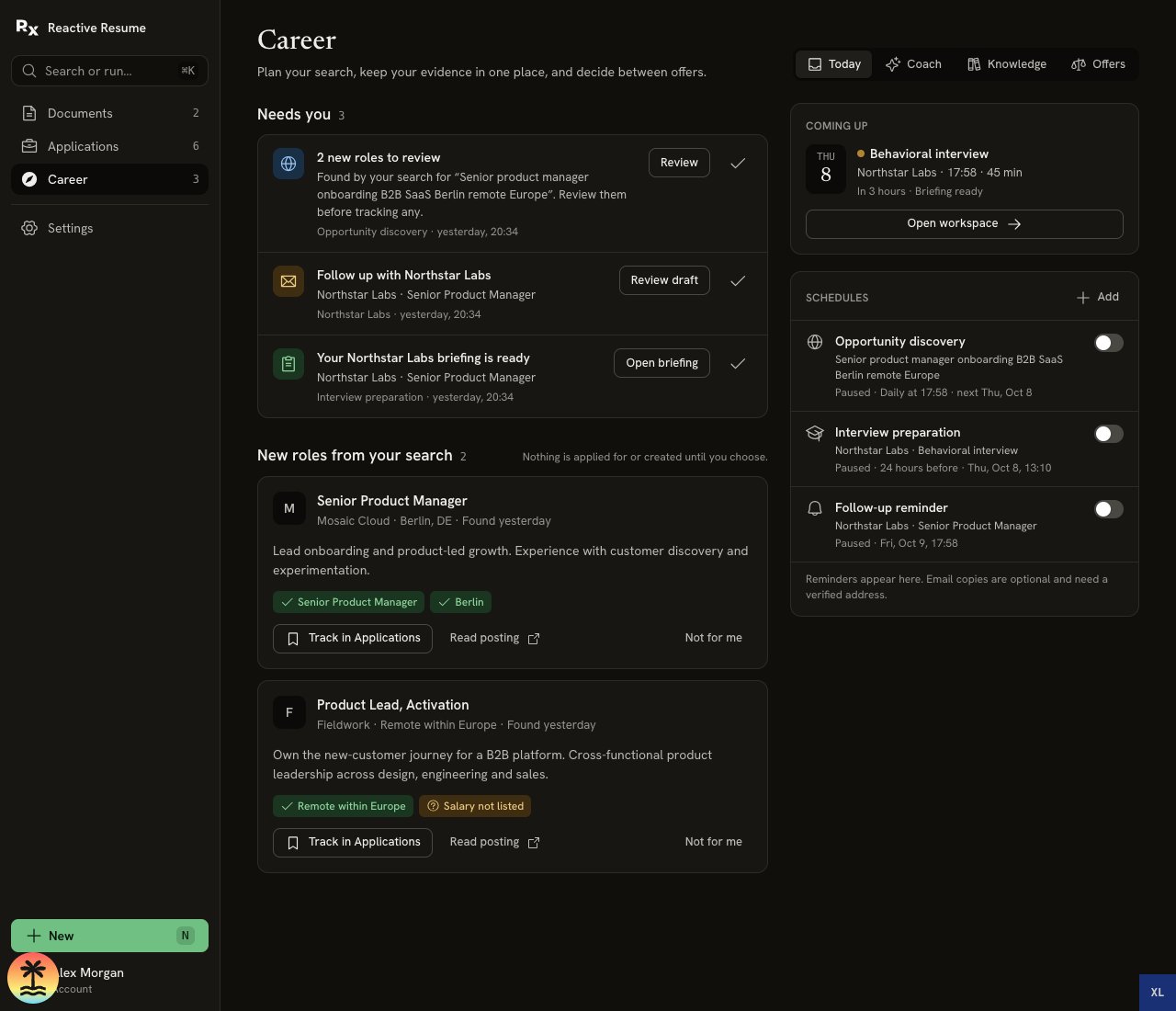
Review discovered roles alongside reminders. This demo shows two roles and paused schedules; unknown salary remains visible.
- Read posting to inspect the job before deciding.
- Track in Applications to create a Saved application with its posting and match notes. This does not submit an application.
- Not for me to dismiss it. Use Undo if you change your mind.