

Documentation Index
Fetch the complete documentation index at: https://docs.rxresu.me/llms.txt
Use this file to discover all available pages before exploring further.
What the Custom CSS section does
The Custom CSS panel lets you write your own CSS rules to change how your resume looks in the live preview (and exports).- Live updates: your changes are applied immediately as you type.
- Auto-save: there is no “Save” button—your CSS is saved automatically when it changes.
- Scoped styling (mostly): to avoid affecting the rest of the app, your CSS is usually scoped to the resume preview.
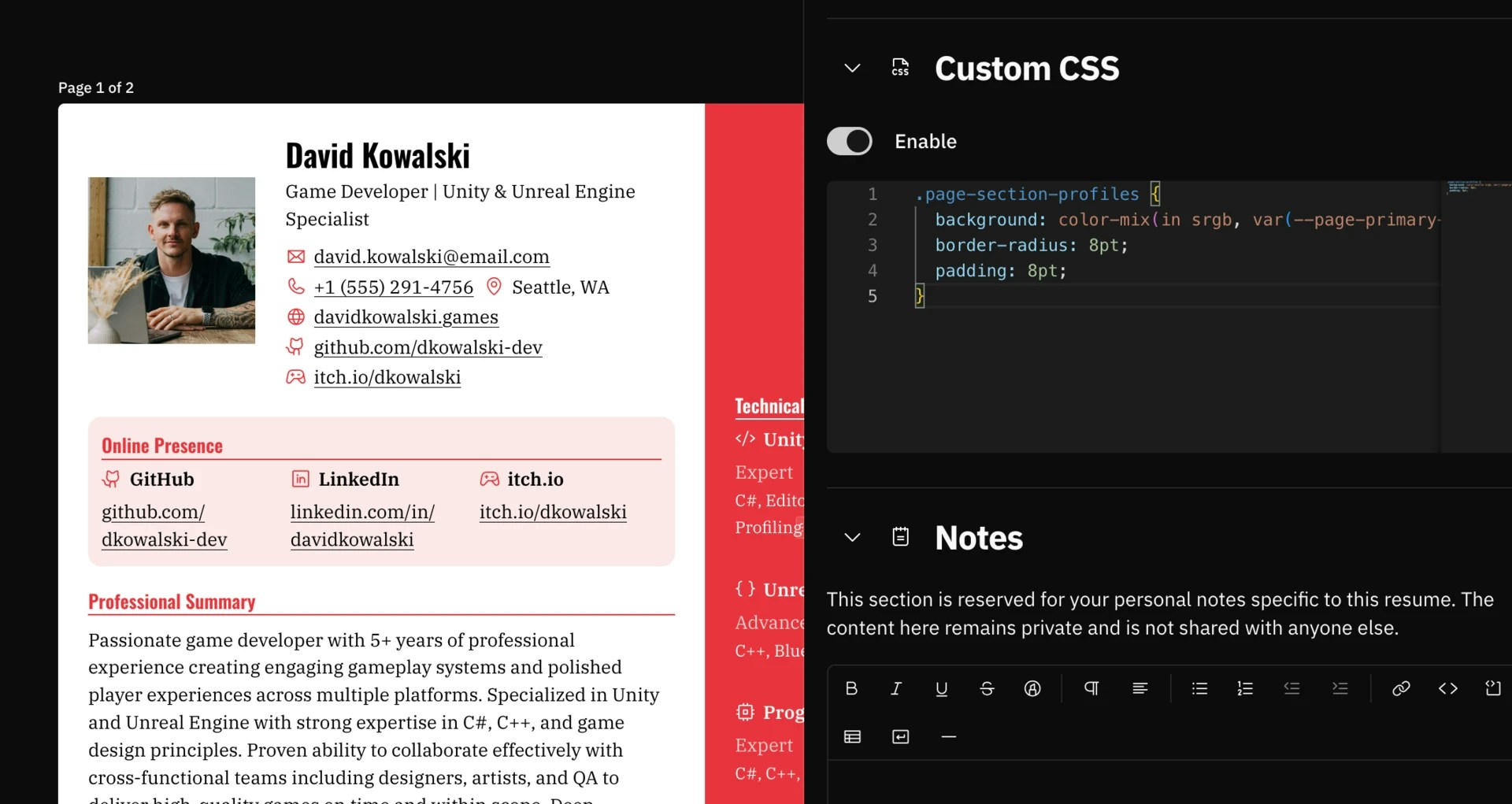
Where to find it
In the resume builder, open the right sidebar and select Custom CSS (theCSS section).
Enable / Disable
- Turn on the Enable switch to apply your CSS.
- Turning it off keeps your CSS saved, but stops applying it.
How scoping works (important)
Your CSS is injected into the preview and most top-level selectors are automatically prefixed with:.resume-preview-container
- Writing
.page { ... }effectively becomes.resume-preview-container .page { ... } - Writing
h2 { ... }becomes.resume-preview-container h2 { ... } - Writing
body { ... }becomes.resume-preview-container body { ... }(which usually matches nothing, becausebodyis not inside the preview container)
Scoping limitation: @media / @supports blocks
Rules that start with at-rules (like @media print { ... }) are not automatically scoped. If you want to keep those rules limited to the resume preview, you should manually prefix selectors inside at-rules with .resume-preview-container.
Example:
Formatting tip (to avoid scoping edge-cases)
Keep each rule’s selector on one line, for example:Finding the right selectors
Use autocomplete in the editor
In the Custom CSS editor, type a. (dot). You’ll get suggestions for commonly-used class selectors, including:
- Page-level:
.page,.page-content,.page-header,.page-basics,.page-main,.page-sidebar,.page-picture - Section-level:
.page-section,.section-content - Section types:
.page-section-experience,.page-section-education,.page-section-projects, etc. - Generic item building blocks:
.section-item,.section-item-header,.section-item-title,.section-item-description,.section-item-metadata,.section-item-website, etc. - Per-section item selectors:
.experience-item,.skills-item,.profiles-item, etc. - Template wrapper:
.template-azurill,.template-onyx,.template-gengar, etc.
Stable “starter selectors”
If you’re not sure where to start, these are usually safe:.page(the resume page container).page-section(each resume section).section-item(each item inside a section).page-picture(profile picture container)
Target a specific template (optional)
To apply styles only on one template, prefix with the template wrapper:Target a specific page (optional)
Each page has a class like.page-0, .page-1, etc.
Target a custom section (optional)
Custom sections include a dynamic class:.page-section-<sectionId>.
<sectionId>, use your browser devtools on the resume preview to inspect the section element.
Useful built-in CSS variables (you can override them)
The preview sets a number of CSS variables you can reuse or override:--page-width,--page-height--page-sidebar-width--page-text-color,--page-primary-color,--page-background-color--page-body-font-family,--page-body-font-size,--page-body-line-height,--page-body-font-weight,--page-body-font-weight-bold--page-heading-font-family,--page-heading-font-size,--page-heading-line-height,--page-heading-font-weight,--page-heading-font-weight-bold--page-margin-x,--page-margin-y--page-gap-x,--page-gap-y
Common examples (copy/paste)
1) Make section headings bolder and more compact
2) Add subtle dividers between sections
3) Reduce the size of metadata (dates/locations)
4) Improve readability of rich-text descriptions (bullets, spacing)
5) Style links like a “chip” (useful for project links)
6) Hide the profile picture (CSS-only)
7) Make the header more compact
8) Make skills look denser (better use of space)
9) Highlight a specific section (example: Profiles)
Troubleshooting
My CSS doesn’t do anything
- Make sure Enable is turned on.
- Prefer targeting
.page,.page-section, and.section-iteminstead ofbody. - Use your browser devtools to inspect the preview and confirm the element/class names.
My @media rules affect the whole app / don’t apply
At-rules aren’t auto-scoped. Prefix selectors inside them with .resume-preview-container as shown above.